Building a Movie Streaming Site with Playposter Theme
Quick answer: Learn how to building a movie streaming site with playposter theme. Practical WordPress tutorial from Themeson.
On this page
Want to build a movie streaming site that updates itself automatically? Playposter Theme makes this possible. In this guide, we’ll walk through the complete setup process—from installation to your first automated movie post.
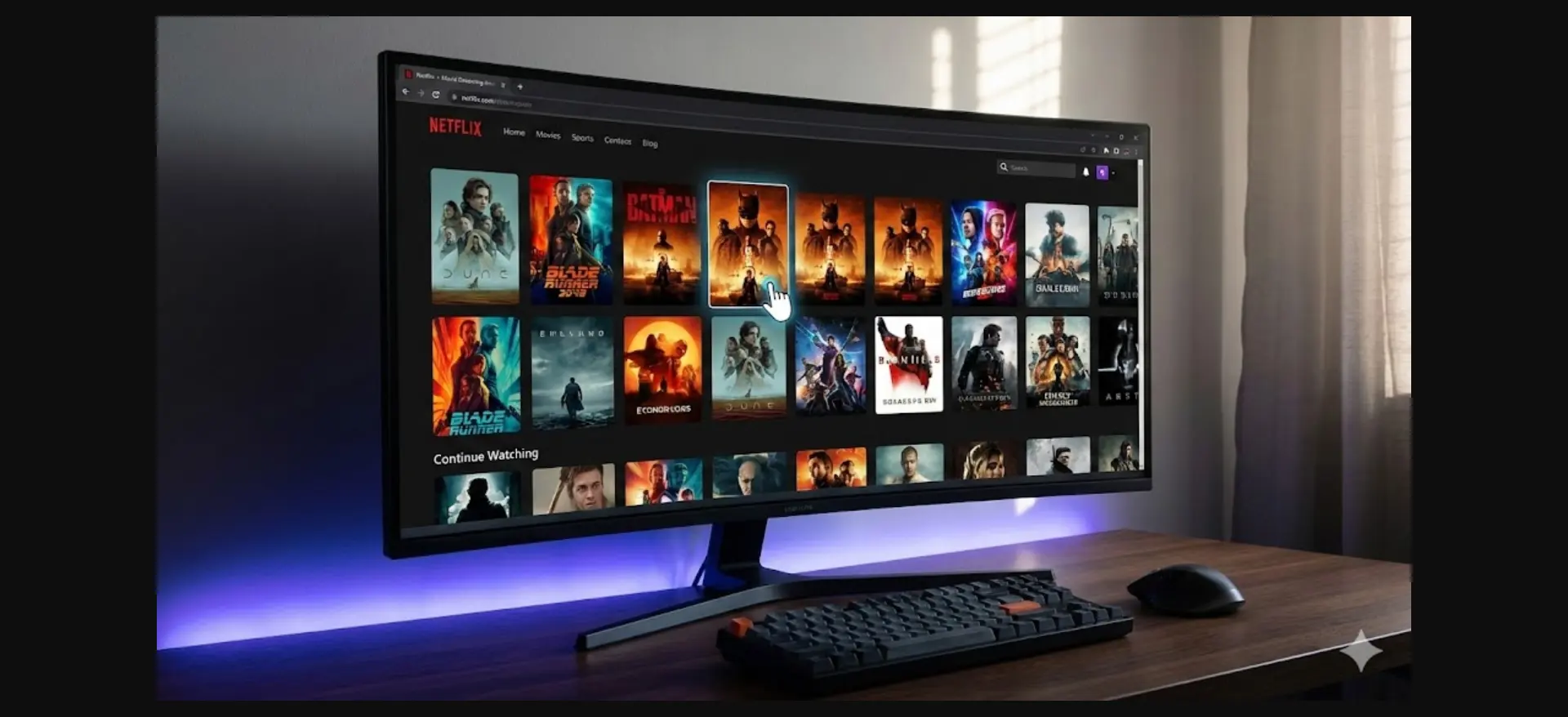
By the end, you’ll have a fully functional movie site that fetches content, creates posts, and displays everything in a Netflix-style layout.
#What You’ll Build
A professional movie streaming site with:
- Automatic movie/TV show data fetching from TMDb
- Netflix-style grid layout with hover effects
- Streaming player integration
- Genre-based categories
- Search functionality
- Mobile-responsive design
All without coding a single line.
#Prerequisites
Before starting, ensure you have:
- WordPress installed (v5.8 or higher)
- Playposter Theme purchased from Themeson
- TMDb API key (free from themoviedb.org)
- Reliable hosting (recommended: VPS with at least 2GB RAM)
- SSL certificate (required for streaming embeds)
#Step 1: Install Playposter Theme
#Upload and Activate
- Log into WordPress admin
- Navigate to Appearance → Themes → Add New
- Click “Upload Theme”
- Select the
playposter-theme.zipfile - Click “Install Now”
- After installation, click “Activate”
#Initial Setup Wizard
Playposter launches a setup wizard on first activation:
Step 1 – License Activation: Enter your license key from Themeson. This enables updates and support.
Step 2 – Site Type Selection: Choose “Movie/TV Streaming Site” from the options. This configures movie-specific post types, genre taxonomies, streaming player settings, and TMDb integration defaults.
Step 3 – Design Preset: Select from pre-built designs:
- Dark Cinema (Netflix-style dark theme)
- Light Modern (clean white design)
- Neon Night (cyberpunk aesthetic)
- Classic Red (traditional movie site look)
For this guide, we’ll use Dark Cinema.
#Step 2: Configure TMDb Integration
#Getting Your API Key
- Visit themoviedb.org
- Create a free account
- Go to Settings → API
- Request an API key (choose “Developer”)
- Copy your API Key (v3 auth)
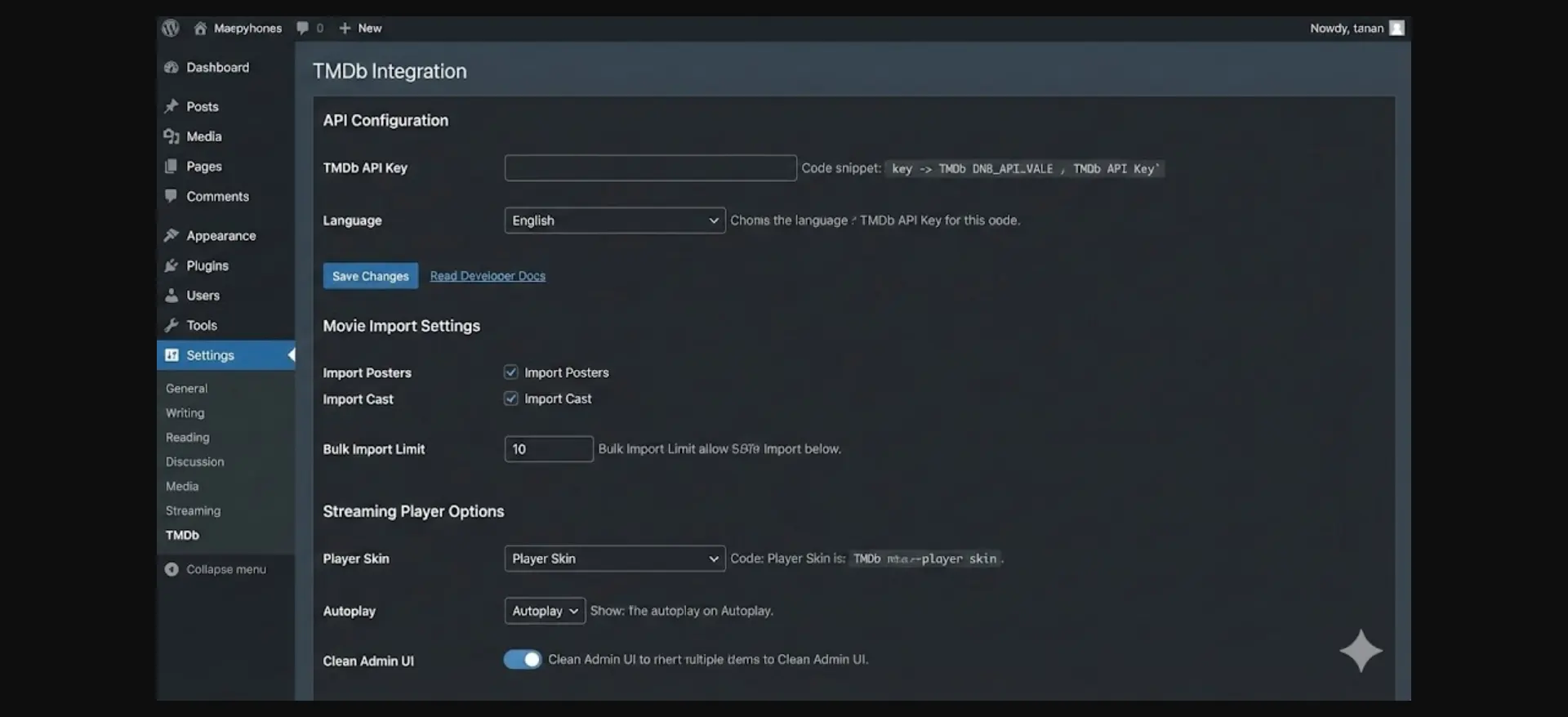
#Connecting to Playposter
Navigate to Playposter → Settings → Data Sources:
- Select “TMDb” as primary source
- Paste your API key
- Click “Verify Connection”
- Configure default language (en-US)
- Set default region for release dates
#Understanding TMDb Limits
Free TMDb API allows:
- 40 requests per 10 seconds
- No daily limit
Playposter automatically handles rate limiting, so you won’t hit errors during bulk imports.
#Step 3: Set Up Content Structure
#Movie Post Type
Playposter creates a custom post type called “Movies” with these auto-filled fields: TMDb ID, Title, Original Title, Release Date, Runtime, Rating, Overview, Poster, Backdrop, Trailer, Genres, Cast, and Director.
#TV Show Post Type
Similar structure with additional fields: Number of seasons, Episode count, Status (Running/Ended), Network (Netflix, HBO, etc.), and Episode list per season.
#Genre Taxonomy
Playposter auto-creates genres as a custom taxonomy: Action, Adventure, Animation, Comedy, Crime, Documentary, Drama, Family, Fantasy, Horror, Mystery, Romance, Science Fiction, Thriller, War.
#Step 4: Configure the Homepage
#Theme Customizer
Go to Appearance → Customize → Homepage Settings:
Hero Section: Enable/disable hero slider, select featured movies, configure slide transition speed, and add custom call-to-action buttons.
Content Rows: Playposter supports Netflix-style content rows like Trending This Week, New Releases, Popular Movies, Top Rated All Time, and Coming Soon.
Grid Layout: Configure columns (4, 5, or 6), poster aspect ratio (2:3 recommended), hover effects (zoom, overlay, info), and lazy loading.
#Step 5: Set Up Auto-Import
#Bulk Import Existing Content
Navigate to Playposter → Import → Bulk Import to import popular movies, movies by genre, or movies by year. Start with 50 pages for approximately 1,000 movies.
#Schedule Automatic Updates
Navigate to Playposter → Auto-Content → Schedule to set up daily imports (morning: new releases, afternoon: trending, evening: upcoming) and weekly tasks for full trending refresh, rating updates, and weekend releases.
#Step 6: Configure Streaming Players
#Embedding Options
Playposter supports multiple streaming embed sources including vidsrc.to and 2embed.org. You can also add custom embed sources.
#Player Configuration
Go to Playposter → Player → Settings to configure display settings, multiple source fallbacks, and legal notice disclaimers.
#Step 7: Optimize for Performance
#Image Optimization
Configure at Playposter → Performance → Images: Set poster max width to 300px, quality to 80%, enable WebP with fallback, and lazy loading.
#Caching Strategy
Recommended cache times: Homepage 1 hour, Movie pages 24 hours, Archive pages 6 hours. Enable object caching with Redis/Memcached for TMDb API responses and rating data.
#Step 8: Launch Checklist
Before going live, verify:
- License activated
- TMDb connected and tested
- 500+ movies imported
- Genres configured
- Homepage rows set up
- Streaming player working
- Mobile layout tested
- SSL enabled
- Legal pages added
- Ads configured
- XML sitemap submitted
#Conclusion
You now have a fully automated movie streaming site powered by Playposter Theme. The combination of TMDb’s comprehensive database and Playposter’s automation means your site stays current without daily manual work.
Key takeaways:
- TMDb integration provides unlimited movie data
- Auto-import keeps content fresh
- Netflix-style design attracts users
- Multiple player sources ensure reliability
- Strategic ad placement drives revenue
Your movie site is ready to compete with established platforms—all running on WordPress.
Need help? Join the Themeson community or contact support at themeson.com
Start Building Your APK Download Site Today
Join 288+ site owners using Playposter to create profitable APK download portals on autopilot. Plugin + theme included — launch in under 30 minutes.