How to Set Up WP Safelink: Complete Beginner’s Guide (2025)
Quick answer: How to Set Up WP Safelink: Complete Beginner's Guide (2025). Step-by-step tutorial with tips for WordPress site owners.

On this page
#Getting Started with WP Safelink: Your Complete Setup Guide
If you’re running a download blog or content site with external links, you’ve probably wondered how to monetize those clicks effectively. WP Safelink setup is your answer—a powerful WordPress plugin that transforms every outbound link into a revenue-generating opportunity through AdSense-optimized intermediate pages.
In this guide, we’ll walk you through the entire WP Safelink installation and configuration process, ensuring you’re up and running in under 30 minutes. If you’re a complete beginner or an experienced WordPress user, these steps will help you maximize your site’s earning potential.
#Why WP Safelink Setup Matters for Your Revenue
Before diving into the technical steps, let’s understand why proper setup is crucial. A correctly configured WP Safelink installation can:
- Multiply your ad impressions by 3-5x per visitor
- Protect your AdSense account from invalid traffic and bot clicks
- Bypass ad blockers to reach 100% of your audience
- Encrypt your links to prevent bypassing and revenue leakage
Publishers who properly configure WP Safelink report average revenue increases of 150-300% within the first month. The key is getting the setup right from day one.
#Step 1: Installing WP Safelink on Your WordPress Site
The installation process is straightforward and follows standard WordPress plugin procedures:
#Upload and Activate
- Download the WP Safelink plugin ZIP file from your Themeson account
- Navigate to WordPress Dashboard → Plugins → Add New
- Click Upload Plugin and select your ZIP file
- Click Install Now and wait for completion
- Click Activate Plugin
Once activated, you’ll see a new “WP Safelink” menu item in your WordPress admin sidebar. This is your control center for all monetization settings.
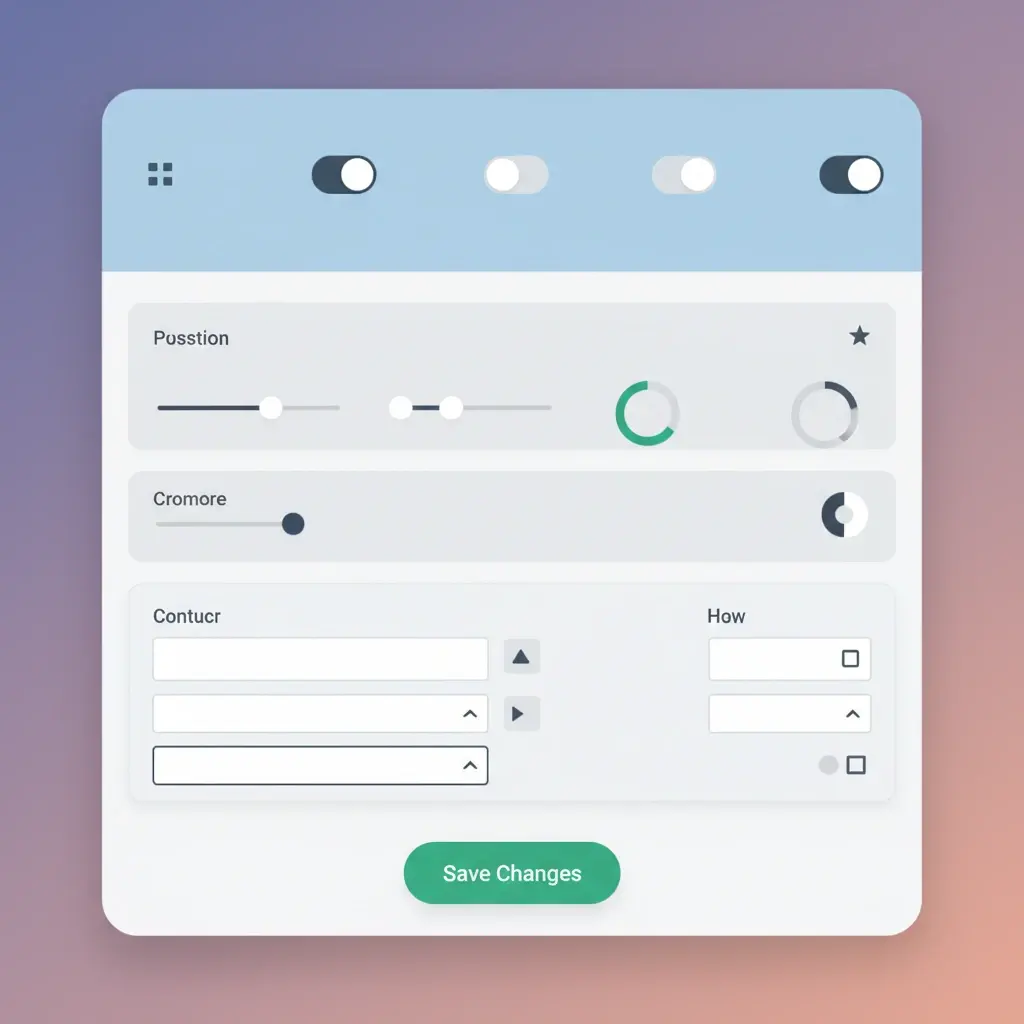

#Step 2: Configuring Basic Settings
After activation, navigate to WP Safelink → Settings to configure the core options:
#General Settings
- Safelink Page URL: Set a custom slug for your redirect pages (e.g., /go/ or /link/)
- Countdown Timer: Configure the delay before the download button appears (recommended: 10-15 seconds)
- Auto Convert: Enable automatic link conversion for hands-free operation
#AdSense Integration
For maximum revenue, properly integrate your AdSense code:
- Go to WP Safelink → Ad Settings
- Paste your AdSense ad unit codes in the designated areas
- Configure ad positions (header, before content, after countdown, sidebar)
- Save changes and verify ads display correctly
#Step 3: Enabling Protection Features
WP Safelink’s protection features are what set it apart from basic link cloaking plugins:
#Anti-Bot Shield
Navigate to Protection → Anti-Bot and enable:
- VPN/Proxy blocking: Prevents non-genuine traffic from triggering ads
- Bot detection: Filters out automated crawlers and scrapers
- Invalid click protection: Shields your AdSense account from suspicious activity
#Anti-Adblock
Enable the Anti-Adblock feature to recover up to 40% of potentially lost revenue from users running ad blockers. The plugin uses sophisticated detection to serve ads even when blockers are active.
#Step 4: Setting Up Multiple Page System (PRO)
If you have WP Safelink PRO, the Multiple Page System is your biggest revenue multiplier:
- Go to PRO Features → Multiple Pages
- Set the number of intermediate pages (recommended: 3)
- Configure unique content for each page
- Place different ad units on each page for variety
This feature turns a single link click into 3-5 page views, dramatically increasing your RPM (Revenue Per Mille).
#Step 5: Testing Your Configuration
Before going live, thoroughly test your setup:
- Create a test post with an external link
- Click the link and verify the safelink page loads correctly
- Confirm the countdown timer functions properly
- Check that ads display in all configured positions
- Test on mobile devices to ensure responsive design
- Verify the final redirect works correctly
#Common Setup Mistakes to Avoid
Even experienced users sometimes make these configuration errors:
- Too short countdown: Setting timers under 5 seconds reduces ad viewability
- Too many ads: Placing more than 3 ad units per page can violate AdSense policies
- Ignoring mobile: Over 60% of traffic is mobile—always test responsive layouts
- Skipping protection: Leaving anti-bot features disabled risks AdSense suspension
#Optimizing Your Safelink Pages for Maximum Revenue
Once the basic setup is complete, consider these optimization strategies:
- A/B test countdown durations: Find the sweet spot between user experience and ad revenue
- Customize page templates: Match your site’s design for brand consistency
- Monitor analytics: Track which links generate the most revenue and optimize accordingly
- Update regularly: Keep the plugin updated for latest features and security patches
#Ready to Transform Your Link Revenue?
With WP Safelink properly configured, you’re now equipped to monetize every external link on your site effectively. The combination of multiple page impressions, anti-adblock technology, and bot protection creates a robust revenue system that works around the clock.
Remember, the key to success is starting with proper setup and continuously optimizing based on your analytics. Most publishers see significant revenue improvements within the first week of implementation.
Ready to get started? Get WP Safelink today and transform your download links into a consistent revenue stream.
Turn your traffic into revenue with WP Safelink
Join 2,000+ publishers monetising every download link since 2017. Use code NEWHOPE for 25% off — from just $9/year.