Installation & Requirements
Quick answer: Installing WP Safelink takes a couple of minutes: upload the plugin ZIP, activate it, and you’re dropped straight into the setup wizard. The one thing to check first is that...
On this page
Installing WP Safelink takes a couple of minutes: upload the plugin ZIP, activate it, and you’re dropped straight into the setup wizard. The one thing to check first is that your server meets the requirements below — WP Safelink is protected with ionCube, so the loader has to be present before the plugin can run.
#Server requirements
WP Safelink runs on modern hosting and needs the ionCube Loader installed. Most quality hosts already provide it; if not, your host can usually enable it in one click from cPanel or by request.
| Requirement | Minimum | Why it’s needed |
|---|---|---|
| WordPress | 6.0 or newer | Block editor and modern REST API support. |
| PHP | 8.3 or newer | WP Safelink uses PHP 8.3 syntax and features. |
| ionCube Loader | 14.0.0 or newer | The plugin core is ionCube-encoded; the loader runs it. |
| MySQL / MariaDB | 5.7+ / 10.3+ | Stores the saved-link statistics table. |
| HTTPS | Recommended | Required for some CAPTCHA providers and AdSense. |
#How to install
- Download the WP Safelink ZIP from your Themeson account after purchase.
- In your WordPress admin, go to Plugins → Add New → Upload Plugin.
- Choose the
wp-safelink-pro.zipfile and click Install Now. - Click Activate. A new WP Safelink menu appears in your admin sidebar.
- Because no license is active yet, WP Safelink sends you straight to the Setup Wizard to finish configuration.
#What it looks like after activation
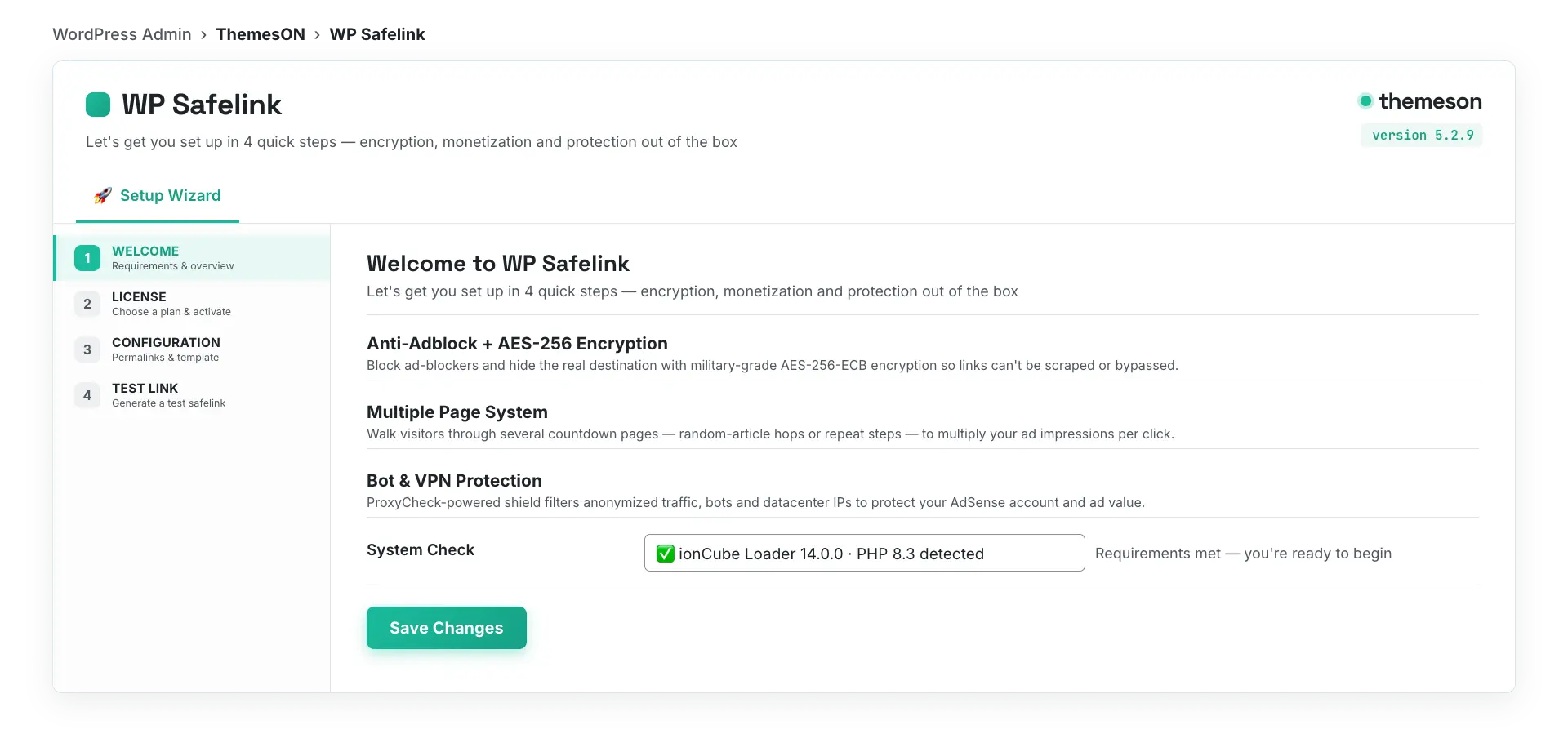
#If ionCube is missing
If the ionCube Loader isn’t installed, WP Safelink can’t run its encrypted core. The wizard shows a requirements screen and the Let’s Get Started button stays disabled until ionCube and PHP 8.3+ are both detected. The fix is almost always on the host side:
- Open your hosting control panel (cPanel) and look for a PHP version or Select PHP Extensions tool, then enable ionCube.
- Confirm your active PHP version is 8.3 or newer.
- If you can’t find the option, ask your host to “enable the ionCube Loader for PHP 8.3” — it’s a standard request.
💡 Note: ionCube is what keeps the plugin secure and license-protected. It does not slow your site down. Once the loader is active, deactivate and reactivate WP Safelink (or just reload the wizard) and the requirement check will turn green. Next step: Activating Your License.