Licensing & Activation
Quick answer: AdSafelink is licensed as part of WP Safelink Pro. There is no separate AdSafelink product to buy: if you own a qualifying WP Safelink Pro license, that same license key...
On this page
AdSafelink is licensed as part of WP Safelink Pro. There is no separate AdSafelink product to buy: if you own a qualifying WP Safelink Pro license, that same license key activates AdSafelink on your install. This page explains how the bundled license works, how to activate it from the admin panel, what each license state means, and how to recover if a check fails.
If you have not installed AdSafelink yet, start with the installation guide — the install wizard includes a license step, and the steps below are the same thing you can return to at any time from the admin panel.
#How bundled licensing works
AdSafelink does not have its own price tag or its own license key. Instead, it is bundled with WP Safelink Pro. Owning any of these WP Safelink Pro tiers automatically entitles you to run AdSafelink:
| WP Safelink Pro tier | Entitles AdSafelink? |
|---|---|
| Pro | Yes |
| Agency | Yes |
| Lifetime | Yes |
To activate AdSafelink you simply paste your WP Safelink Pro license key — the very same key you use for WP Safelink Pro — into the AdSafelink admin panel. AdSafelink checks that key against the central license server, confirms it is one of the qualifying tiers, and unlocks AdSafelink’s premium features. You do not need to buy, generate, or manage a second key.
This means you can run WP Safelink Pro on your WordPress site and AdSafelink on your shortener install using a single license you already own.
#Activating your license
License activation lives in the admin panel under Settings → License. The screen has one field — your license key — and a status banner that tells you exactly where you stand.
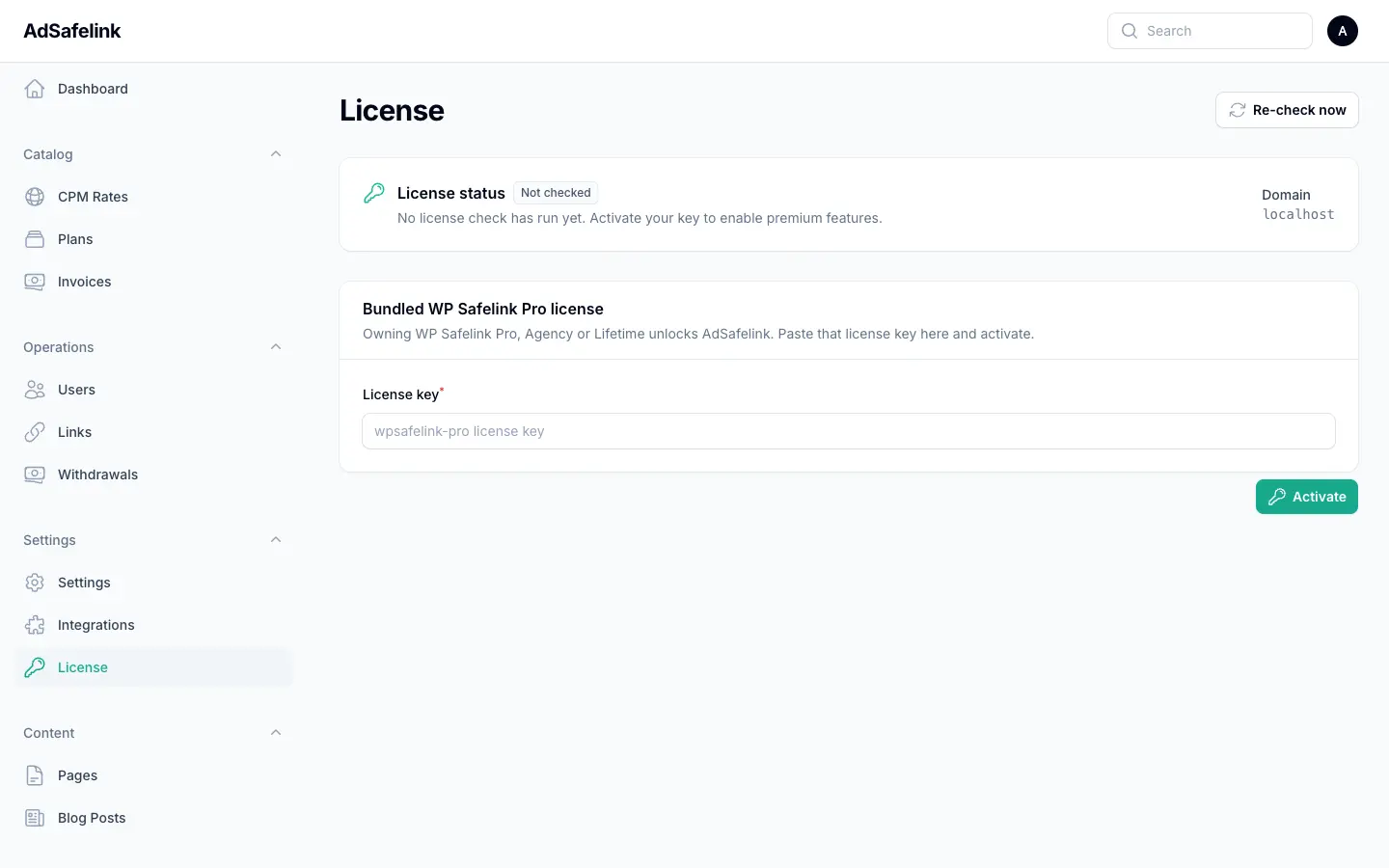
To activate:
- In the AdSafelink admin panel, open License (under the Settings group in the navigation).
- Paste your WP Safelink Pro license key into the License key field.
- Click Activate.
AdSafelink saves the key, contacts the license server, and validates it against your install’s domain. On success you will see an Active banner and a confirmation that premium features are now enabled. If the check fails, the banner explains why and you can correct the key and try again.
You can do this during first-run setup (the install wizard includes the same license step) or at any time afterward from the admin panel. To switch to a different key later, just paste the new key over the old one and click Activate again — the previous validation is cleared and the new key is checked from scratch.
#What activation requires
- A valid WP Safelink Pro Pro, Agency, or Lifetime license key.
- Your AdSafelink install must be able to reach the license server over the internet to complete the first validation.
- The license is checked against your install’s domain (see below), so activate on the domain where AdSafelink actually runs.
#License states explained
AdSafelink does not just check your license once and forget about it. It re-validates on a schedule and tracks one of four states. The License screen always shows your current state with a colored banner so you know at a glance whether premium features are enabled.
| State | What it means | Premium features |
|---|---|---|
| Active | Your last license check succeeded. The key is valid for your domain and is a qualifying tier. | Enabled |
| Grace period | A recent check could not reach or confirm the license server, but a successful check happened within the last 7 days. AdSafelink keeps working while it retries. | Enabled (with a warning) |
| Degraded | The license has not been successfully verified for 7 days or more (or has never been verified). Premium features are switched off until a check succeeds again. | Disabled |
| Not checked | No license check has run yet on this install. Activate your key to move to Active. | — |
#The grace period
The grace period exists so that a brief, temporary problem — the license server being momentarily unreachable, a short network blip on your host, or a passing outage — does not take your site down. If AdSafelink had a successful check at some point in the recent past, it will keep premium features running for up to about 7 days while it keeps trying to re-verify in the background.
During grace, the banner shows how many days remain, for example: “License could not be re-verified. Features will continue working for N more day(s).” As long as a fresh check succeeds before the window closes, you return to Active automatically and the countdown resets. You do not need to do anything during a short blip; the grace period is designed to ride it out for you.
#The degraded state
If the license cannot be verified for the full 7-day window — or if it was never successfully verified in the first place — AdSafelink moves to degraded and disables premium features. The banner tells you how long the license has gone unverified, for example: “License could not be verified for N days. Premium features disabled.”
Degraded is recoverable. As soon as a check succeeds again — because connectivity is restored, or because you paste a valid key — the state returns to Active and premium features come back. See the troubleshooting section below.
#Re-check now
AdSafelink re-validates your license automatically about twice a day in the background, so the state stays current without any action from you. But you do not have to wait for the next scheduled check.
On the License screen there is a Re-check now button (in the page header). Clicking it forces an immediate validation against the license server and updates the state on the spot. Use it when:
- You just fixed a connectivity or DNS issue and want to clear a grace or degraded state right away.
- You just upgraded or changed your WP Safelink Pro license and want AdSafelink to pick it up immediately.
- You want to confirm everything is healthy after activating, moving, or changing domains.
After a re-check, the banner updates to the new state. If the check succeeds you will see a “License verified” confirmation; if it fails, AdSafelink tells you the resulting state (grace or degraded) so you know what to address.
#Domain binding
Your license is tied to your install’s domain. When AdSafelink validates the license, it sends the domain where the app is running and the license server confirms the key is allowed there. The number of domains a single key can cover depends on your WP Safelink Pro tier.
A few practical consequences:
- Activate AdSafelink on the actual domain it will serve from. If you set up on a temporary or staging domain and then move, you will need to re-validate on the new domain (use Re-check now or re-activate after the move).
- AdSafelink stores its validated result locked to that domain. If the validated record is ever read on a different host than it was issued for, AdSafelink discards it and re-checks — so a copied install will not silently carry another domain’s license.
- If you change your site’s primary URL, run Re-check now afterward so AdSafelink re-validates against the new domain.
#Relationship to the WP Safelink Pro integration
Licensing and the WP Safelink Pro integration are two separate things — do not confuse them:
- Licensing (this page) is about unlocking AdSafelink itself using your WP Safelink Pro license key. It is required for premium features to run.
- The WP Safelink Pro integration is an optional connection that routes your WordPress safelink clicks through AdSafelink for double monetization. It is set up separately under Integrations and uses a different “Integration Key,” not your license key.
You can license AdSafelink without ever connecting WordPress, and the integration setup does not change your license state. See the WP Safelink integration guide for that workflow.
#Troubleshooting
#“Activation failed” right after pasting the key
- Confirm you pasted the WP Safelink Pro license key (Pro, Agency, or Lifetime). Free or non-qualifying tiers do not entitle AdSafelink.
- Check for stray spaces or line breaks in the pasted key. AdSafelink trims surrounding whitespace, but make sure you copied the whole key.
- Make sure your install can reach the internet and is not blocked by a firewall or proxy. The first validation requires an outbound HTTPS call to the license server.
- Activate on the correct domain. The failure message names the domain AdSafelink validated against — confirm it matches where your site actually runs.
#The banner says “Grace period”
This is usually temporary and self-healing. AdSafelink had a good check recently and is retrying in the background; your features keep working. If you have already restored connectivity, click Re-check now to return to Active immediately rather than waiting for the next scheduled check.
#The banner says “Degraded” and premium features are off
- Restore your install’s internet connectivity if it was lost, then click Re-check now.
- Re-paste your WP Safelink Pro license key and click Activate to force a fresh validation.
- Confirm you are on the right domain and that your license tier still covers it.
Once any check succeeds, the state returns to Active and premium features come back on automatically.
#I changed servers or domains
After moving, open License on the new domain and either click Re-check now or re-paste your key and Activate. AdSafelink will validate against the new domain and refresh its state.
#Quick reference
- One key for both: your WP Safelink Pro Pro / Agency / Lifetime key also activates AdSafelink — no separate purchase.
- Where: admin panel → Settings → License → paste key → Activate.
- States: Active (working) → Grace (working, retrying, ~7 days) → Degraded (premium off until verified).
- Auto-checks: AdSafelink re-validates about twice a day on its own.
- Force a check: use Re-check now on the License screen.
- Domain-bound: the license is validated against the domain your install runs on.