Managing Withdrawals (Payouts)
Quick answer: AdSafelink pays your publishers manually: you stay in control of every payout. Members earn a balance from their links, request a withdrawal, and you review, approve, and pay each request...
On this page
AdSafelink pays your publishers manually: you stay in control of every payout. Members earn a balance from their links, request a withdrawal, and you review, approve, and pay each request from one screen. This guide explains the withdrawals queue, the status lifecycle, the minimum-amount and fee settings, and the recommended day-to-day workflow for processing payouts safely.
Payments to your publishers always happen outside AdSafelink (through PayPal, a bank transfer, or whatever method you offer). AdSafelink does not move money on its own — it tracks who is owed what, deducts balances at the right moment, and records the transaction reference you enter after you have paid.
#The withdrawals queue
Open Admin → Withdrawals to see every payout request, newest first. Each row shows the requesting user, the amount, the payout method (PayPal or bank transfer), the current status, the transaction ID once paid, and the request and processed timestamps. The navigation item carries a badge with the number of pending requests so you can see at a glance when there is work waiting for you.
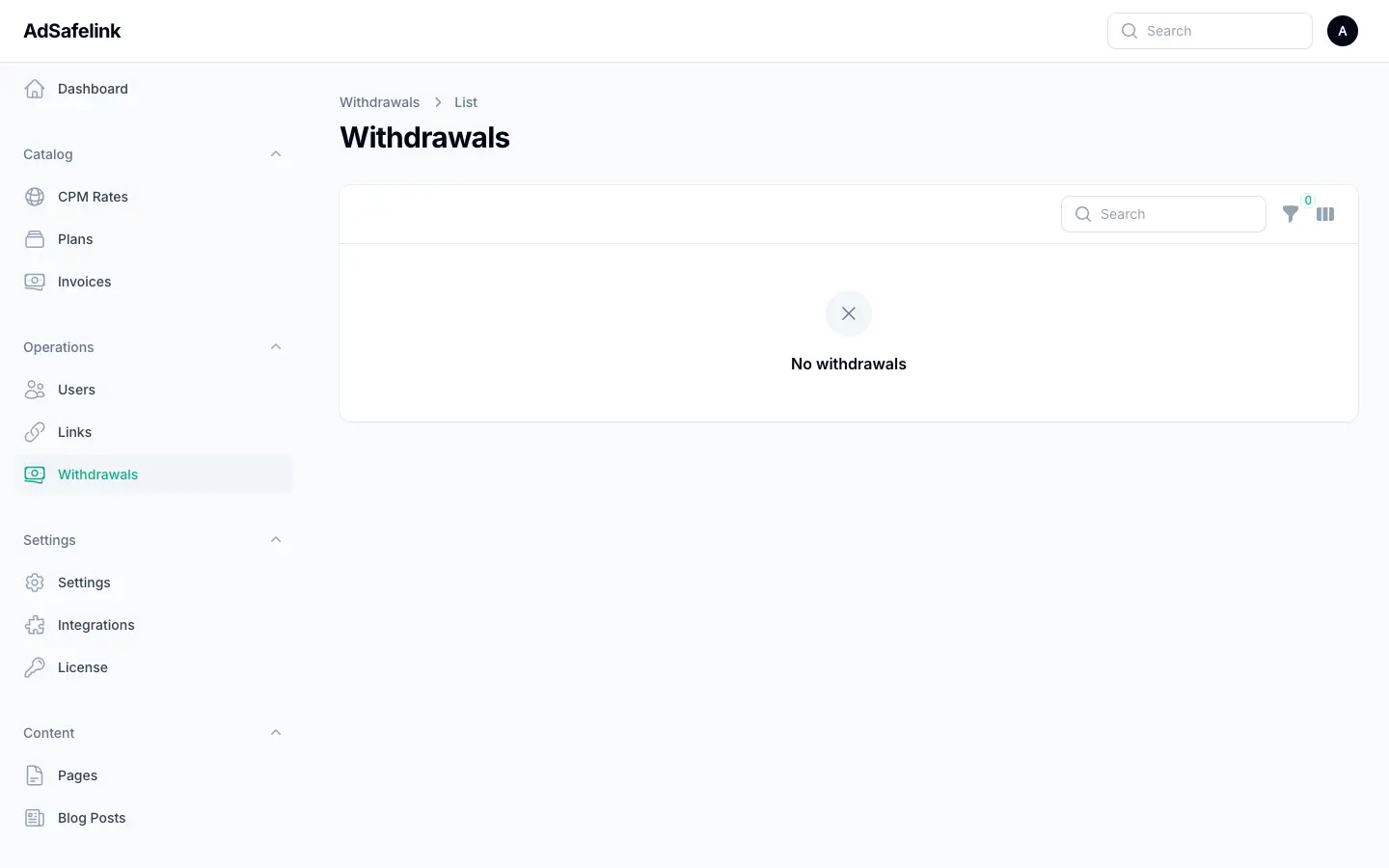
You can filter the table by status (Pending, Approved, Completed, Returned), sort by any column, and search by username. Status is shown as a colored badge so the queue is easy to scan:
| Badge | Status | What it means |
|---|---|---|
| Yellow | Pending | The member has requested a payout. Nothing has been deducted yet. |
| Blue | Approved | You approved it; the amount has been deducted from the member’s balance. You still owe the payment. |
| Green | Completed | You have paid the member externally and recorded a transaction ID. |
| Red | Returned | The request was rejected or cancelled; any deducted balance was refunded. |
#How a payout request is created
A member requests a payout from their own dashboard under Withdrawals. They choose a method, enter a payout destination (for example a PayPal email or bank details), and enter an amount. AdSafelink enforces two rules at request time:
- The amount must be at least your configured minimum payout.
- The amount cannot exceed the member’s available balance.
- A member may only have one pending request at a time — they cannot stack requests.
Importantly, creating a request does not deduct the member’s balance. The balance is only deducted when you approve the request. This means a pending request is just a claim on the queue — the member’s earnings stay in their balance until you act.
#The payout lifecycle
Every withdrawal moves through a simple, one-directional lifecycle. Understanding each transition is the key to processing payouts without accounting mistakes.
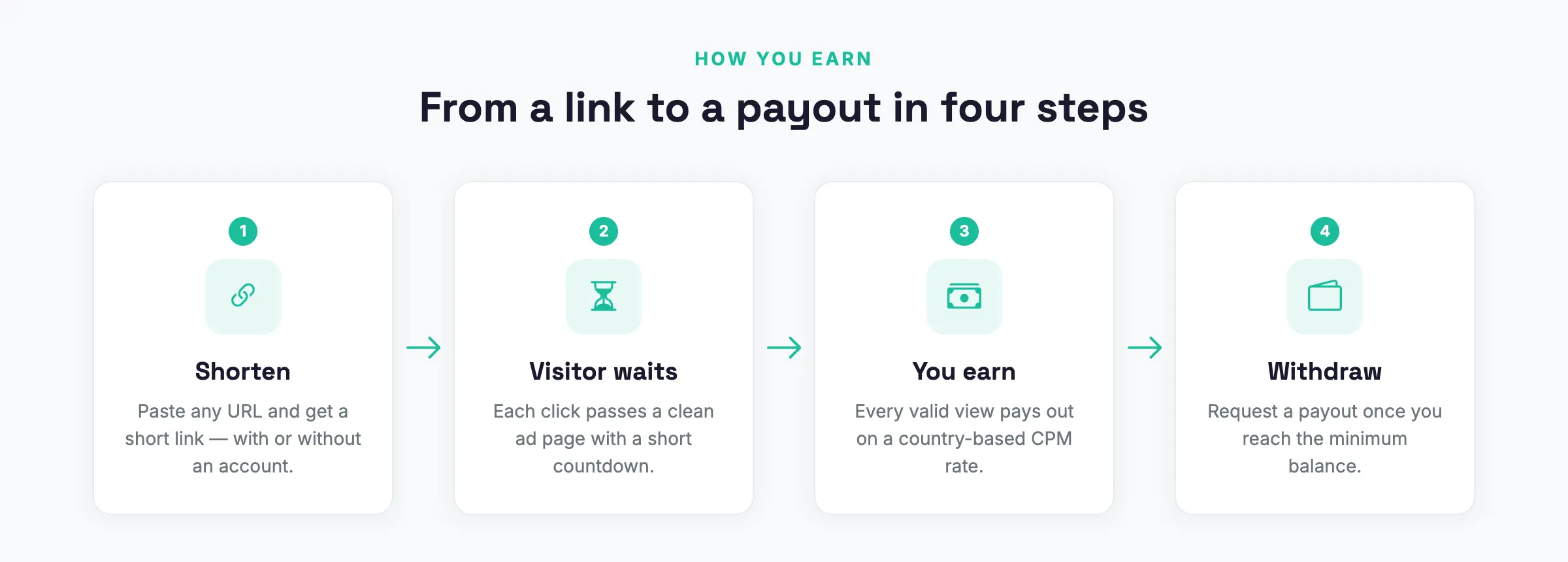
#1. Pending → Approved (balance is deducted)
When you click Approve on a pending request, AdSafelink does the following inside a single safe transaction:
- Re-checks the member’s current balance against the requested amount. If the balance no longer covers it (for example, the member spent it elsewhere since requesting), the approval is refused and the request stays pending — the balance is never driven negative.
- Deducts the full requested amount from the member’s
publisher balance. - Records the calculated fee and net payable amount in the request’s note (see Minimum and fees below).
- Stamps the processed time and sets the status to Approved.
The confirmation dialog tells you exactly how much will be deducted before you commit. After approval, the money is “reserved” — it has left the member’s balance, and you now owe them the payout.
#2. Approved → Completed (you paid out, you record the transaction)
Approving does not pay anyone. You make the actual payment yourself, outside AdSafelink — send the PayPal payment, run the bank transfer, etc. Once the money has actually left your account, return to the queue and click Complete on the approved request.
Completing requires you to enter a Transaction ID (the PayPal transaction reference, bank transfer reference, or similar). This field is mandatory: it is your audit trail proving the member was paid. The request then moves to Completed and the transaction ID is shown in the queue.
#3. Pending or Approved → Returned (refund)
If you need to reject a request — suspected fraud, bad payout details, or a member who cancels — click Return. Returning is available for both pending and approved requests, and AdSafelink handles the refund automatically:
- If the request was still pending, nothing was deducted, so nothing is refunded — it is simply marked Returned.
- If the request was already approved, the deducted amount is refunded back to the member’s balance, so they can request again later.
A Completed request cannot be returned — once you have recorded a real payment, the lifecycle is final. If you ever paid in error, handle the recovery outside AdSafelink and adjust the member’s balance manually if needed.
#Minimum amount and fees
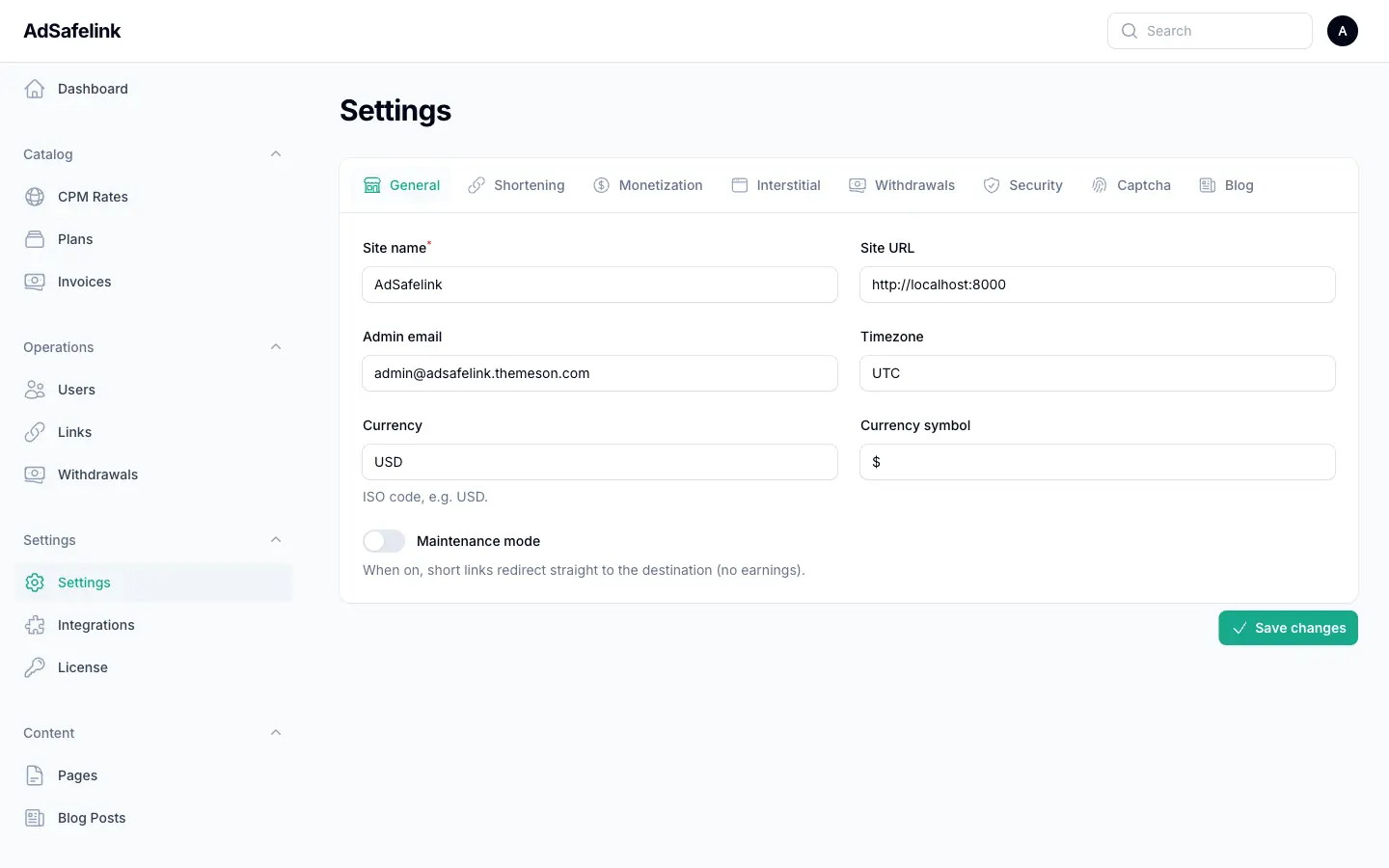
Two settings control your payout policy. They live under Admin → Settings → Withdrawals.
| Setting | Effect |
|---|---|
| Minimum payout | The smallest amount a member may request. Requests below this are rejected at the form with a clear message. Set this high enough that each payout is worth your time and any external transfer fees. |
| Withdrawal fee % | A percentage fee deducted from each payout. AdSafelink calculates the fee and the net (amount minus fee) and records both in the request note, so you know exactly how much to actually pay the member. Leave at 0 for no fee. |
| Payout methods | Which methods members may choose: PayPal and/or Bank transfer. Members can only pick a method you have enabled. |
The fee is informational and is recorded for your reference — the full requested amount is what gets deducted from the member’s balance on approval, while the net shown in the note is what you should send the member. For example, a request of 100 with a 5% fee deducts 100 from the member’s balance, and the note records a fee of 5.00 and a net of 95.00 — you pay the member 95.
All amounts use the currency symbol you configured under Settings → General.
#Recommended workflow
Process payouts in batches on a regular schedule (for example, weekly). The safe, repeatable order is:
- Review the pending queue. Filter by Pending. Check each request for obvious fraud, a sensible amount, and valid payout details (the payout destination is shown on the request).
- Approve the legitimate ones. Approving deducts the member’s balance and locks in the amount owed. This protects you: once approved, the member cannot also spend that balance elsewhere.
- Pay externally. For each approved request, read the net amount from the note and send the payment through PayPal, your bank, or the chosen method. Keep the payment confirmation handy.
- Complete with the transaction ID. Back in AdSafelink, click Complete and paste the real transaction reference. The request moves to Completed and you have a permanent record.
- Return anything you reject. If a request is bad, Return it — the member is refunded automatically if it had been approved, and can correct their details and try again.
Following approve → pay externally → complete in that order keeps your books accurate: a balance is never deducted before you commit, never paid before it is deducted, and never marked Completed without proof of payment.
#Notes and good practice
- Approve before you pay, not after. Approving is the step that reserves the funds. If you pay first and approve later, you risk a member’s balance changing in between.
- The Transaction ID is your receipt. Always paste the real reference when completing. It is the only in-app record that a payout actually happened.
- Returns are safe. Returning an approved request automatically refunds the member, so you never have to manually re-credit a balance for a normal rejection.
- Watch the pending badge. The number on the Withdrawals navigation item is your reminder that publishers are waiting. Aim to clear it on a predictable cadence so members know when to expect payment.
- AdSafelink never auto-pays. A background task may log how many requests are pending, but it never changes a withdrawal’s status — every approval, completion, and return is a deliberate action you take. There is no automated gateway moving money on your behalf.