Publisher Guide — Shorten Links & Earn
Quick answer: AdSafelink turns the links you already share into income. You paste a long URL, get a short link back, and every time someone opens it they see a brief ad...
On this page
AdSafelink turns the links you already share into income. You paste a long URL, get a short link back, and every time someone opens it they see a brief ad page before reaching the destination. You earn on each valid view, based on the visitor’s country. This guide walks you through everything you do as a publisher: creating an account, shortening links, understanding what visitors see, how earnings and referrals work, requesting a payout, and using your API token.
Throughout this guide, replace https://your-site.com with the actual address of the AdSafelink site you signed up on. Some features below are part of an upgraded membership plan and are noted as such — the operator who runs your AdSafelink site decides the exact plan limits, payout rates, and minimum withdrawal amount.
#Create your account
Head to https://your-site.com/register and fill in a username, your name, your email, and a password. Your username is important: it becomes part of your referral link and identifies you across the site, so pick something clean (letters, numbers, and underscores only).
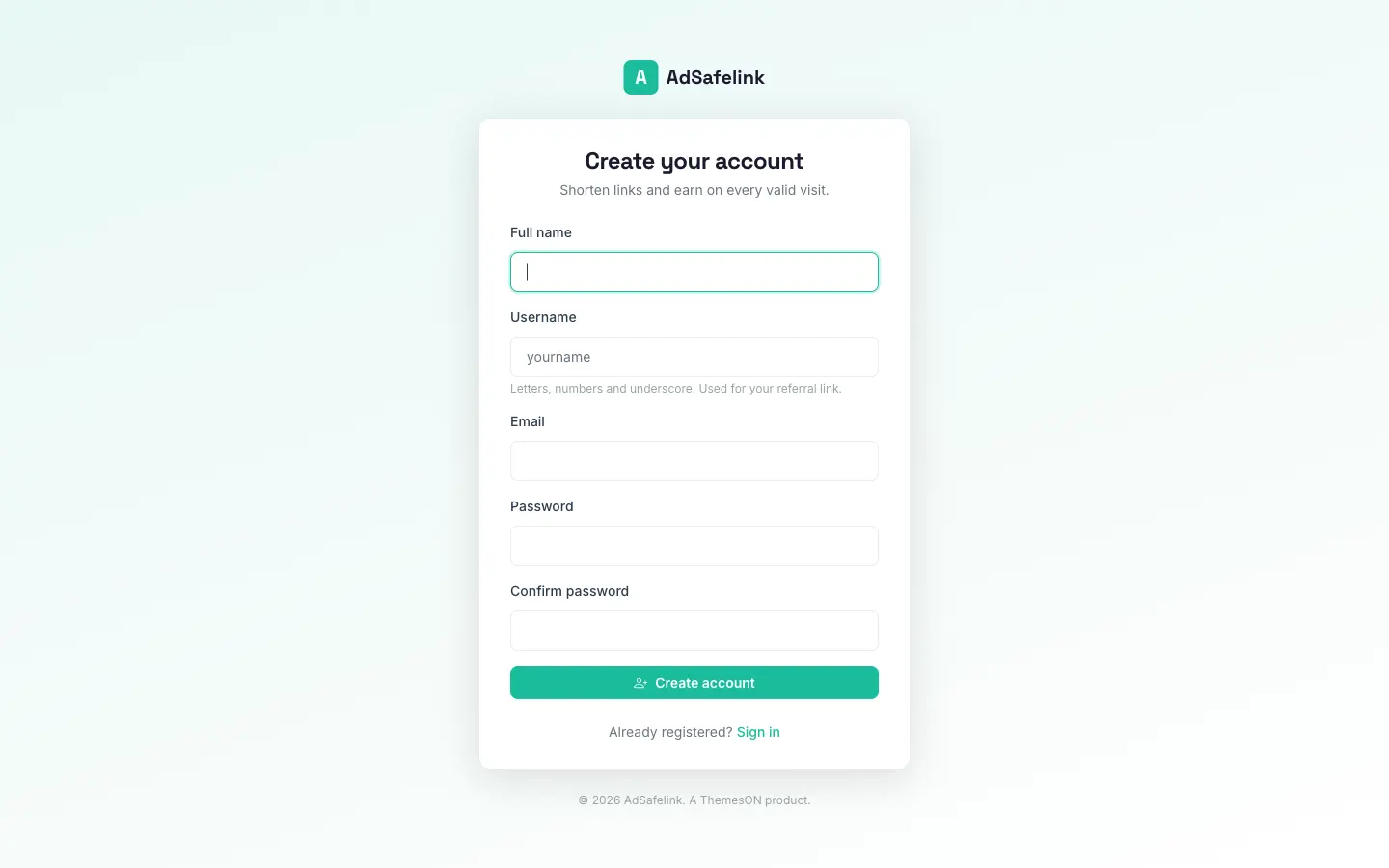
After you register you are signed in straight away and taken to your member dashboard. One more step matters: verify your email. AdSafelink sends a verification link to the address you signed up with — click it to confirm your account. Until you verify, some areas of the member panel stay locked, so check your inbox (and spam folder) and confirm before you start shortening in earnest. If the email never arrives, you can request a fresh verification link from the prompt the site shows you.
If a friend invited you with their referral link, you do not need to do anything special — the system remembers who referred you automatically when you sign up (see Referrals below).
#Signing in and resetting your password
- Sign in at
https://your-site.com/loginwith your email and password. - Forgot your password? Use the “Forgot password” link on the sign-in page. AdSafelink emails you a reset link; follow it to choose a new password.
#Your member dashboard
The dashboard at https://your-site.com/member is your home base. It gives you an at-a-glance view of how you are doing:
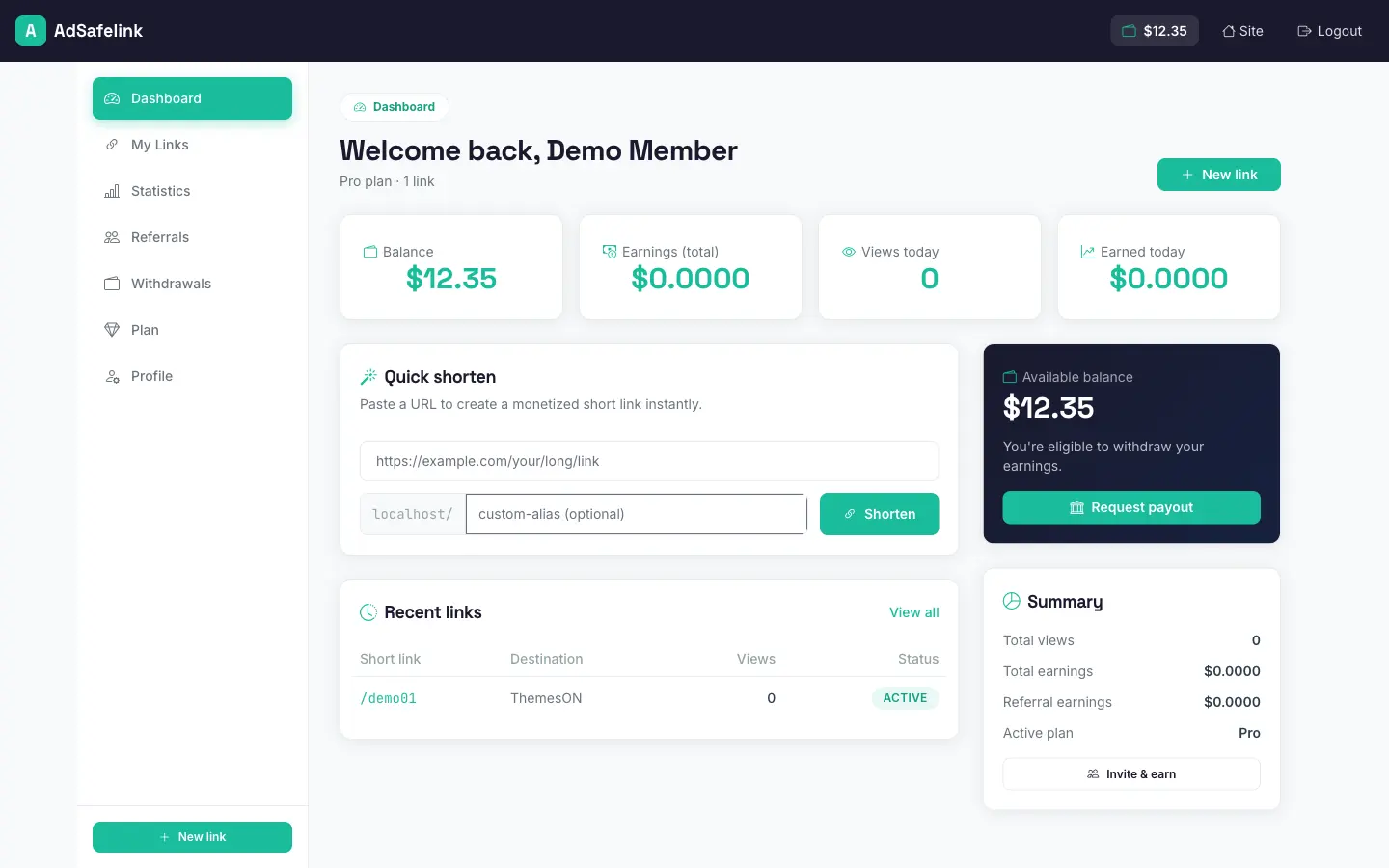
- Balance — your current available earnings, ready to withdraw once you hit the minimum.
- Today’s views and earnings — how your links are performing right now.
- Lifetime views and earnings — your running totals since you joined, including any referral commission you have earned.
- Recent links — your latest short links, so you can grab one and re-share it quickly.
- Quick-shorten box — paste a URL and create a short link without leaving the dashboard. The short link appears right there, ready to copy.
- Withdraw call-to-action — a shortcut to request a payout when your balance is high enough.
#Shortening links
There are three ways to create short links: the quick-shorten box on your dashboard, the dedicated Create link form, and the Bulk tool. They all do the same core thing — take a destination URL and give you a short link like https://your-site.com/aBc12 that you can paste anywhere.
#Create a single link
Go to Links → Create (or use the dashboard quick-shorten box). Paste the full destination URL — it must include http:// or https:// — and click shorten. You can also add an optional title and description to help you remember what the link points to. Your short link is generated instantly and added to your My links list.
A couple of rules to know:
- You cannot shorten a link that points back to the AdSafelink site itself.
- The operator may block certain destination domains. If a URL is not allowed, you will see a message and can try a different destination.
#Custom alias
By default your short link gets a random code. If you would rather have a memorable ending — for example https://your-site.com/my-promo — type your preferred alias when creating the link. A custom alias can contain letters, numbers, dashes, and underscores, and is typically between 4 and 16 characters.
An alias must be unique and cannot be a reserved word (system paths like admin, login, or member are off-limits). If the one you want is already taken or reserved, AdSafelink tells you so you can pick another. On some plans, custom aliases are a paid feature; if your plan does not include them, you will simply get a random alias instead.
#Bulk shortening
Need to shorten many URLs at once? Open Links → Bulk, paste one URL per line, and submit. AdSafelink processes every line and shows you the resulting short link for each — along with a clear note on any line it could not shorten (for example an invalid or blocked URL). Bulk shortening is a plan feature; if it is not part of your current plan, you will be prompted to upgrade.
#Managing your links
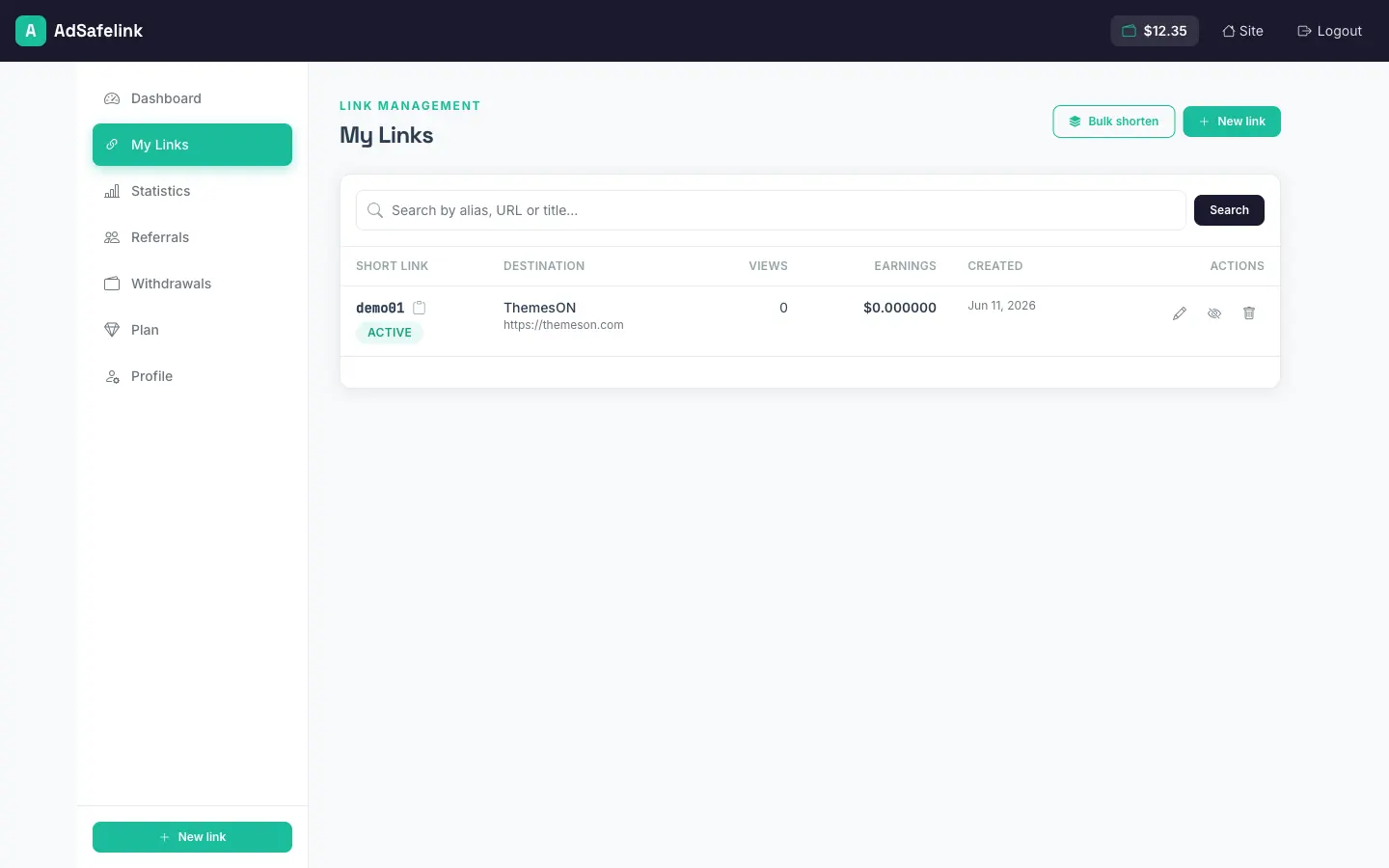
The My links page lists everything you have created, with a search box and columns for the alias, destination, title, view count, and earnings per link. From here you can:
- Hide / unhide a link — a hidden link stops working for visitors without deleting it.
- Edit the title and description anytime. Editing the destination URL or changing the alias of an existing link are paid-plan features.
- Delete a link you no longer need.
- View the public info page at
https://your-site.com/{alias}/info, a shareable page showing basic details for a link.
#How visitors see your links (the ad page)
When someone opens one of your short links, AdSafelink shows them a short interstitial ad page before sending them on to the destination. This is the page that earns you money.
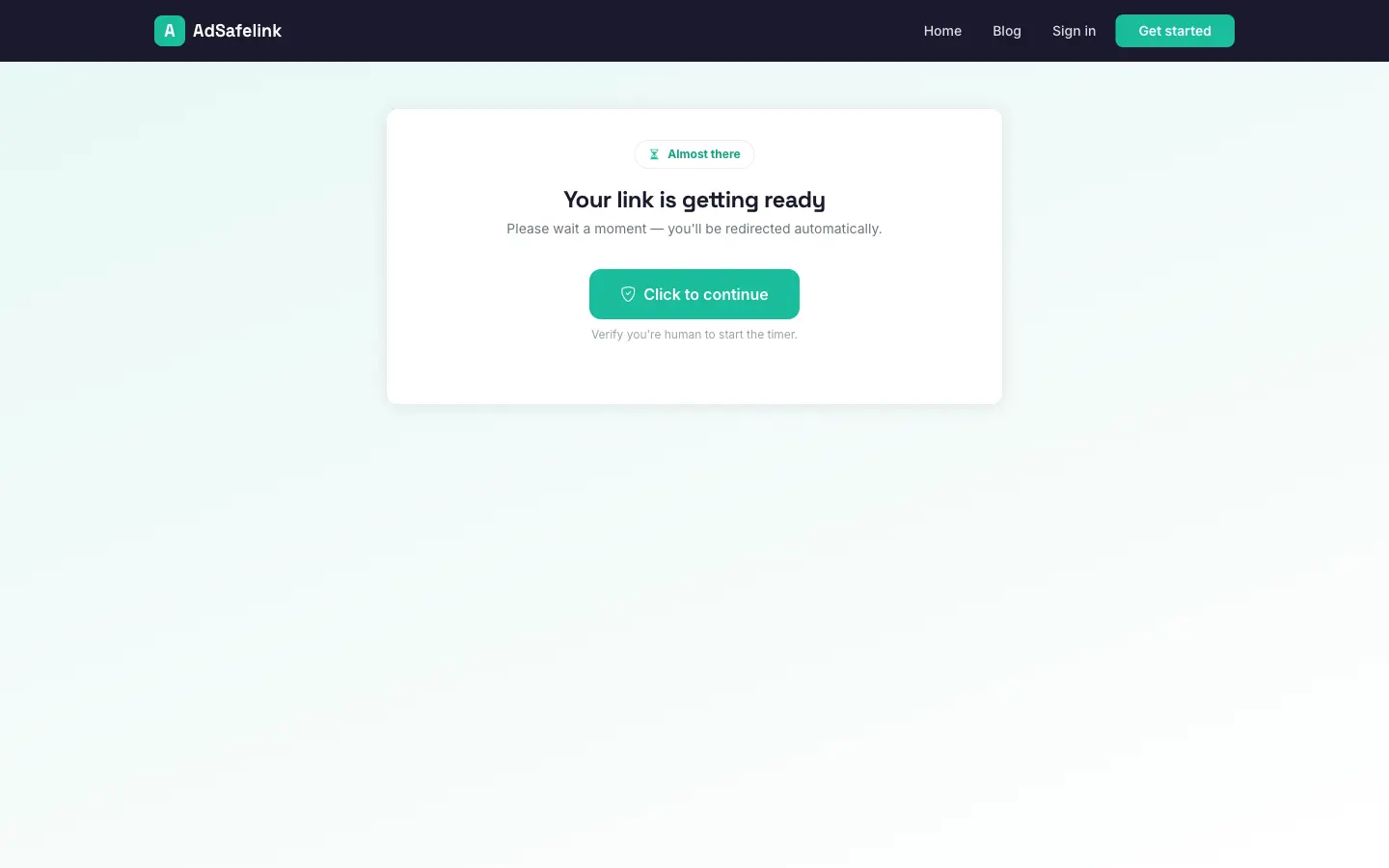
Here is the visitor’s experience:
- They open your short link.
- The ad page loads with a short countdown (a few seconds — the operator sets the exact length) and any ads the operator has placed.
- There may be a simple human-verification step, such as clicking a button, to keep bots out.
- When the countdown finishes, a Continue button appears. The visitor clicks it and is redirected to your destination URL.
That single completed view is what records an earning to your account. The page is intentionally quick and is set to not be indexed by search engines, so it does not interfere with your own SEO.
If your plan includes direct links, you can choose to skip the ad page for selected links and send visitors straight to the destination — useful when you want a clean redirect, though direct links do not earn.
#How you earn
AdSafelink uses a simple, transparent model: you are paid per 1,000 valid views, and the rate depends on the visitor’s country. This is called CPM (cost per mille — “mille” is Latin for thousand).
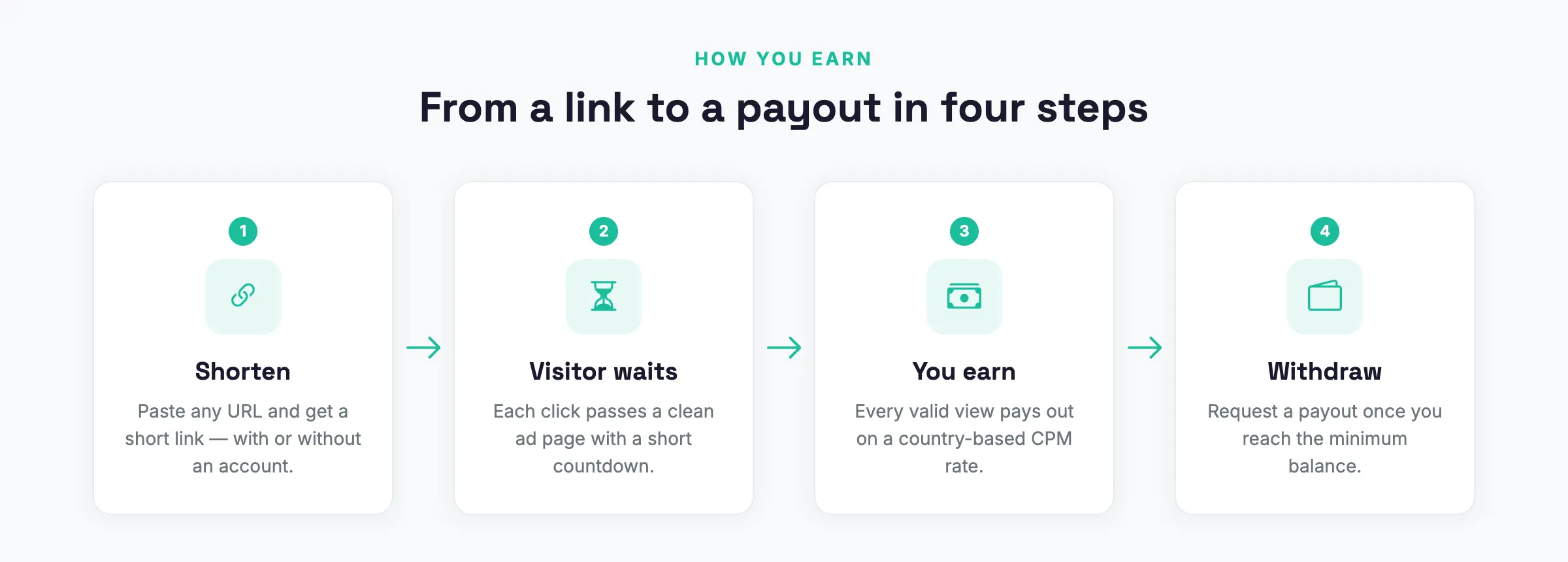
In plain terms:
- Each valid view earns you the country’s CPM divided by 1,000. So if visitors from a country are worth a $4.00 CPM, each valid view from that country earns you $0.004 — and 1,000 such views earn you $4.00.
- Traffic from high-value countries (for example the US, UK, Canada, Australia, and much of Western Europe) typically pays more per view than traffic from lower-CPM regions. Countries without a specific rate fall back to a default rate the operator sets.
- Your earnings land in your balance automatically as valid views come in — there is nothing to claim.
#What counts as a “valid” view
To keep the system fair (and to protect the ad revenue everyone depends on), not every page open earns. AdSafelink filters out views that look like fraud or duplicates. Common reasons a view does not earn include:
- A repeat view from the same visitor in a short window (only reasonably unique views count).
- Traffic flagged as coming through a proxy or VPN, where the operator blocks it.
- The visitor skipping the countdown or failing the human-verification step.
- You clicking your own links (self-clicks do not earn — and can get an account flagged).
The honest path is the profitable one: share your links with real people who genuinely want what is on the other side, and your earnings will be clean and steady. Buying traffic or clicking your own links risks voided views and account action.
#Tracking your performance
Open Statistics to see how your links are doing. Everyone gets a headline summary — total views, how many earned, your earnings, referral earnings, and current balance. On a paid plan, you also unlock a detailed breakdown: a 30-day chart of views and earnings, your top countries, your top-performing links, and a view-quality breakdown showing which views earned and which were voided (and why).
#Referrals — earn from people you invite
AdSafelink rewards you for bringing in other publishers. Every member has a personal referral link:
https://your-site.com/ref/your-usernameShare that link however you like. When someone clicks it and later signs up, they are tied to you as your referral (the system remembers them for 30 days after the click). From then on, whenever that person earns from their own links, you receive a commission — a percentage of their earnings, paid out of the platform’s margin, so it never reduces what they make.
The Referrals page shows your referral link, the list of people you have referred, how many of their views have earned you commission, and your total referral earnings. The commission percentage is set by the operator. Referral commission flows straight into your balance alongside your link earnings.
#Requesting a withdrawal
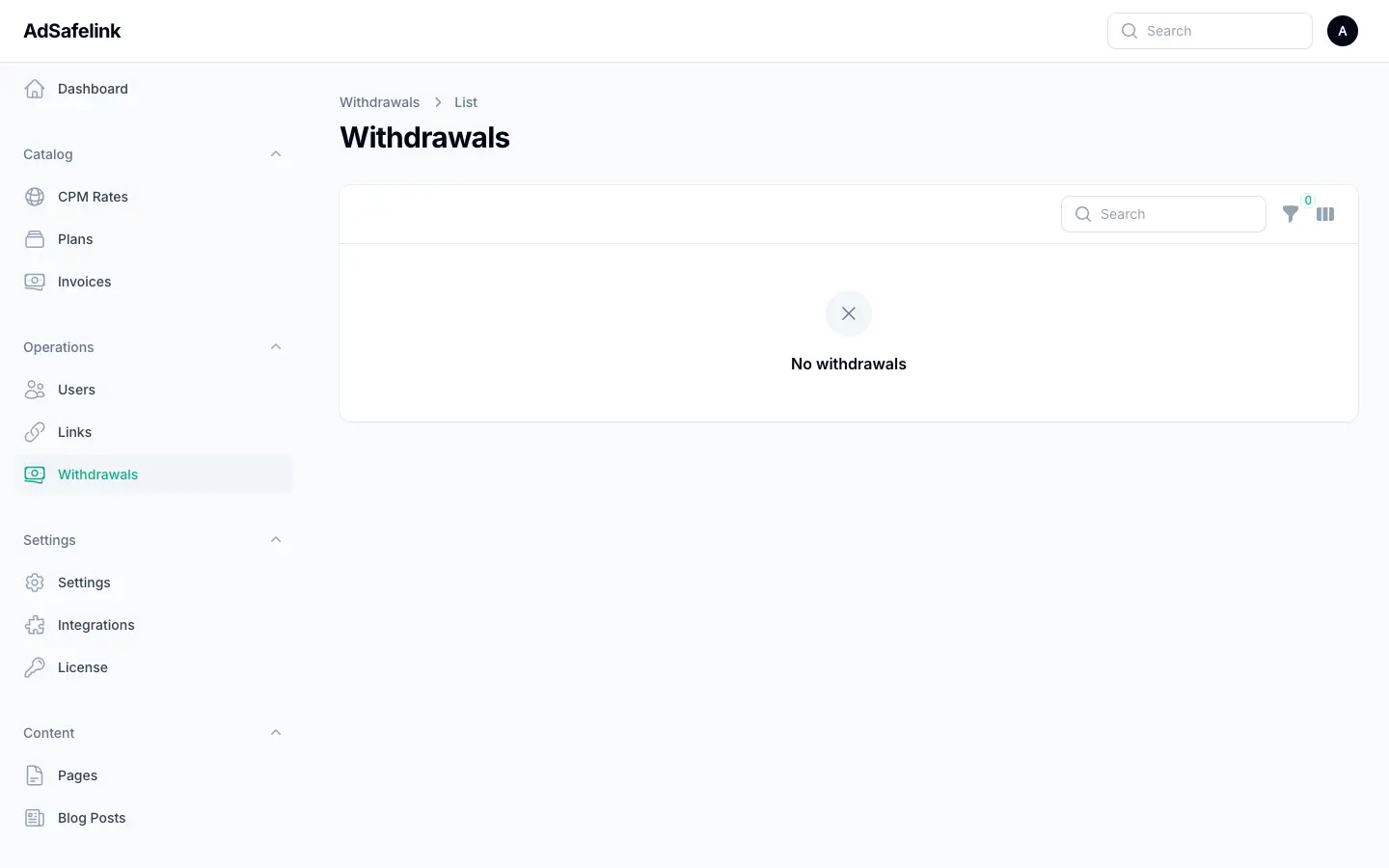
Once your balance reaches the operator’s minimum, you can cash out. Go to Withdrawals, choose a payout method (commonly PayPal or bank transfer — the operator decides which are available), enter the amount and your payout account details, and submit.
A few things to expect:
- The requested amount must be at least the configured minimum and no more than your available balance.
- You can have one pending request at a time — submit again after the current one is processed.
- Your balance is deducted when the operator approves the request, not the moment you submit, so a request you cancel or that is returned leaves your balance intact.
- If the operator charges a small processing fee, the fee and the net amount you will receive are shown on your request.
Withdrawals are reviewed and paid manually by the operator. The Withdrawals page keeps a full history with each request’s status — pending, approved, completed, or returned — so you always know where your payout stands. To save time, set your default payout method and account in your profile.
#Managing your profile
Open Profile to keep your account details current. Here you can:
- Update your name and contact details (address, city, state, ZIP, country, phone). Your country can matter for payouts and reporting.
- Set your default payout method and account so withdrawal requests are pre-filled.
- Change your email address. Note that changing your email requires re-verification — AdSafelink sends a verification link to the new address, and you will need to confirm it.
- Change your password — you will be asked for your current password first.
#Your API token
If you build automations or integrate AdSafelink with other tools, you can shorten links programmatically using your personal API token, found on your Profile page. Treat it like a password — anyone with your token can create links on your account.
You can regenerate the token at any time from your profile. Regenerating immediately invalidates the old one, so remember to update any integration that was using it. API access is plan-dependent; if your current plan does not include it, you will get a clear message when you try to use it.
The API is versioned under /api/v1/ and is rate-limited to protect the service. The most useful endpoints for a publisher are:
| Endpoint | What it does |
|---|---|
POST /api/v1/shorten |
Shorten a single URL. Send url (and optionally alias and type). Returns the new short_url and alias. |
GET /api/v1/links |
List your links (paginated), each with its alias, short URL, destination, and view count. |
GET /api/v1/account |
Your account summary: username, balance, current plan, and total views. |
Send your token with each request as your API credential. A quick example of shortening a link from the command line:
curl -X POST https://your-site.com/api/v1/shorten
  -H "Authorization: Bearer YOUR_API_TOKEN"
  -d "url=https://example.com/some/long/page"
-d "alias=my-promo"#Upgrading your plan (optional)
You can run a full publishing operation on the free plan. Upgrading to a paid plan, where the operator offers one, unlocks extras such as custom aliases, bulk shortening, detailed statistics, the ability to edit a link’s URL or alias after creation, direct (no-ad) links, fuller API access, and — depending on the plan — a higher payout multiplier on your earnings. Visit Plan to compare tiers and, if you choose, upgrade via the payment options the operator has enabled (such as card or PayPal). Your invoice history lives on the same page.
#Quick start checklist
- Register at
https://your-site.com/registerand verify your email. - Shorten your first link from the dashboard quick-shorten box.
- Share it with a real audience.
- Watch views and earnings build on your dashboard and statistics pages.
- Invite others with your
/ref/your-usernamelink to earn commission. - Cash out from Withdrawals once you reach the minimum balance.