Admin Settings Reference
Quick answer: The Settings screen is the control panel for your entire AdSafelink site. From Admin → Settings you configure your site identity, how links are shortened, how publishers earn, what the...
On this page
The Settings screen is the control panel for your entire AdSafelink site. From Admin → Settings you configure your site identity, how links are shortened, how publishers earn, what the interstitial (countdown) page shows, how withdrawals are paid out, and which anti-fraud and captcha protections are active. Everything lives on one screen, split into labeled tabs, and a single Save button at the bottom writes every tab at once. This article walks through each tab and explains what each option does in plain operator terms.
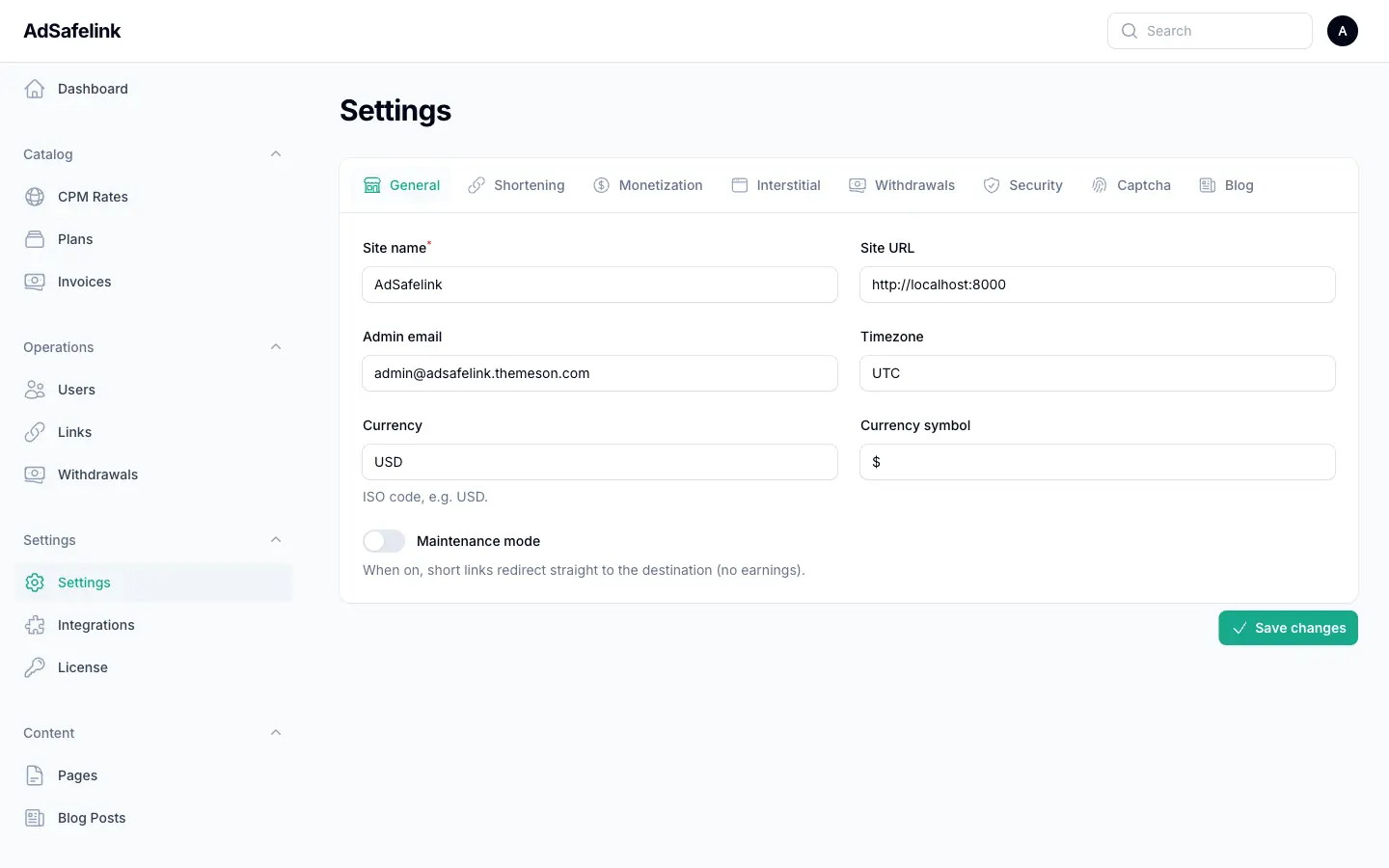
#How the Settings screen works
The Settings page is organized into tabs: General, Shortening, Monetization, Interstitial, Withdrawals, Security, Captcha, and Blog. You can switch tabs freely without losing your edits — nothing is committed until you click Save, at which point AdSafelink stores all values and refreshes its cached options so the changes take effect immediately across the site.
A few things worth knowing before you start:
- Settings are cached. AdSafelink loads all options once and keeps them in fast cache. Saving from this screen clears and rebuilds that cache automatically, so you never need to manually flush anything.
- Secrets stay in your environment file, not here. Payment gateway API keys (PayPal, Stripe) live in your server’s
.envfile. This screen only toggles product-level behavior. The one exception is captcha keys, which are entered on the Captcha tab. - Sensible defaults ship out of the box. If you never touch a field, AdSafelink uses a built-in default. The sections below note each default so you know what you are starting from.
#General
The General tab defines your site’s basic identity and a global on/off switch for the whole platform.
| Field | What it does |
|---|---|
| Site name | The name shown across your site (titles, emails, branding). Defaults to AdSafelink. This field is required. |
| Site URL | The public base address of your installation, for example https://your-site.com. Used when building absolute links such as short URLs and email links. |
| Admin email | The address that receives system and operational notifications. |
| Timezone | The timezone used for displaying dates and for daily counters such as per-IP view caps. Defaults to UTC. |
| Currency | The ISO currency code for all money displayed on the site, for example USD. This is a label only — it does not convert amounts. |
| Currency symbol | The symbol shown next to amounts, for example $. This symbol also appears as a prefix on money fields elsewhere in Settings. |
| Maintenance mode | A master kill-switch for monetization. When on, every short link redirects straight to its destination with no interstitial page and no earnings. Use it during upgrades or incident response. Leave it off for normal operation. |
#Shortening
The Shortening tab controls who may create links and which destinations are allowed.
| Field | What it does |
|---|---|
| Allow anonymous shortening | When on, visitors who are not logged in can shorten a link from your homepage. Anonymous links still work and still show ads, but the earnings are not credited to any member account. Turn it off to require registration before anyone can create a link. Default: on. |
| Force HTTPS short links | When on, AdSafelink always builds and serves your short links over https://. Recommended for any live site with an SSL certificate. (See also Force SSL under Security.) Default: off. |
| Disallowed domains | A blocklist of destination domains that may not be shortened. Enter one domain per line or separate them with commas. If a member tries to shorten a URL pointing at a listed domain, the request is rejected. Use this to keep malware, phishing, or competitor domains out of your system. |
| Reserved aliases | A comma-separated list of custom aliases that members are not allowed to claim, on top of the system’s built-in reserved words (such as admin, login, and dashboard). Add brand terms or routes you want to protect. |
#Monetization
This is the most important tab for revenue. It contains the master earnings switch, the default payout rate, referral commissions, and the rules that decide which views actually pay.
| Field | What it does |
|---|---|
| Enable publisher earnings | The master switch for all view-based earnings. When off, no view credits any publisher, regardless of every other setting. Leave it on to run a monetized network. Default: on. |
| Enable referral commissions | When on, publishers who refer new members earn a percentage of those members’ earnings (set by Referral %). Turn it off to disable the referral program entirely. |
| Default CPM | The fallback payout per 1,000 valid views, used whenever a visitor’s country has no specific rate configured. Set country-specific rates on the separate CPM Rates screen; this value catches everything else. Shown with your currency symbol. Default: 2.00. |
| Referral % | The share (0–100%) of a referred publisher’s earnings that goes to the referrer. Default: 20. |
| Signup bonus | A one-time credit added to a member’s balance when they register. Set to 0 to disable. Default: 0. |
| Owner self-clicks earn | When off (recommended), a link owner who clicks their own link earns nothing — a basic guard against self-inflation. Turn it on only if you have a specific reason. Default: off. |
| Duplicate-view window (minutes) | How long the same visitor (identified by IP and browser) must wait before a repeat view of the same link counts again as a paid view. Higher values reduce padded earnings from refreshes. Default: 60. |
| Daily paid views per IP | The maximum number of paid views a single IP address can generate per day across your site. Set to 0 for no cap. Use a cap to blunt automated and abusive traffic. Default: 0. |
Together, the duplicate-view window, daily cap, self-click rule, and Security tab’s proxy/VPN block form AdSafelink’s anti-fraud layer. Tune them to match your tolerance for risk versus publisher goodwill.
#Interstitial
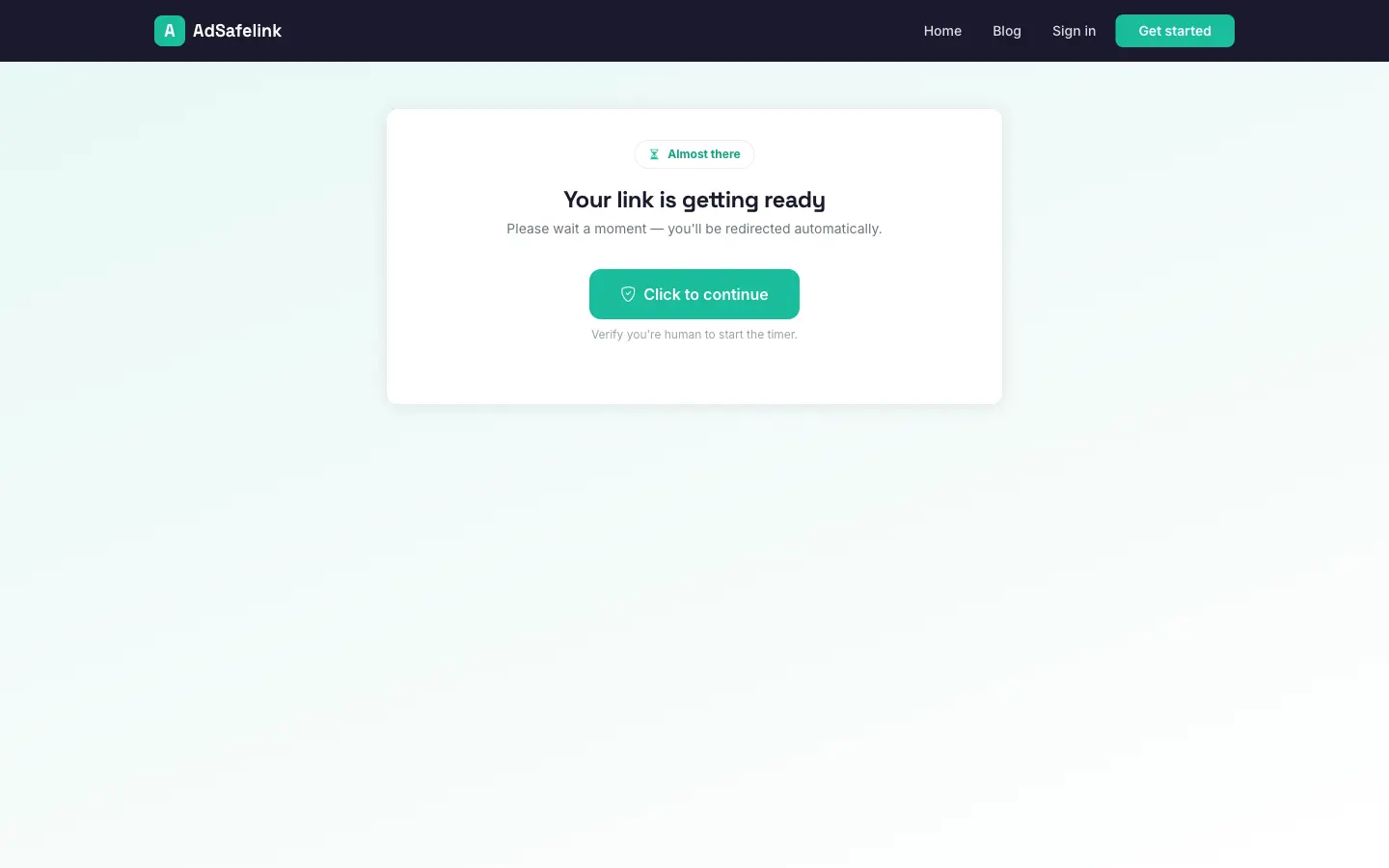
The interstitial is the monetized countdown page a visitor sees before reaching the destination. This tab controls its layout, timing, ad placements, and any human-verification step.
| Field | What it does |
|---|---|
| Interstitial template | The template used to render the countdown page. Defaults to default. |
| Countdown seconds | How long (0–60 seconds) the visitor waits before the Continue button unlocks. A longer wait increases ad exposure but can hurt completion rates. Default: 5. |
| Countdown style | How the timer is displayed: Text (a plain number) or Animated circle (a progress ring). Default: animated circle. |
| Human verification | An optional step the visitor must complete to proceed: None, a simple Button press, or a challenge from reCAPTCHA, hCaptcha, or Turnstile. The captcha options require keys configured on the Captcha tab. Default: button. |
| Ad slot — top | Raw ad HTML rendered at the top of the interstitial page. Paste the ad code your network gives you (for example an AdSense unit). |
| Ad slot — bottom | Raw ad HTML rendered at the bottom of the interstitial page. |
| Ad slot — interstitial | Raw ad HTML rendered in the main interstitial body, alongside the countdown. |
The three ad slots accept any HTML or script tag, so you can mix display ads, native units, or your own banners. Leave a slot blank to render nothing in that position.
#Withdrawals
This tab sets the rules for paying out publisher balances. The actual review and approval of individual requests happens on the separate Withdrawals management screen.
| Field | What it does |
|---|---|
| Minimum payout | The smallest balance a publisher must reach before they can request a withdrawal. Higher minimums reduce processing overhead. Shown with your currency symbol. Default: 5.00. |
| Withdrawal fee % | A percentage (0–100%) deducted from each payout to cover your processing costs. Set to 0 for no fee. Default: 0. |
| Withdrawal methods | The payout channels publishers may choose from: PayPal and/or Bank transfer. Enable only the methods you can actually fulfill. Default: both enabled. |
#Security
The Security tab holds site-wide protections against abusive traffic and unsafe destinations.
| Field | What it does |
|---|---|
| Block proxy / VPN traffic | When on, AdSafelink screens incoming visitors and treats those arriving through known proxies or VPNs as invalid, so they do not generate earnings. This check only runs when an anti-proxy lookup service is configured in your environment; with the toggle on but no service key set, it safely does nothing. Default: on. |
| Google Safe Browsing check on destinations | When on, destination URLs are checked against Google’s Safe Browsing data so you can keep known-malicious links out of your network. Default: off. |
Force SSL note: AdSafelink also honors a force-HTTPS behavior so that requests are served securely. For your short links specifically, use Force HTTPS short links on the Shortening tab. On a live site with a valid certificate, keeping HTTPS enforced is strongly recommended.
#Captcha
The Captcha tab configures the challenge provider used for human verification — both for the interstitial page (when Human verification is set to a captcha) and for protecting forms such as registration.
| Field | What it does |
|---|---|
| Captcha provider | Which service to use: None, reCAPTCHA, hCaptcha, or Turnstile. Default: none. |
| Site key | The public site key issued by your chosen captcha provider. This is embedded in the page that shows the challenge. |
| Secret key | The private key issued by your provider, used server-side to verify each challenge. It is masked by default; use the reveal control to check it. Keep it confidential. |
To activate a captcha, choose a provider here, paste both keys from that provider’s dashboard, save, and then select the matching option under Human verification on the Interstitial tab (and wherever else you want challenges to appear).
#Blog
AdSafelink ships with an optional lightweight blog for publishing pages and posts on your domain — useful for SEO and announcements.
| Field | What it does |
|---|---|
| Enable the public blog | When on, the public blog section is available on your site. Turn it off if you only want the shortener and member area. Default: on. |
#Saving your changes
When you are finished, click Save. AdSafelink validates the fields (for example, the site URL must be a valid URL and percentages must fall between 0 and 100), persists every tab, refreshes the cached options, and shows a confirmation. Because the options cache is rebuilt on save, your changes take effect across the public site, the interstitial page, and the member area right away — no restart needed.