Technical FAQ & Troubleshooting
Quick answer: This page collects the technical questions and problems that come up most often when you run AdSafelink on your own server. It is written for the operator who installed AdSafelink...
On this page
This page collects the technical questions and problems that come up most often when you run AdSafelink on your own server. It is written for the operator who installed AdSafelink — the person who controls the hosting, the database, and the admin panel. Every answer is generic and applies to any standard PHP host. If your symptom is not here, work top to bottom through the section that matches what you see (a blank page, a 404, the wizard, earnings, the WP Safelink countdown, or the license), since the most common causes are listed first.
Throughout this page, replace https://your-site.com with the real address of your install, “your database” with the MySQL database you created during setup, and “your WP Safelink Pro license key” with the key you received when you purchased WP Safelink Pro.
#Install and first-run problems
#The admin panel is blank — I get a white page after logging in
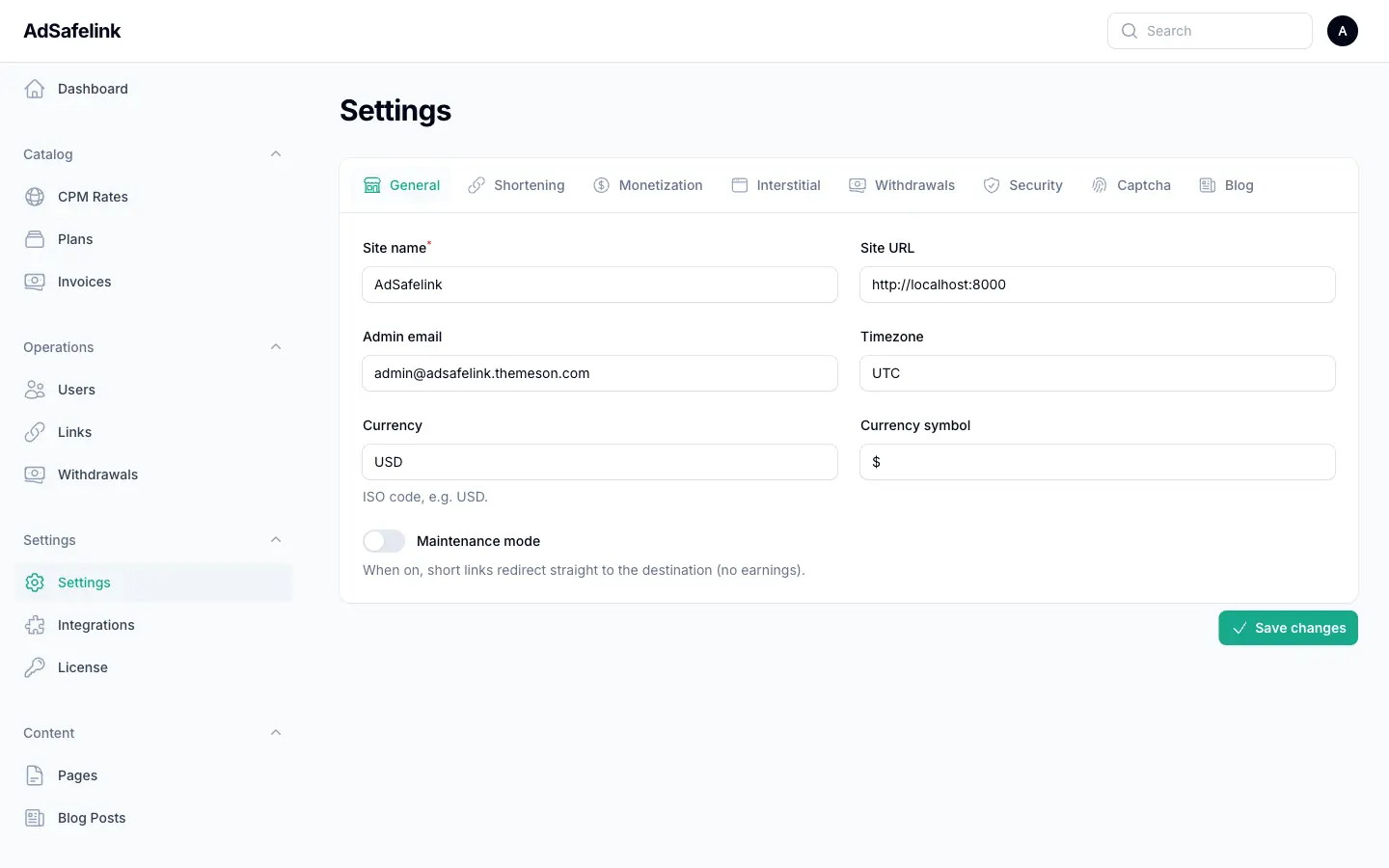
A blank admin screen almost always means the admin panel’s JavaScript loaded but could not finish booting in the browser. The AdSafelink admin is a Livewire-driven interface, and Livewire components run small pieces of PHP on each interaction. On some shared hosts the functions Livewire relies on — most commonly ignore_user_abort() and set_time_limit() — are added to the host’s disable_functions list. When those are disabled, the panel can render an empty shell instead of the dashboard.
Work through these in order:
- Check the browser console. Open your browser’s developer tools and look at the Console and Network tabs while loading the admin page. A 500 error on a Livewire request, or a message naming a disabled function, points straight at the cause.
- Ask your host to allow the needed functions. If
ignore_user_abort,set_time_limit,proc_open, orsymlinkappear indisable_functions(check yourphp.inior your host’s PHP settings panel), ask your host to remove them. These are standard functions that a modern Laravel application expects. - Clear the caches. A blank page can also follow a stale compiled view or config cache. Run the cache-clear commands below from your application directory.
php artisan optimize:clear
php artisan config:cache
php artisan view:cache
AdSafelink itself does not call any unusual PHP functions on the redirect hot path, so a blank page is an environment issue on the host, not a flaw in your link flow. Visitors clicking short links are unaffected even while you sort out the admin panel.
#Every page returns a 404 — even the homepage
If every URL on your install returns a 404, your web server is almost certainly serving the wrong folder. AdSafelink is a Laravel application: the public web root must point at the public/ directory inside the application, never at the application root. The application root contains your .env file, your vendor libraries, and your storage — none of which should ever be web-accessible.
Fix it by setting your site’s document root (sometimes called “web root”, “public path”, or “root directory” in your hosting panel) to:
/path/to/adsafelink/public
After changing the document root, reload your web server. If you are on Apache and cannot change the document root, make sure the .htaccess file shipped in public/ is present and that mod_rewrite is enabled; AdSafelink can copy its bundled rewrite rules into place automatically on first run, but only if the public folder is writable. If single pages 404 but the homepage works, that is a different problem — see the next question about short links and reserved words.
#A specific short link returns 404, but the rest of the site works
The short-link route is a catch-all: any path that is not a real page is treated as a possible link alias. Two things cause a single alias to 404:
- The alias does not exist or the link is disabled. Confirm the link is present and active in the admin Links list, and that the owning member’s account is active. A link whose owner has been disabled will not resolve.
- The alias collides with a reserved word. AdSafelink reserves a list of paths so the catch-all never shadows a real page — words such as
admin,member,login,api,install,blog, and many framework paths. You cannot create a link on a reserved alias, and visiting one of those paths takes you to the matching page, not to a link. This is by design.
#The install wizard won’t move past a step
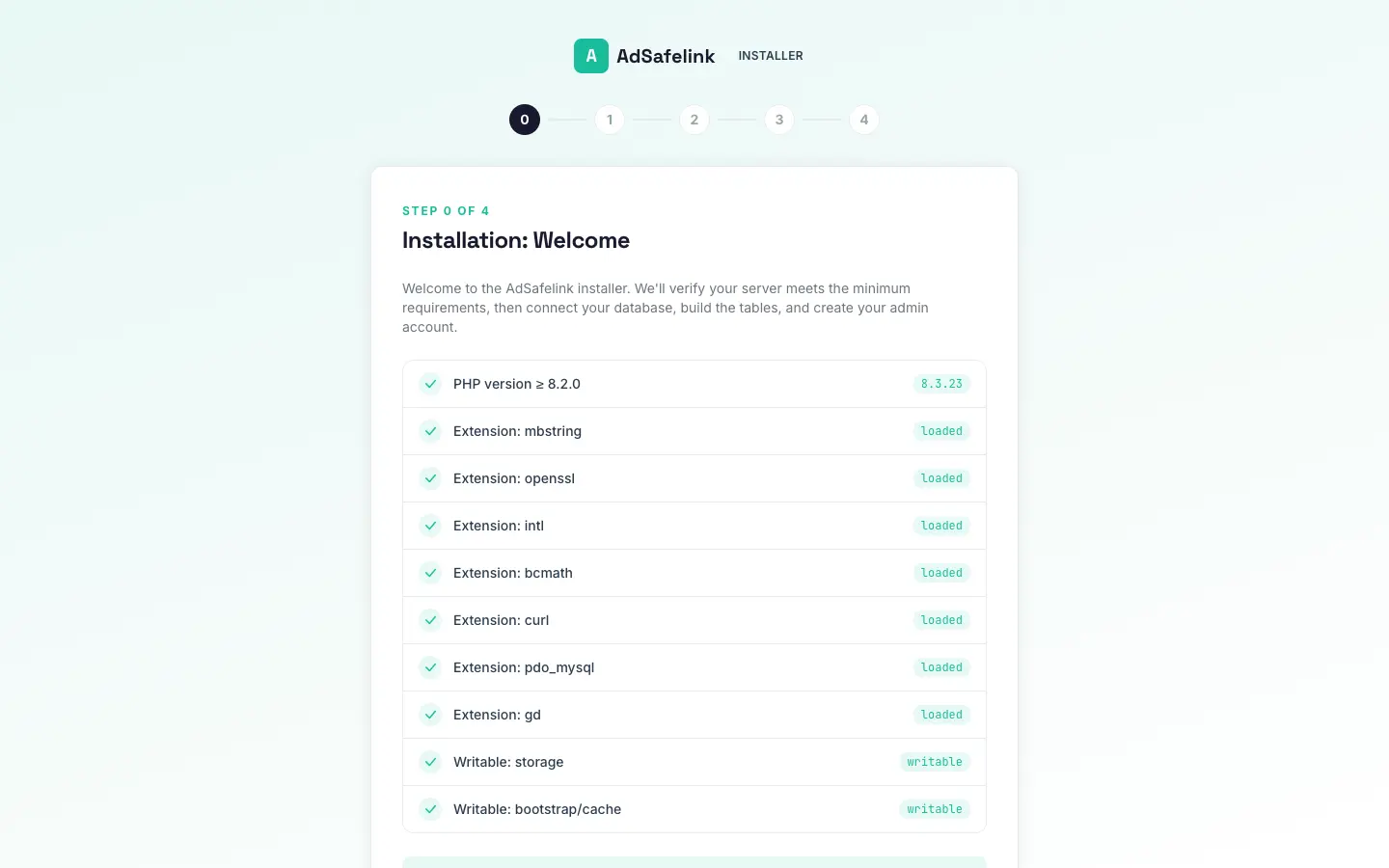
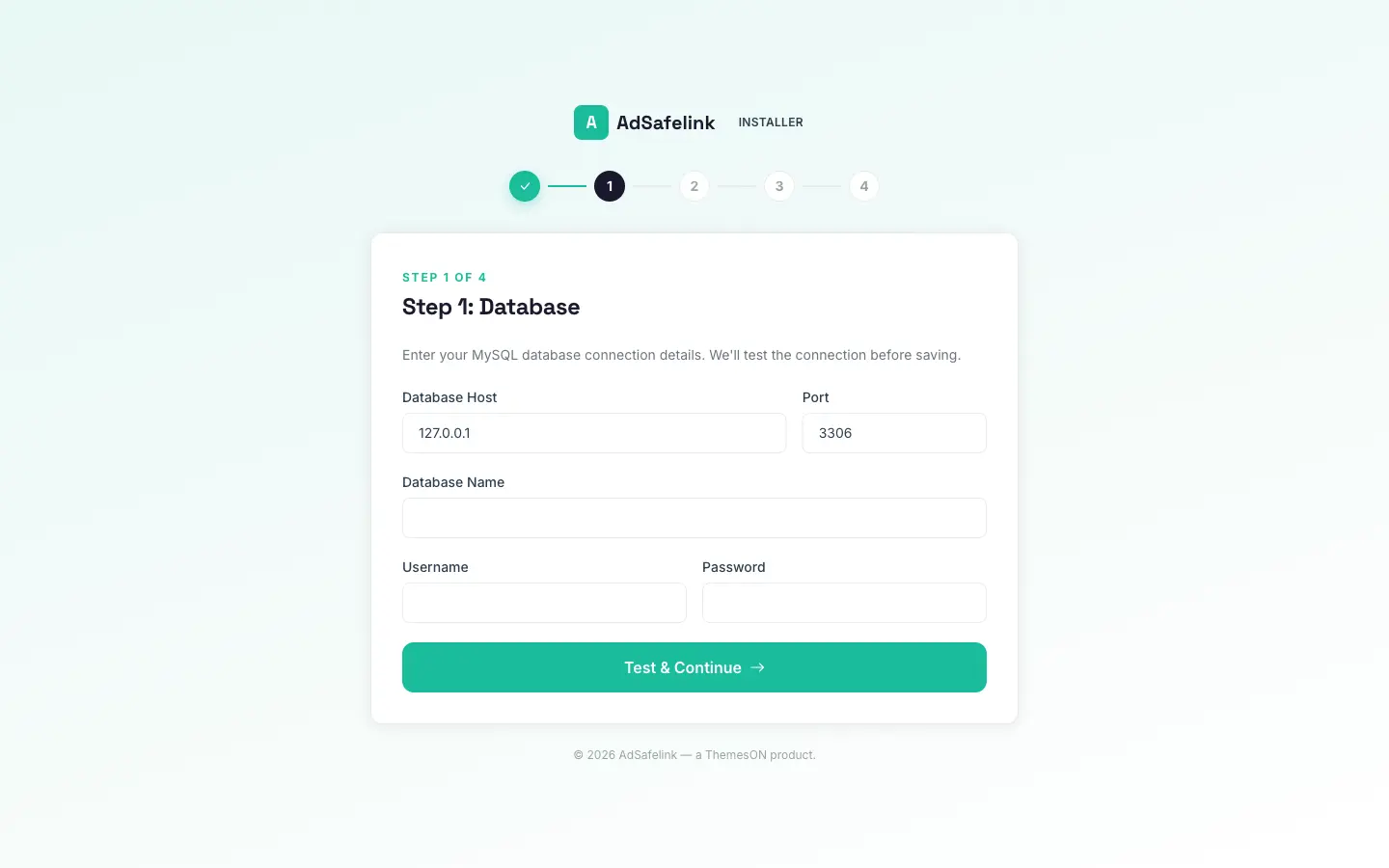
The wizard runs in a fixed sequence: Welcome and environment check, then Database, then Build database, then Create Admin User, then the success screen. If it refuses to advance, the cause depends on which step you are stuck on.
| Stuck on | What to check |
|---|---|
| Welcome / environment | The check requires a supported PHP version and the extensions mbstring, openssl, intl, bcmath, curl, dom, and pdo_mysql. It also requires that your storage/ and bootstrap/cache/ directories are writable. Fix any red item before the Install button appears. |
| Database | You entered host, port, username, password, and database name and got “Connection failed”. The wizard opens a live test connection. Verify the credentials, that the database exists, that the user has full privileges on it, and that the host value is correct (often localhost or 127.0.0.1). |
| Build database | This step runs the migrations and seeds the starter data (the Free plan, default CPM rates, and base settings). If it fails, the most common reasons are the database user lacking CREATE TABLE privileges, or the step timing out on a slow host. Confirm privileges and try again. |
| Create Admin User | “There are mistakes in the form” means a validation error — usually the password and confirmation do not match, or the email or username is already taken. |
If the writable-paths check fails, make the two cache directories writable from your application directory:
chmod -R ug+rw storage bootstrap/cache
One more note: the install gate works by a substring match on the URL. Any address that contains the word install is treated as part of the wizard. If you ever see the wizard reappear on an install you already completed, it means neither the cached install flag nor the settings row is being read — usually a config cache that needs rebuilding. Run php artisan config:cache and reload.
#Earnings and traffic problems
#My short links get clicks but earn nothing
A view earns money only when it passes every validity check. The visitor always reaches the destination — the checks only decide whether the view pays. AdSafelink records a reason on every view, so the fastest way to diagnose this is to open the statistics in the admin panel and look at why views are being voided. The most common reasons, in the order they are checked, are:
- No country could be resolved. AdSafelink determines the visitor’s country from the Cloudflare
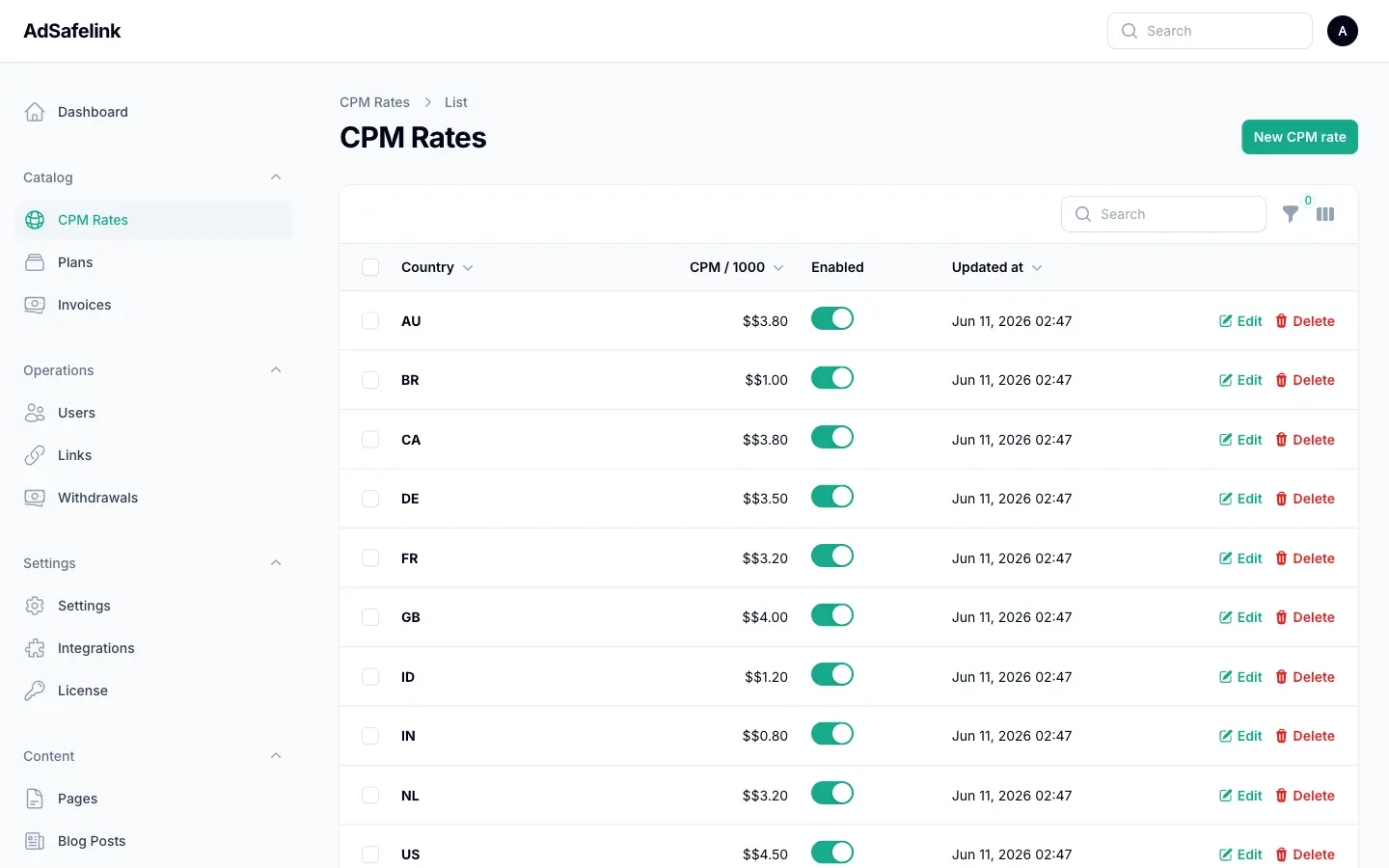
CF-IPCountryheader first, then from a GeoLite2 database if you have configured one. If neither is available, the country resolves to “Others” and the view earns nothing. If you are not behind Cloudflare, point AdSafelink at a GeoLite2 country database in your settings so it can resolve countries on its own. - No CPM rate is configured for that country. Payout is looked up by country, then falls back to an “all” default, then to zero. A country with no rate and no default fallback silently earns zero. Set rates in the admin CPM table, and set a sensible default so unlisted countries still pay.
- Self-clicks are not paid. If the person clicking is the link’s owner, or is on a plan that disables ads, the view does not credit. This is the anti-fraud self-click guard. Test your links from a different account or a logged-out device.
- The visitor is on a proxy or VPN. If you enabled proxy/VPN blocking, views from detected proxies (and Tor exits) are voided. Tor traffic is treated as a proxy automatically.
- Not a unique view. By default only one paid view per IP address per day counts. Repeated clicks from the same address that day are recorded but not paid.
- Blocked referrer or earnings switched off. A referrer host on your block list, or the global “publisher earnings” switch turned off, voids the view.
If earnings look wrong by a tiny fraction rather than zero, that is expected: payouts are stored at nine decimal places and accumulate per view, because a CPM divided by one thousand is often a sub-cent number. Display precision is separate from storage precision.
#How is the payout per view actually calculated?
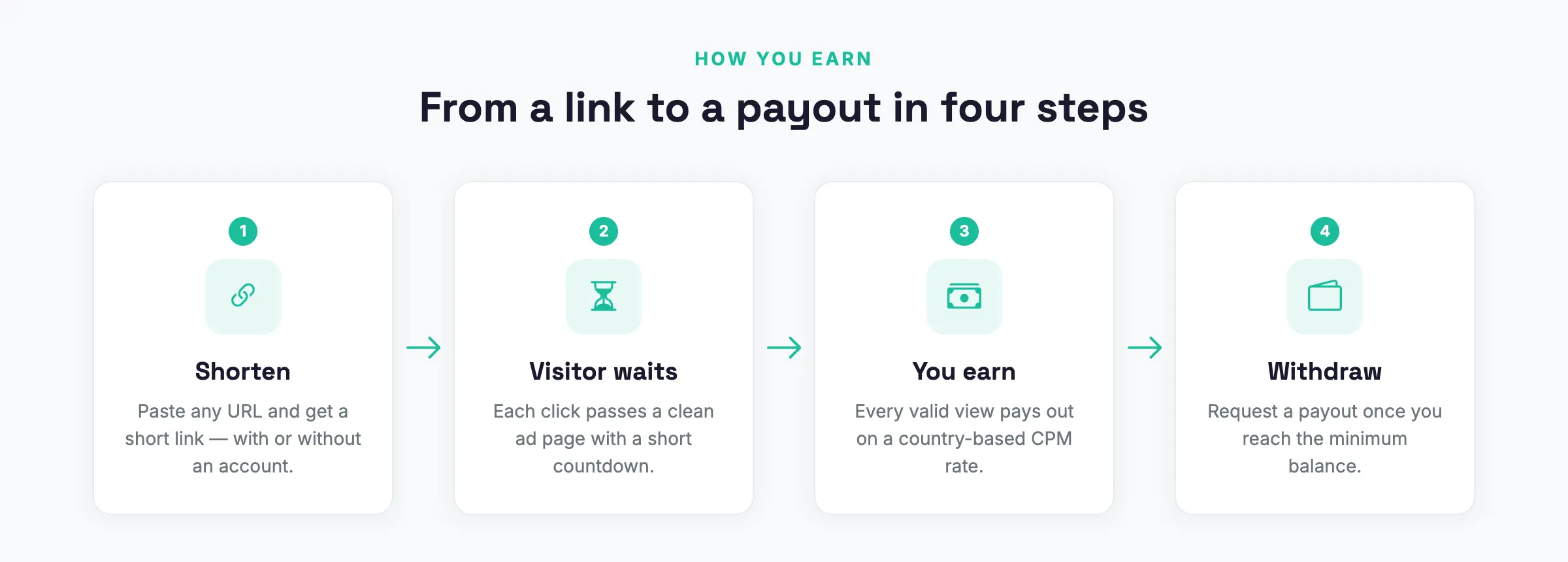
Rates are entered as a CPM — the amount paid per one thousand valid views. The per-view earning is simply the CPM divided by one thousand. So a country CPM of $4.50 credits $0.0045 for each valid view from that country. Because the per-view number is so small, AdSafelink keeps nine decimal places internally; you choose how many decimals to show in your currency display settings.
#WP Safelink Pro integration problems
#Visitors skip the WordPress countdown and go straight to the destination
The double-monetization loop sends a visitor from your AdSafelink short link to your WordPress site, runs the WP Safelink countdown, and returns the visitor to AdSafelink to finish. When that loop silently no-ops, the visitor still reaches the destination — but only the AdSafelink ad page shows, and the WordPress countdown is skipped. There are three usual causes.
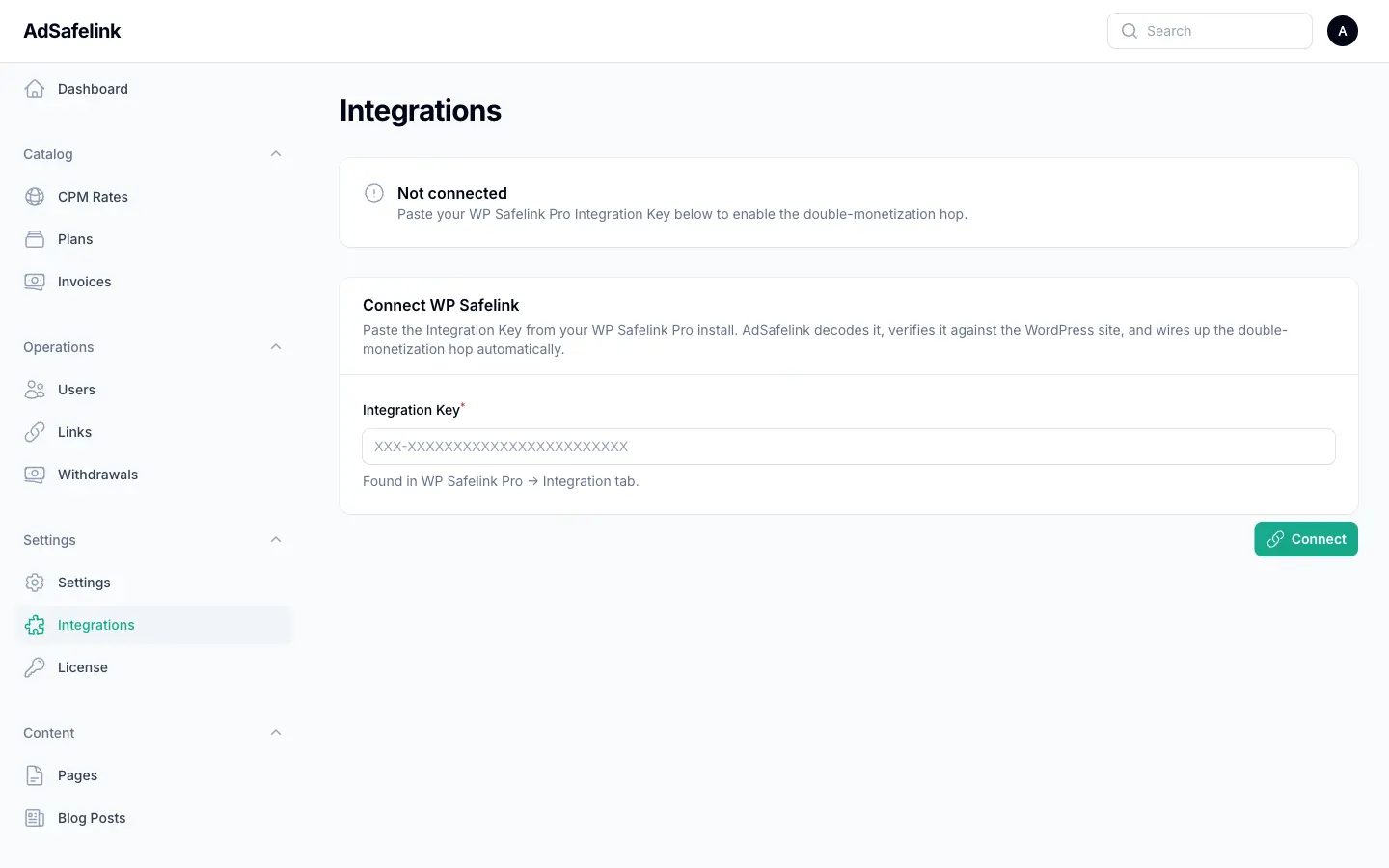
- The site URL does not match exactly. The handshake derives its shared secret from the WordPress site’s own URL. If the URL AdSafelink stored differs from what WordPress reports — by
httpversushttps, awwwprefix, or a trailing slash — the token cannot be decrypted and the loop is skipped. Reconnect using the one-click integration key so the URL is captured exactly as WordPress reports it, and do not hand-edit it afterward. - WP Safelink is not on the PRO tier, or AdLinkFly integration is off. The WordPress side only runs the handshake when the WP Safelink Pro license is active (PRO) and the AdLinkFly option is enabled. On a non-PRO or unconfigured WordPress site, AdSafelink correctly degrades to a plain ad page with no WordPress hop. Confirm WP Safelink Pro is licensed and that you set its AdLinkFly URL to
https://your-site.com. - The connection was never confirmed. Use Connect WP Safelink and paste the integration key from your WordPress site. AdSafelink decodes the key, posts it back to your WordPress site for a round-trip check, and only marks the connection “Connected” on success. If the check fails, the loop will not run.
To verify the full loop, click a short link and watch the address bar: you should be sent to your WordPress site, see the countdown, and then return to https://your-site.com/yourAlias with extra query parameters before landing on the destination. If you never leave AdSafelink, one of the three causes above applies.
#Connecting WP Safelink fails with a validation error
The one-click connect posts your integration key back to your WordPress site to confirm it points at a real, reachable WP Safelink Pro install. If it fails:
- Confirm your WordPress site is reachable over HTTPS from your AdSafelink server and that its REST API is not blocked by a security plugin or firewall.
- Re-copy the integration key from WordPress in full — it is case-sensitive and may contain characters that get mangled if copied incompletely.
- Make sure the WordPress site URL has not changed since the key was generated. The check is an exact identity match against the site’s own URL; any change to the URL fails it.
#Licensing problems
#The license shows “grace” or “degraded”
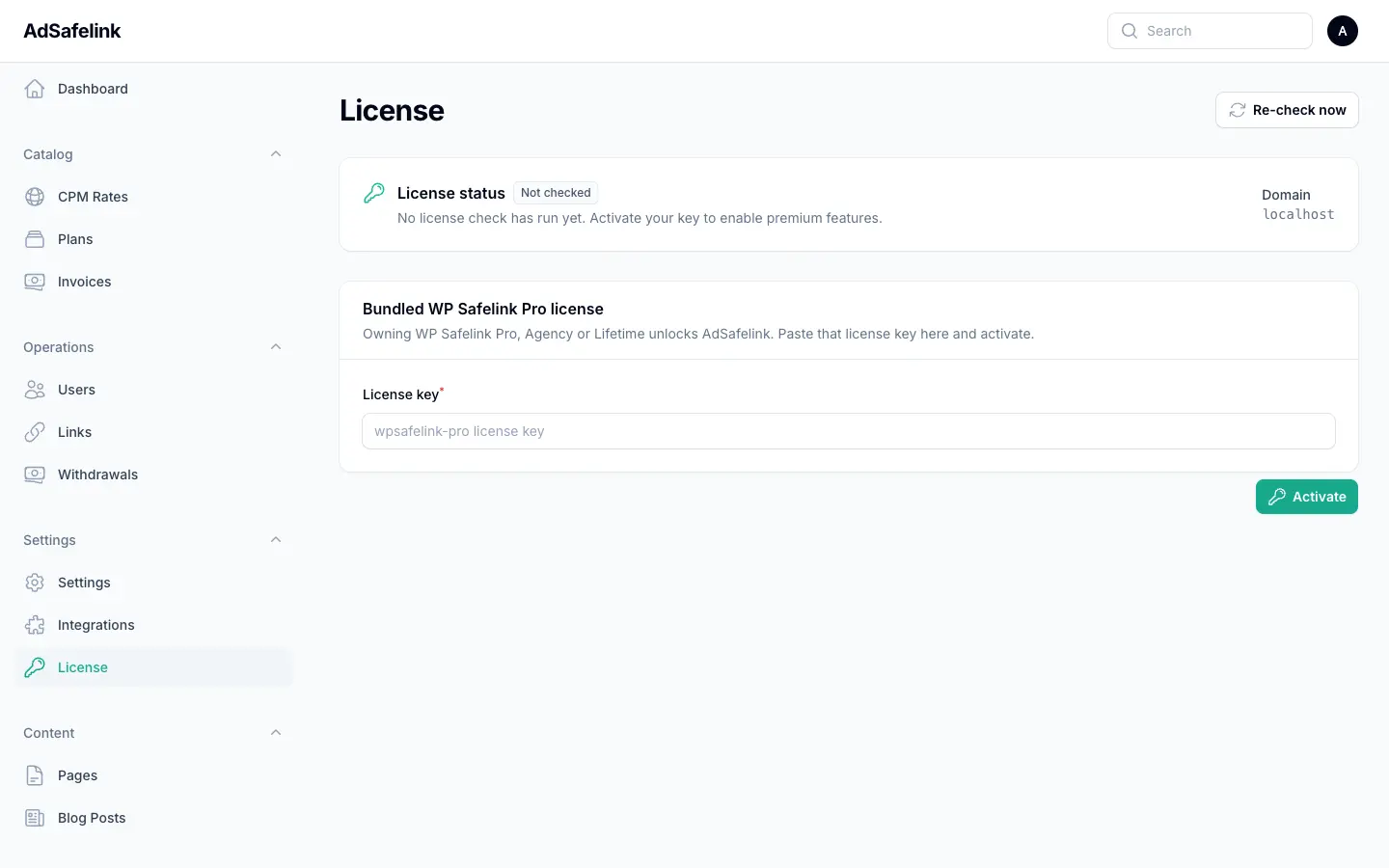
AdSafelink is bundled with WP Safelink Pro: your existing WP Safelink Pro key entitles AdSafelink, so there is no separate key to buy. AdSafelink validates that key against the Themeson license service and moves through a small set of states.
| State | What it means | What to do |
|---|---|---|
| active | The key validated successfully and the domain matches. | Nothing — premium features are on. |
| grace | Validation is currently failing, but it succeeded recently. Features keep working for up to seven days from the last success, with a warning. | Find out why validation fails (see below). It will return to active on the next successful check. |
| degraded | Validation has failed for more than seven days, or never succeeded. Premium features are disabled. | Fix the underlying cause, then refresh the license from the admin License screen. |
The usual reasons validation fails:
- The license server is unreachable. If your server cannot make outbound HTTPS requests, validation cannot complete. This is what the seven-day grace window protects against — a temporary network outage will not take you offline. Confirm your server can reach the license service over HTTPS and that no firewall blocks outbound traffic.
- The wrong key. Make sure you entered your WP Safelink Pro license key exactly, with no leading or trailing spaces. An expired or inactive key validates as not-active.
- A domain mismatch. The license is locked to the domain where you installed AdSafelink. If you moved the install to a new domain, the cached validation no longer matches and is discarded. Refresh the license from the License screen so it re-binds to the current domain.
A background job re-checks the license twice a day, so a transient failure usually clears itself within hours. You can force an immediate re-check from the admin License screen.
#Operations: jobs, backups, and passwords
#How do I run the background jobs?
AdSafelink relies on two things running in the background: a scheduler (which fires recurring jobs such as plan expiry, withdrawal processing, statistics roll-ups, and the twice-daily license re-check) and a queue worker (which processes those jobs). Without them, plans never expire, dashboards stop updating, and the license is never re-validated.
Scheduler. Add a single cron entry that runs the scheduler every minute. From your application directory:
* * * * * cd /path/to/adsafelink && php artisan schedule:run >> /dev/null 2>&1
That one line is enough — Laravel decides internally which jobs are due. The schedule fires plan-expiry and license re-check twice daily, and withdrawal processing and statistics roll-ups hourly.
Queue worker. Run a persistent worker so queued jobs are actually executed. The recommended approach is a long-running process supervised by your host’s process manager so it restarts automatically:
php artisan horizon
If you do not use Horizon, a plain queue worker also works:
php artisan queue:work --tries=3
Whenever you deploy new code, restart the worker so it picks up the changes (php artisan horizon:terminate or php artisan queue:restart); a supervised worker will then come back up automatically.
#How do I back up my install?
There are two things worth backing up:
- The database. This holds your members, links, statistics, plans, withdrawals, and settings. Take a regular dump of your MySQL database — daily is a sensible baseline for a live install.
mysqldump -u your_db_user -p your_database > adsafelink-backup.sql
- Your environment file and uploads. Back up your
.envfile (it holds your application key and credentials — store it securely and never commit it anywhere public) and thestorage/app/directory if you store any uploaded files there.
To restore on a fresh server, import the database dump, restore the .env file, install dependencies, and rebuild the caches. Because the license is locked to your domain, restoring on a different domain means the license re-binds on its next check — that is expected, and the grace window keeps you running while it does.
#How do I reset a forgotten password?
For members, the normal flow is the “forgot password” link on the sign-in page, which emails a reset link — so make sure your outgoing mail (SMTP) is configured and working before you need it. Send yourself a test signup to confirm mail is delivering.
For an administrator who is locked out and cannot receive the reset email, reset the password from the server using the application’s Tinker console:
php artisan tinker
>>> $u = AppModelsUser::where('email', 'you@example.com')->first();
>>> $u->password = Hash::make('your-new-password');
>>> $u->save();
Replace the email with your admin account’s email and choose a strong new password. The account is now reachable with the new password. If sign-in still fails, confirm the account’s role is admin and its status is active.
#A quick triage checklist
When something breaks, this order resolves most issues fastest:
- Confirm the web root points at
public/(fixes site-wide 404s). - Clear and rebuild caches:
php artisan optimize:clearthen re-cache config, routes, and views. - Check that
storage/andbootstrap/cache/are writable. - Check the browser console and your application log for the actual error before changing anything else.
- Confirm the scheduler cron and the queue worker are both running.
- For earnings issues, read the void reason on the affected views before assuming a bug.