Anti-Adblock Detection
Quick answer: Anti-Adblock Detection stops ad-blocker users from skipping the ads that pay for your site. When WP Safelink detects a blocker, it shows a full-screen overlay and freezes the countdown timer...
On this page
Anti-Adblock Detection stops ad-blocker users from skipping the ads that pay for your site. When WP Safelink detects a blocker, it shows a full-screen overlay and freezes the countdown timer — so the visitor can’t reach the download link until the blocker is turned off.
#How it works
- On every safelink page, WP Safelink actively tries to load the Google ads script.
- If that request is blocked, the visitor is using an ad blocker, VPN, proxy, or custom DNS that strips ads.
- A blocking overlay appears with your custom headline and message, and the countdown timer freezes.
- Once the visitor disables the blocker and reloads, the timer resumes and the download proceeds normally.
#How to enable Anti-Adblock
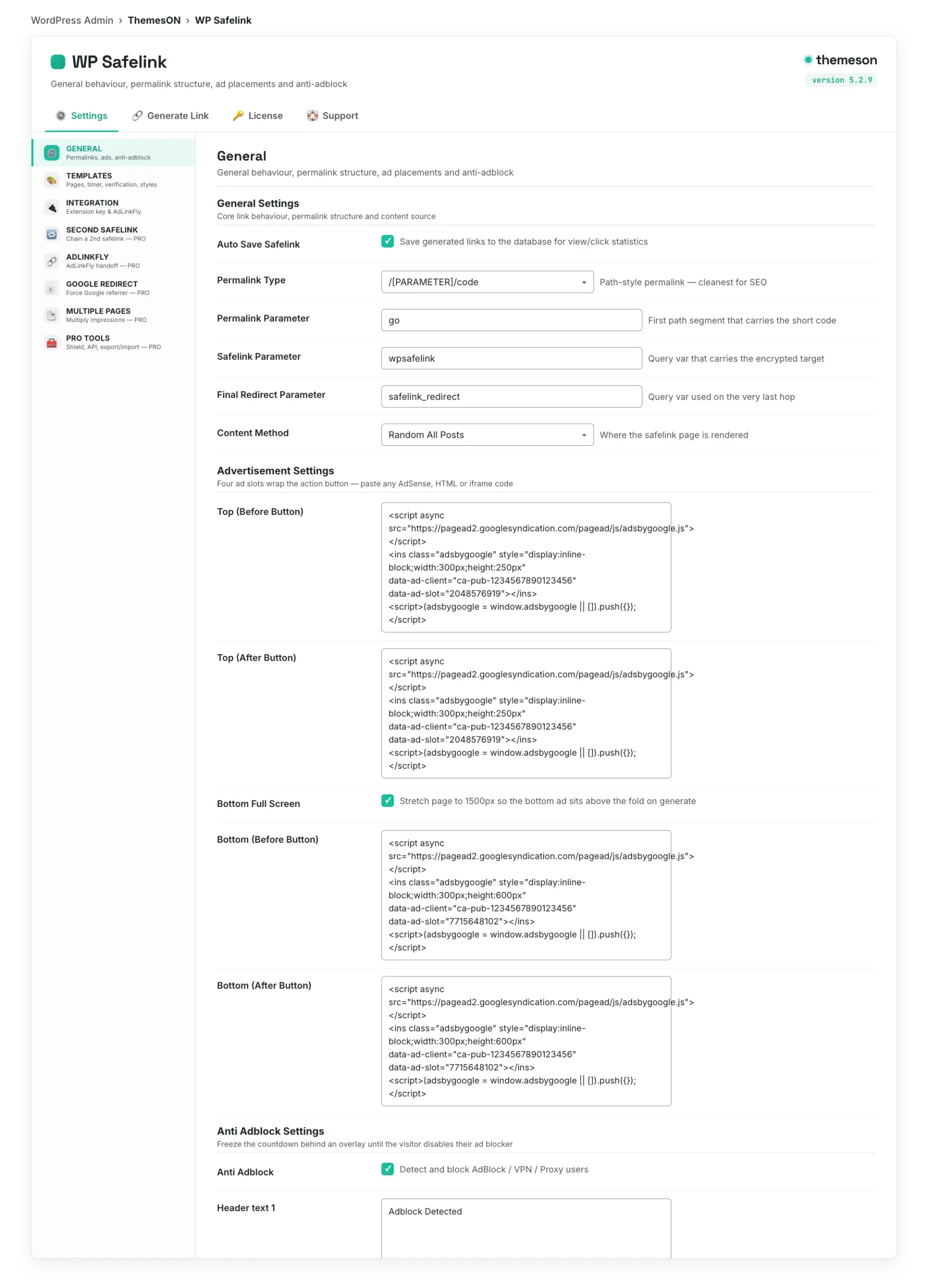
- Open WP Safelink → Settings → General and scroll to Anti Adblock Settings.
- Turn on Anti Adblock.
- Edit Header text 1 and Header text 2 to set the overlay headline and message.
- Save changes and test with an ad blocker enabled to confirm the overlay appears.
#Configuration
| Setting | Default | What it does |
|---|---|---|
| Anti Adblock | Off | Enables ad-blocker detection and the blocking overlay. |
| Header text 1 | Adblock Detected | The bold headline shown on the blocking overlay. |
| Header text 2 | It seems you are using an ad blocker / VPN / Proxy / Custom DNS. Please disable it… | The body message instructing the visitor to disable their blocker. |
#The anti-adblock overlay
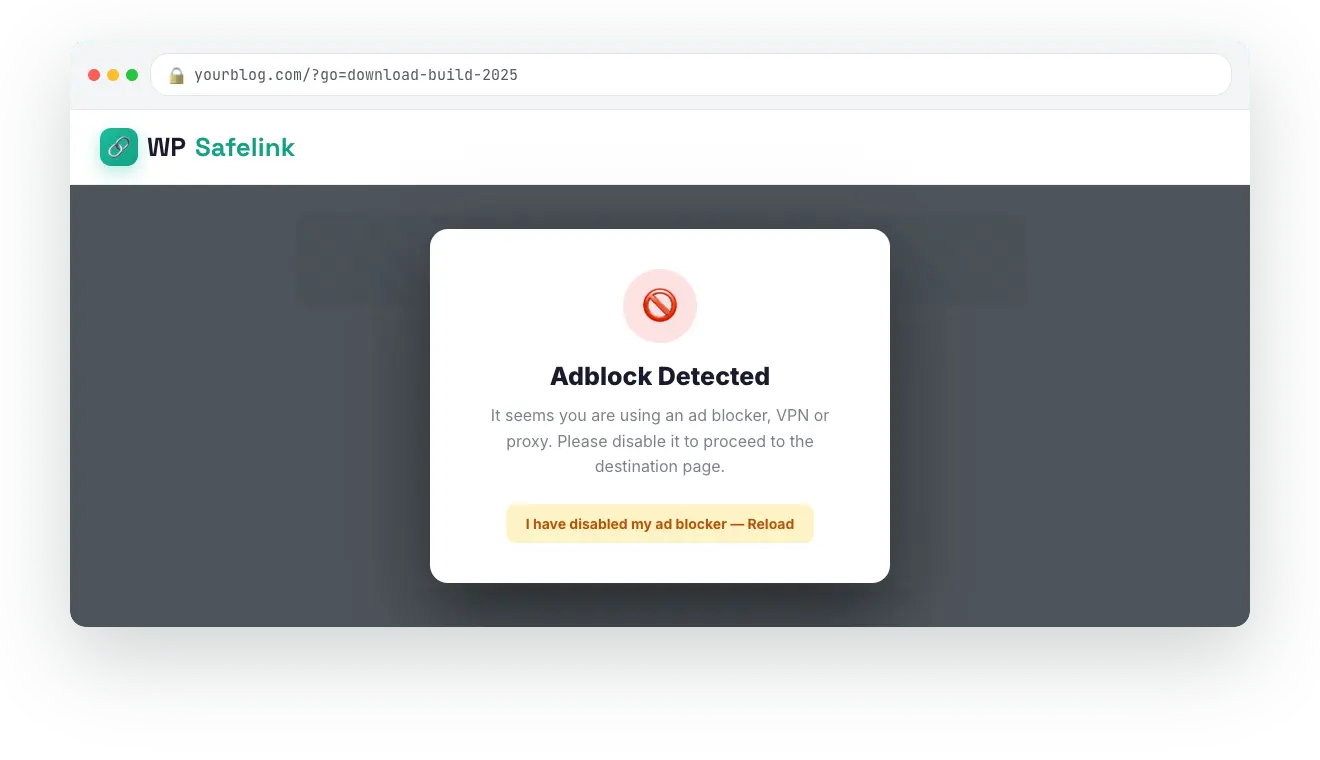
💡 Note: Keep your overlay message friendly and specific — explain that ads keep the downloads free. Anti-Adblock pairs naturally with your ad placements and the countdown timer to protect every impression.