Human Verification
Quick answer: Human Verification adds a bot-filtering gate before the countdown begins, so automated scrapers and click-fraud bots don’t burn through your ad impressions or steal your real download links. WP Safelink...
On this page
Human Verification adds a bot-filtering gate before the countdown begins, so automated scrapers and click-fraud bots don’t burn through your ad impressions or steal your real download links.
WP Safelink supports four verification methods: a simple button click, Google reCAPTCHA, hCaptcha, and Cloudflare Turnstile.
#How to enable verification
- Open WP Safelink → Settings → Templates and scroll to Human Verification.
- Turn on Human Verification.
- Pick a Verification Method: Button, reCAPTCHA, hCaptcha, or Turnstile.
- For a captcha method, paste the matching Site Key and Secret Key from your provider.
- Optionally edit the prompt label, then save changes.
#Configuration
| Setting | Default | What it does |
|---|---|---|
| Human Verification | Yes | Master switch for the verification gate. |
| Verification on Homepage | No | Runs the verification step on the homepage (Template2 flow) instead of a random post. |
| Verification Method | Button | Choose Button, reCAPTCHA, hCaptcha, or Turnstile. |
| reCAPTCHA Site / Secret Key | (empty) | Your Google reCAPTCHA v2 keys when that method is selected. |
| reCAPTCHA Label | Please complete reCAPTCHA verification | Prompt text shown above the reCAPTCHA widget. |
| hCaptcha Site / Secret Key | (empty) | Your hCaptcha keys when that method is selected. |
| hCaptcha Label | Please complete hCaptcha verification | Prompt text shown above the hCaptcha widget. |
| Turnstile Site / Secret Key | (empty) | Your Cloudflare Turnstile keys when that method is selected. |
| Turnstile Label | Please complete Cloudflare Turnstile verification | Prompt text shown above the Turnstile widget. |
#What it looks like
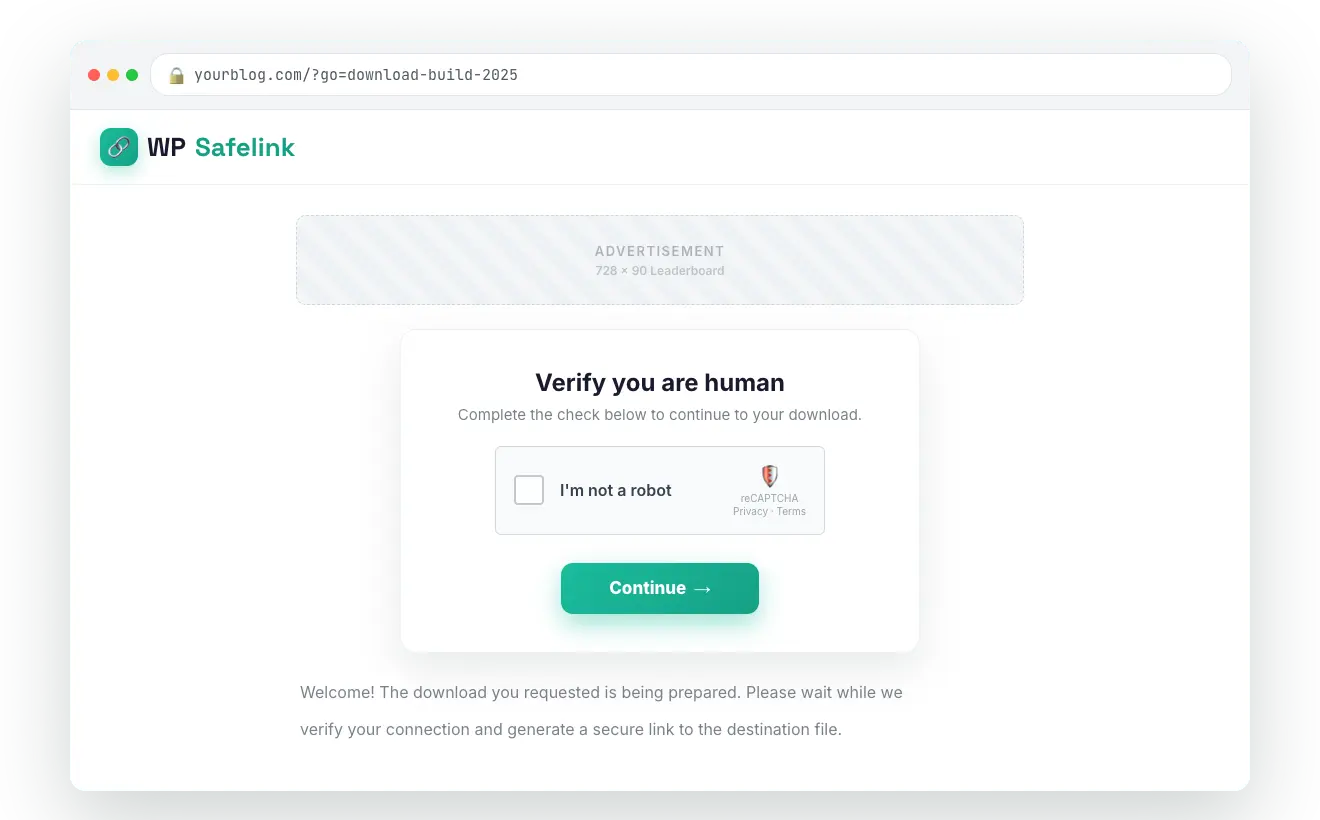
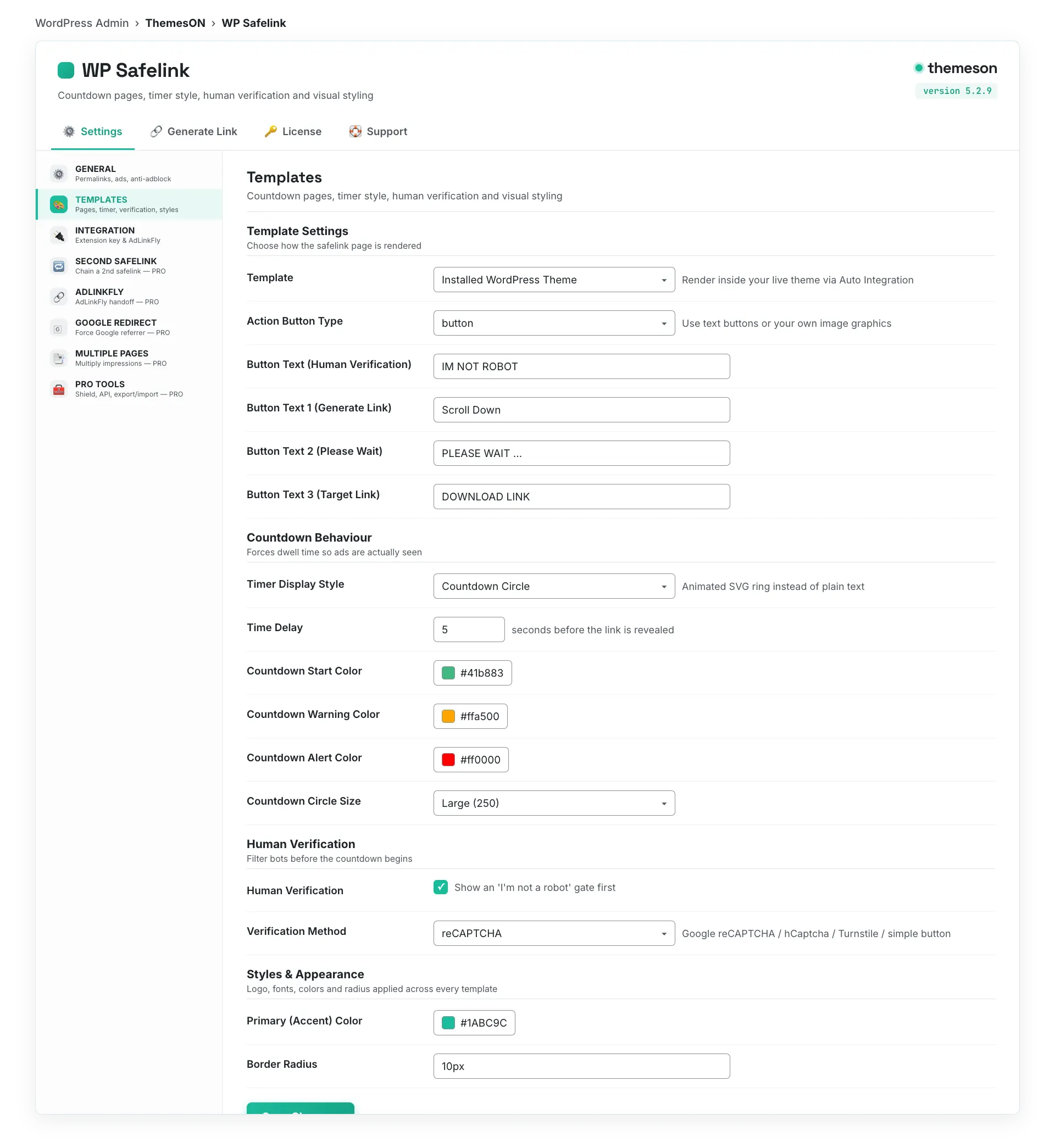
💡 Note: The Button method needs no keys and works instantly — perfect for a quick start. Switch to reCAPTCHA, hCaptcha, or Turnstile when you need stronger bot protection. For the toughest defense against proxy and VPN traffic, PRO adds an Anti-Bot / Proxy / VPN Shield on the Pro Tools tab.