Export & Import Links
Quick answer: Export & Import Links lets you back up your entire WP Safelink database — or migrate every saved link to another site — as a single encrypted string. Copy the...
On this page
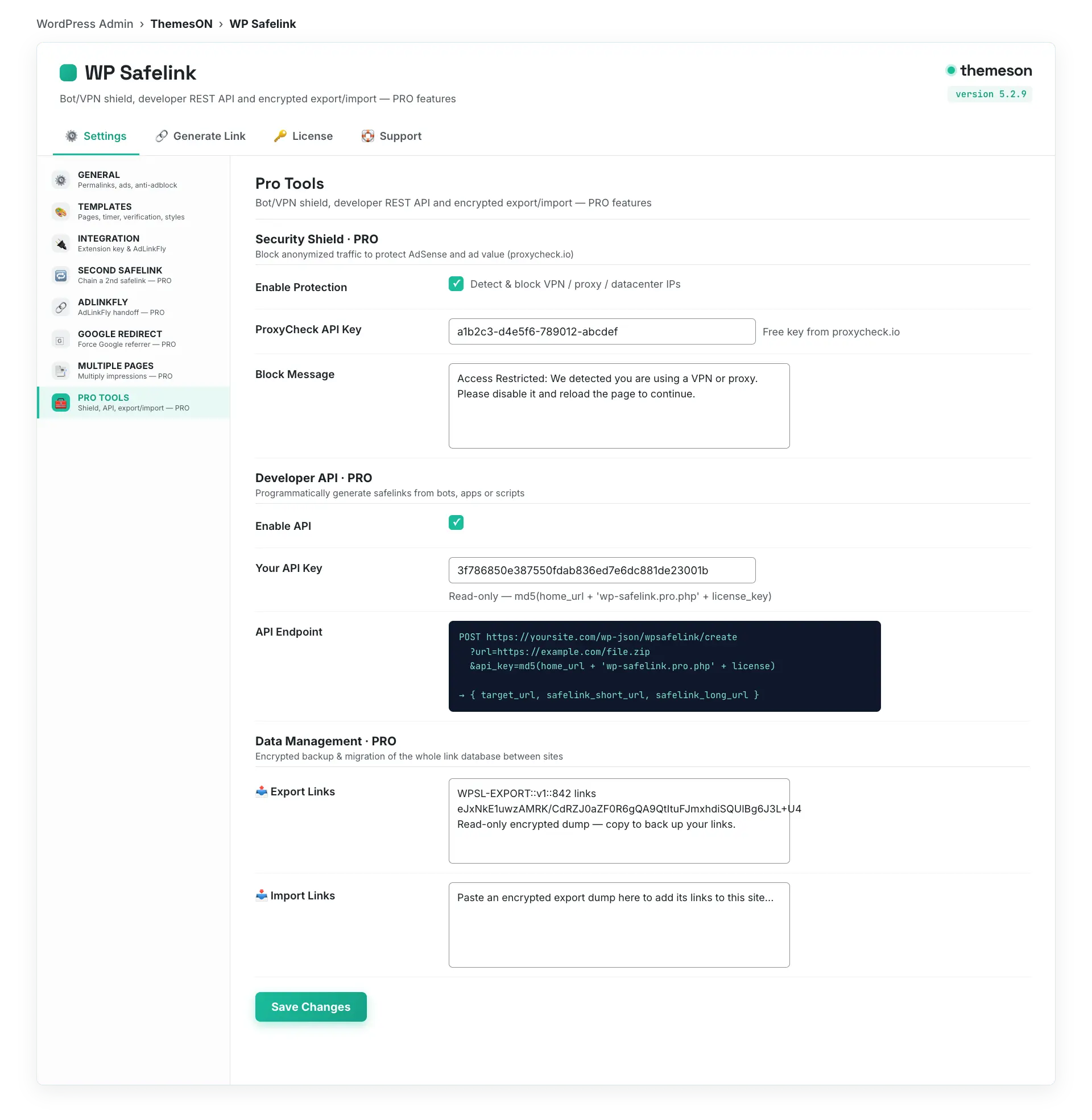
Export & Import Links lets you back up your entire WP Safelink database — or migrate every saved link to another site — as a single encrypted string. Copy the export, paste it into the import box on another install, and all your safelinks reappear. It is a PRO-only Data Management tool.
💡 Note: This is a WP Safelink PRO feature. It is unlocked only when your site is activated with a PRO license key (wpsafelink-pro, -agency, or -lifetime). On non-PRO plans the tab shows an upgrade banner. See License Activation to upgrade or activate your key.
Saved safelinks (with their stats) live in your site’s database. If you are moving to a new domain, cloning a site, or simply want an off-site backup, Export & Import makes it a copy-paste operation — no SQL, no plugins, no downtime. The export is encrypted, so your link data stays private in transit.
Export & Import only works when Auto Save Safelink is enabled, since that is what stores links in the database in the first place. See General Settings to turn it on.
#How to export
- Go to WP Safelink › Settings › PRO TOOLS.
- Find the Data Management section.
- The Export Links box already holds your encrypted backup along with a count of the links included.
- Select all the text in the box and copy it. Save it somewhere safe — that string is your backup.
#How to import
- On the destination site, open WP Safelink › Settings › PRO TOOLS.
- Paste the encrypted string into the Import Links box.
- Click Save Changes — the imported links are added to that site’s database.
- Confirm they appear in the Generate Link stats table.
#Configuration
| Setting | Default | What it does |
|---|---|---|
Export Links (export) | (auto-filled, read-only) | An encrypted dump of all your saved safelinks plus a count. Copy it to back up or migrate your links. |
Import Links (import) | (empty) | Paste an encrypted export string here and save to add those links to the current site. |
#What it looks like
💡 Note: Import adds links to the destination site rather than replacing it, so importing into a site that already has links is safe. Always keep a fresh export before a domain change or major update — it is your one-string insurance policy. The export is encrypted, but still store it privately since it represents your full link inventory.