Page Templates Explained
Quick answer: A page template decides what your safelink interstitial looks like — from a polished standalone countdown page to a safelink wrapped inside your own WordPress theme. WP Safelink ships four...
On this page
A page template decides what your safelink interstitial looks like — from a polished standalone countdown page to a safelink wrapped inside your own WordPress theme. WP Safelink ships four bundled templates plus an Installed Theme mode, so you can match your brand or just pick a ready-made monetization page.
#How to choose a template
- Open WP Safelink → Settings → Templates.
- Under Template Settings, pick a value in the Template dropdown.
- Choose a self-contained template (template1–4) or Installed WordPress Theme to wrap safelinks in your theme.
- For theme/template2/3/installed modes, leave Enable Auto Integration on so the safelink blocks inject automatically.
- Save changes and open a safelink to preview the result.
#The four templates + theme mode
| Template | Style | Theme integration | Buttons |
|---|---|---|---|
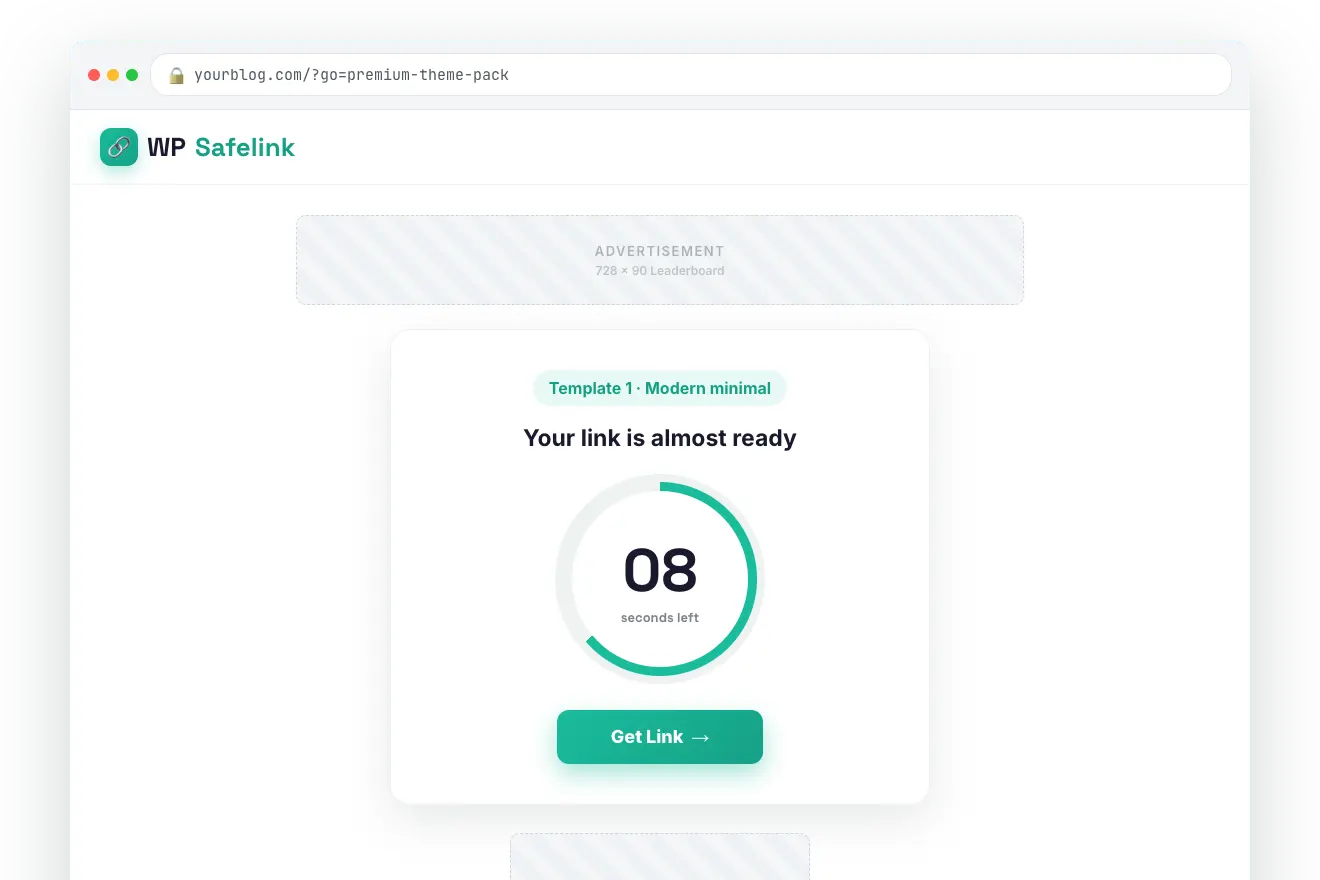
| Template 1 | Modern minimal standalone page with sticky header, logo, card, and ad zones. | None needed — fully self-contained. | Button or image, all four stage labels honored. |
| Template 2 | Auto-submitting form that renders the safelink inside your theme’s header/footer. | Required (auto or manual). | Inherits your theme plus safelink styling. |
| Template 3 | Classic Bootstrap ‘Verifying…’ page with an ‘I’m a Human’ gate. | Required for the timer stage. | Bootstrap text button; supports Skip Verification. |
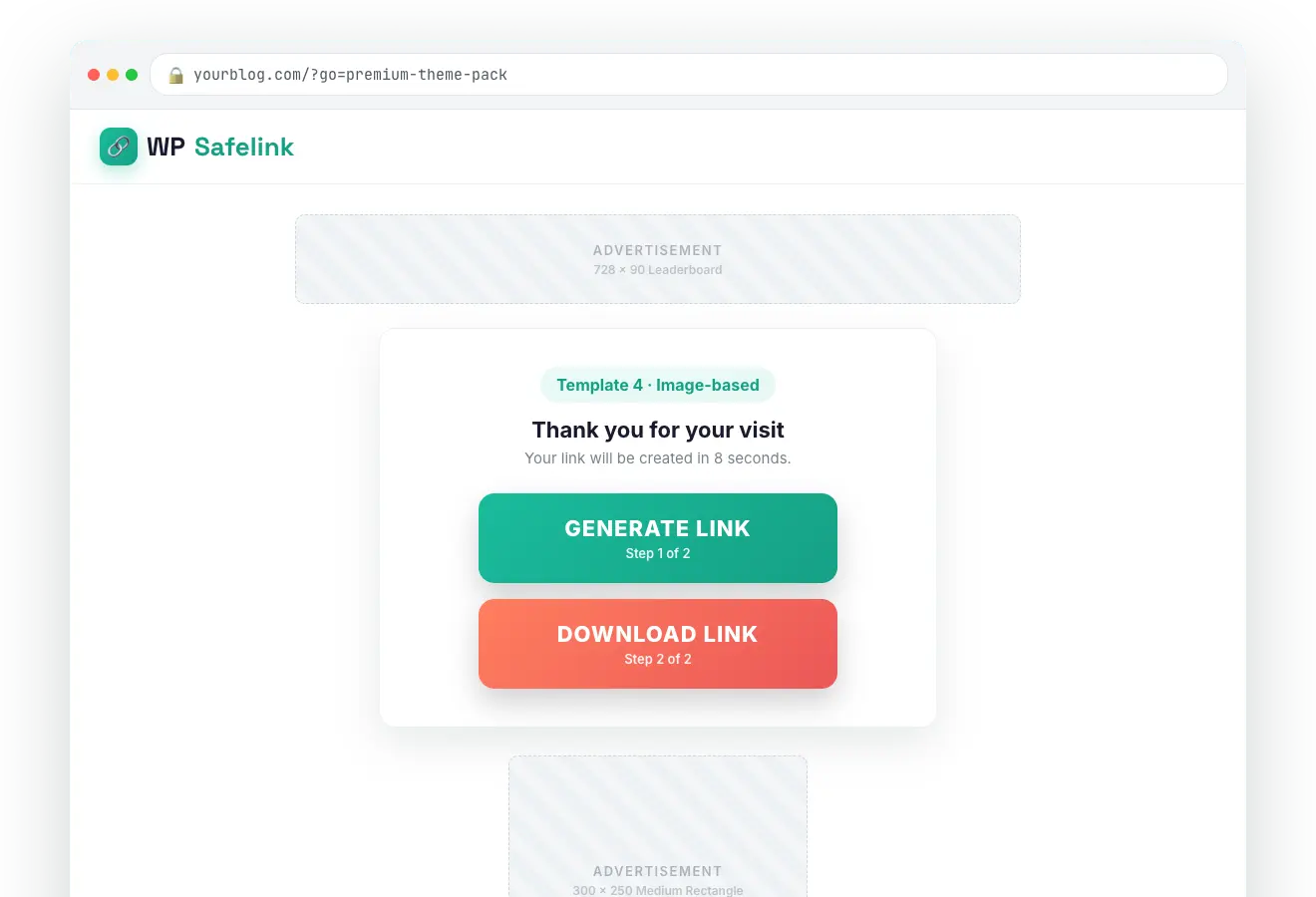
| Template 4 | Image-based standalone page built around custom button graphics. | None needed — fully self-contained. | Image buttons only (generate / wait / target graphics). |
| Installed WordPress Theme | No interstitial template — safelink top/bottom blocks injected into your live theme. | Required (Auto Integration). | Uses your theme’s look with safelink controls. |
#Template 1 — modern minimal
#Template 4 — image buttons
#Auto Integration (theme mode)
When you use Installed Theme, Template 2, or Template 3, Auto Integration injects the safelink top and bottom blocks into your theme automatically — no need to hand-edit header.php or footer.php. You can pick exactly where the blocks appear:
| Setting | Default | What it does |
|---|---|---|
| Enable Auto Integration | Yes | Injects safelink blocks into the theme (template2/3/installed only). |
| Top Section Placement | after_title | Where the top block goes: wp_body_open, before_title, after_title, or content_start. |
| Bottom Section Placement | content_end | Where the bottom block goes: wp_footer, content_end, or after_content. |
| Hook Priority | 10 | WordPress hook priority for the injection (lower runs earlier). |
💡 Note: Use a standalone template (1 or 4) for the fastest setup and full control over the page. Choose Installed Theme mode when you want safelinks to look exactly like the rest of your site. Configure the countdown, ads, and verification the same way regardless of which template you pick.