Installing the AdLinkFly Integrator
Quick answer: The AdLinkFly Integrator is a separate WordPress plugin — WP Safelink Extensions – Adlinkfly Integrator — that you install on its own WordPress site. Its only job is to catch...
Stack an AdLinkFly shortener on top 0:56
On this page
The AdLinkFly Integrator is a separate WordPress plugin — WP Safelink Extensions – Adlinkfly Integrator — that you install on its own WordPress site. Its only job is to catch short URLs, route them through your AdLinkFly install, and wrap them in a WP Safelink Pro countdown page. You connect it to WP Safelink Pro with a single Integration Key.
#Before you start
- A working WP Safelink Pro install (Site A) that can mint an Integration Key.
- A working AdLinkFly install.
- A separate, dedicated WordPress site for the Integrator (it claims short top-level URLs, so it should not share a site with normal content).
- The PHP OpenSSL extension enabled on the Integrator site.
#How to install and connect
- Install and activate WP Safelink Extensions – Adlinkfly Integrator on the dedicated site.
- Open WP Safelink Extension (Adlinkfly Integrator) from the WordPress admin menu.
- In your WP Safelink Pro install, copy the Integration Key from the Integration tab (format
XXX-XXXXXXXXXXXXXXXXXXXXXXXX). - Back in the Integrator’s Step 1: WP Safelink Validation, paste the key into the Integration Key field and click Validate Integration Key.
- The plugin decodes the URL embedded in the key, confirms the connection with your WP Safelink Pro server, and on success fills in the Connected WP Safelink URL field.
- Click Continue to Configuration to unlock Step 2.
#Step 1 fields
| Setting | Default | What it does |
|---|---|---|
| Integration Key * | (empty) | Required. Paste the key from WP Safelink Pro (example: XXX-XXXXXXXXXXXXXXXXXXXXXXXX). Validated via AJAX, not the save button. Becomes read-only once validated. |
| Connected WP Safelink URL | (auto) | Read-only. Automatically detected from your Integration Key and shown only after a successful validation. This is the WP Safelink Pro install your safelinks will run through. |
#What the settings page looks like
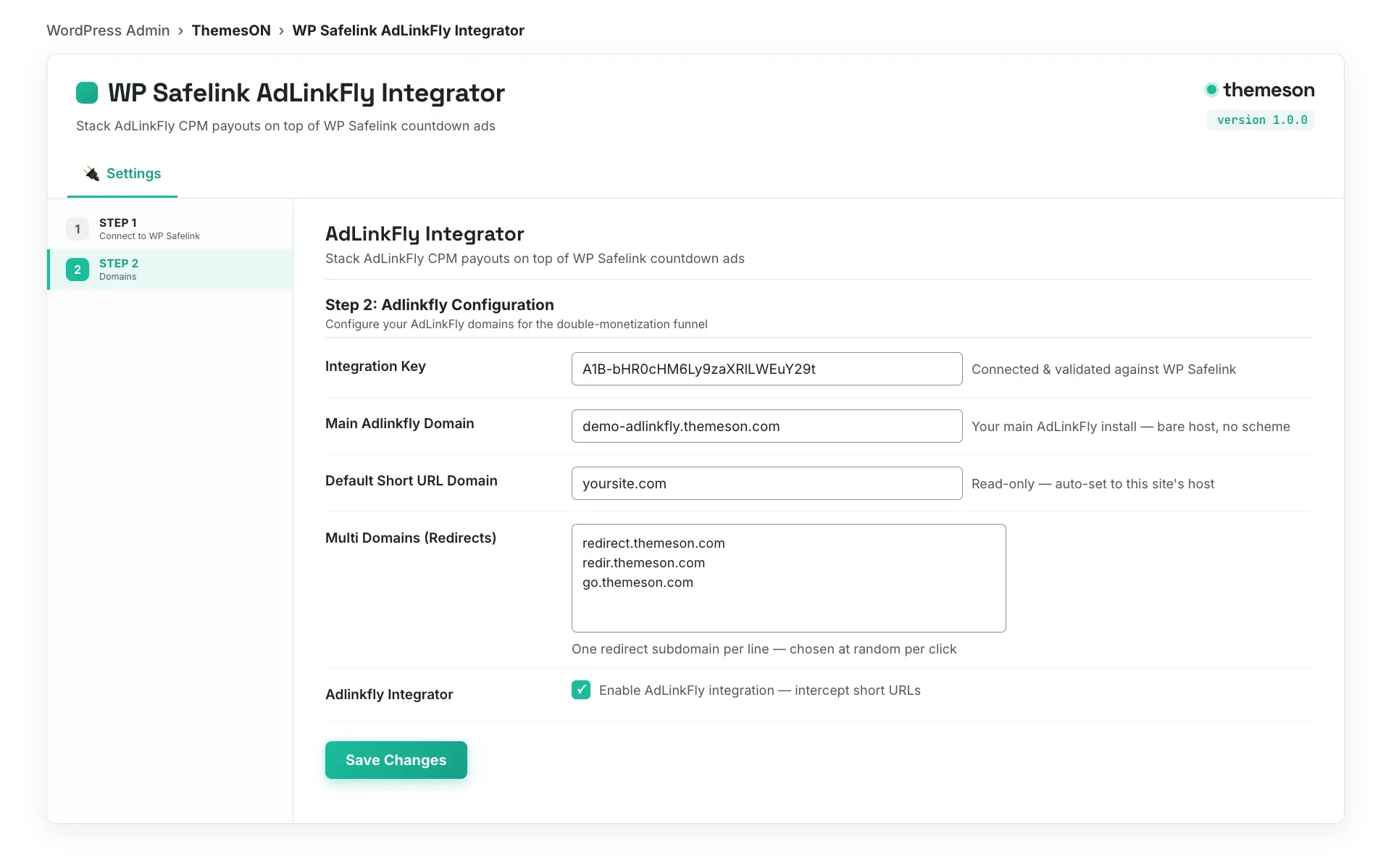
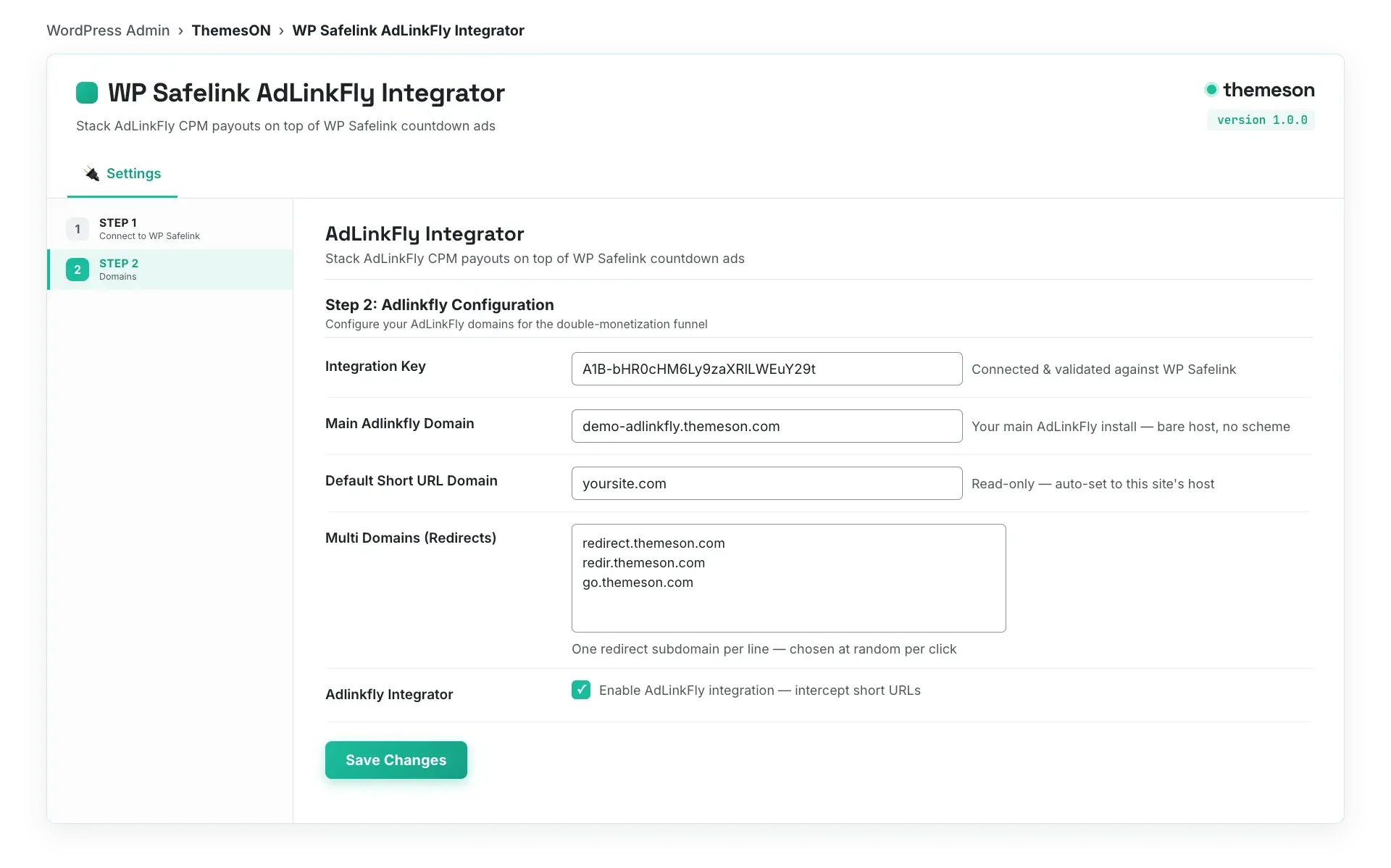
💡 Note: The Integrator re-checks its connection over time and shows a re-validate reminder after 30 days. If you ever need to point at a different WP Safelink Pro install, use the Change Key button to clear the saved key and validate a new one. Once connected, continue to configuring your domains and dual monetization.