Configuring Domains & Dual Monetization
Quick answer: After your Integration Key is validated, Step 2: Adlinkfly Configuration is where you point the Integrator at your AdLinkFly install and switch the funnel on. The key setting is the...
Stack an AdLinkFly shortener on top 0:56
On this page
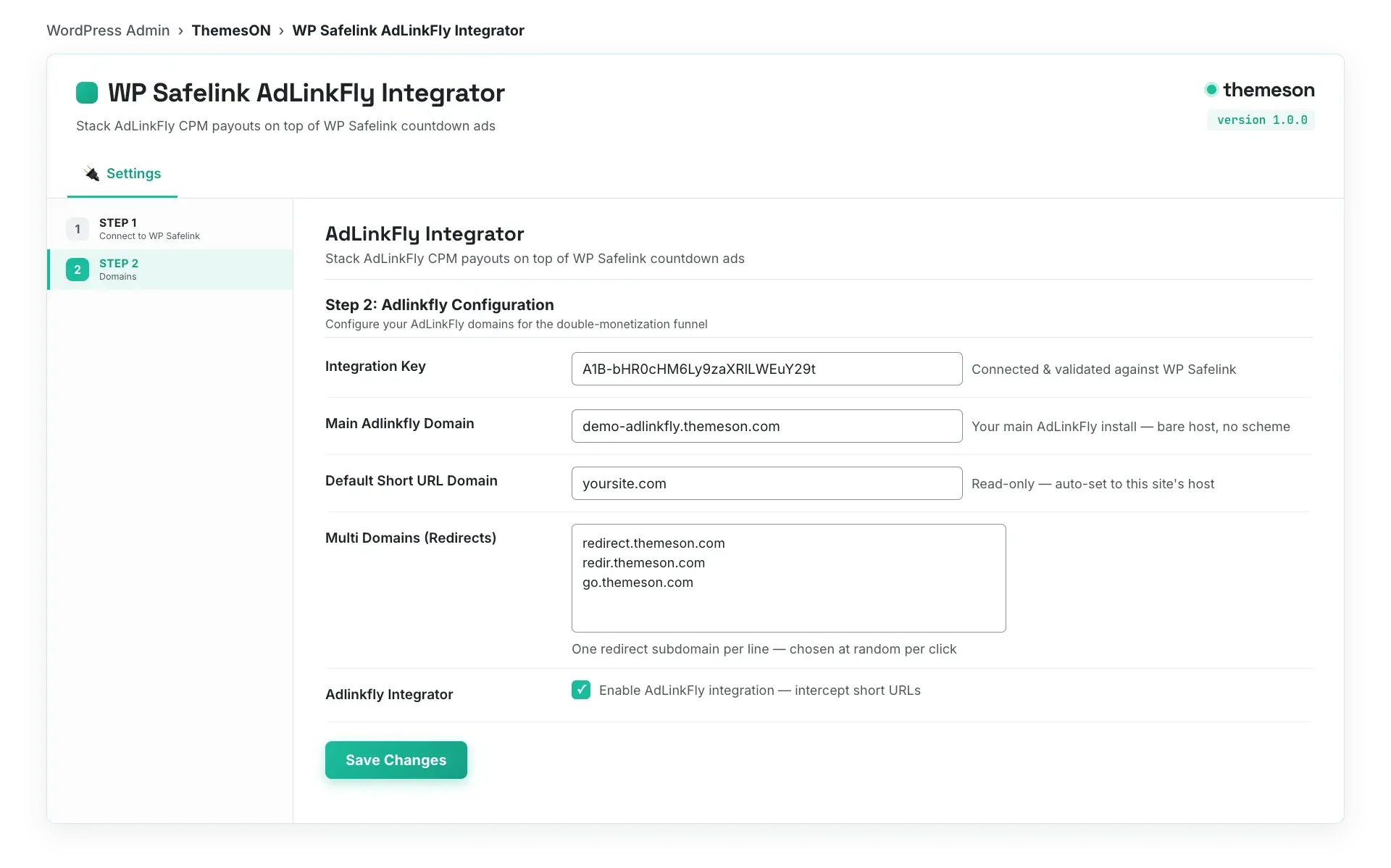
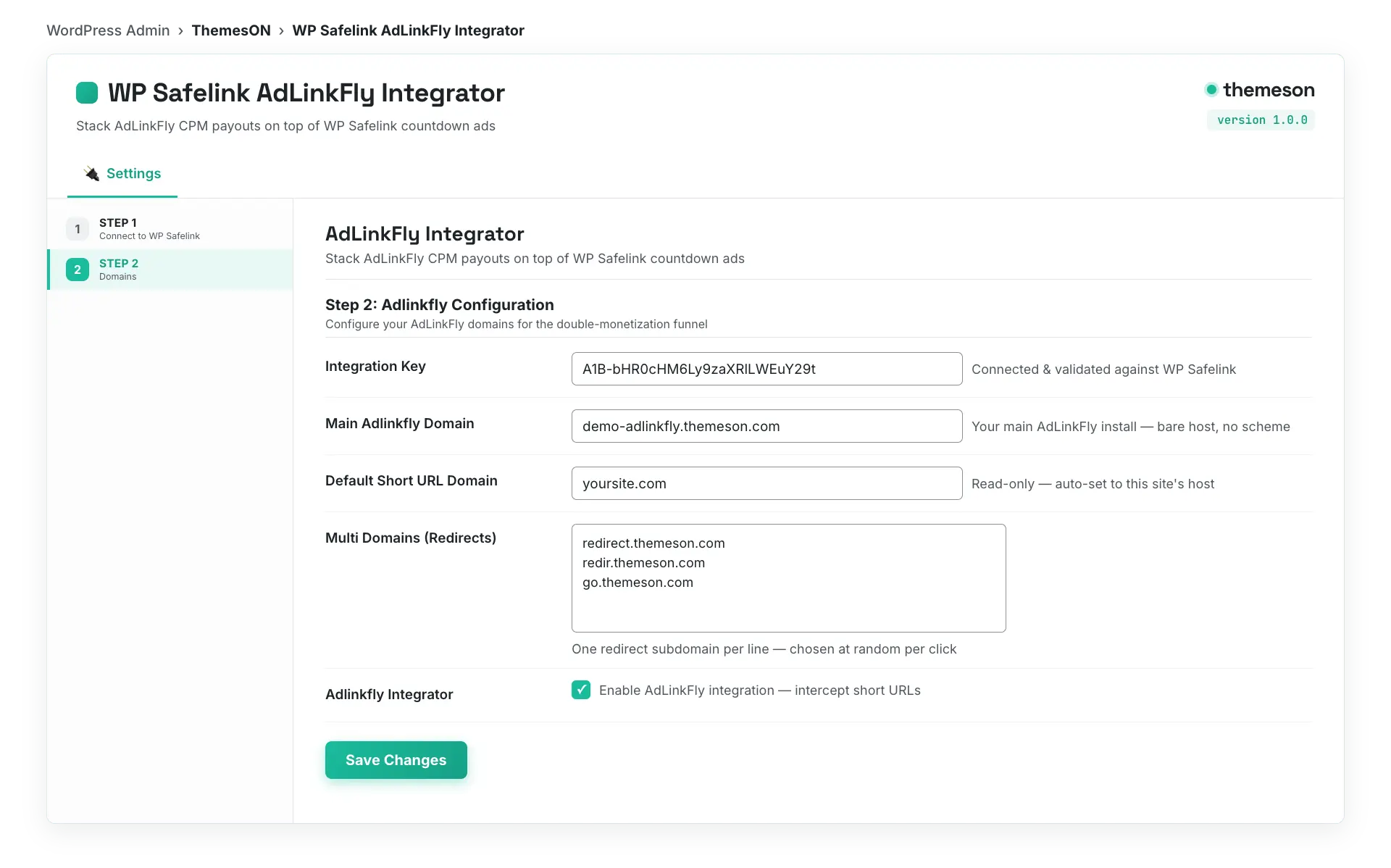
After your Integration Key is validated, Step 2: Adlinkfly Configuration is where you point the Integrator at your AdLinkFly install and switch the funnel on. The key setting is the Multi Domains (Redirects) list — that is what actually drives the redirect, so the integration will not fire until you fill it in.
#How alias interception works
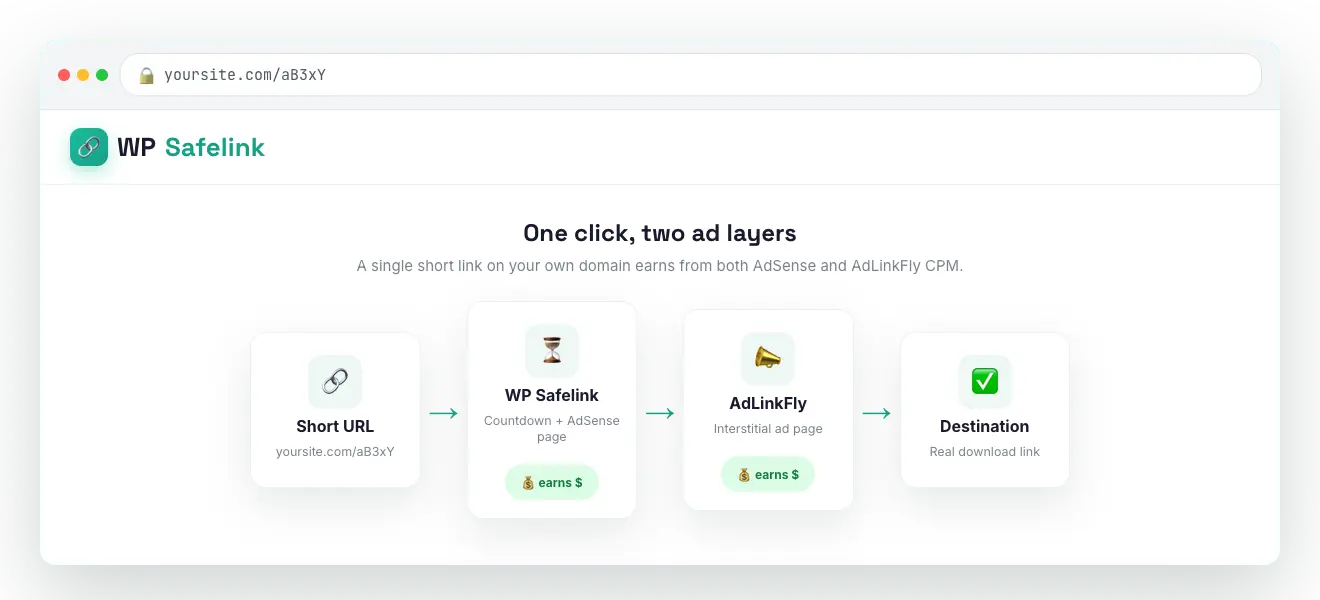
Once enabled, the Integrator watches every front-end request on your site. It takes the first path segment of the URL (the part right after your domain) and, if it is 16 characters or fewer, treats it as an AdLinkFly short alias. It then picks a redirect domain at random from your Multi Domains list, builds an encrypted WP Safelink wrapper, and sends the visitor into the dual-monetization funnel.
- Random domain rotation — each click uses a randomly chosen redirect domain from your list, which spreads traffic and reduces the chance of any single domain being flagged.
- Encrypted hop — the AdLinkFly link is AES-encrypted into the WP Safelink Pro URL, so the real destination is never exposed in the page source.
- Short, on-domain URLs — visitors only ever see a clean short link on your own WordPress domain.
#Step 2 configuration
| Setting | Default | What it does |
|---|---|---|
| Main Adlinkfly Domain * | demo-adlinkfly.themeson.com (placeholder) | Your main AdLinkFly installation domain, entered bare — no http:// or https://, no trailing slash. Stored for reference. (Note: at runtime the redirect target comes from the Multi Domains list, not this field.) |
| Default Short URL Domain | your site’s domain (auto) | Read-only. Automatically set to your site’s own host on every save. This is the domain your short links live on. |
| Multi Domains (Redirects) | redirect.themeson.com (placeholder) | The list of redirect domains, one per line. This is the actual source of redirect targets — one is chosen at random for each click. Required for the integration to fire. |
| Adlinkfly Integrator | yes (enabled) | Master switch. The ‘Enable Adlinkfly Integration’ toggle turns the short-URL interception on or off. On by default. |
#Setting up redirect subdomains
Each line in Multi Domains (Redirects) must be a subdomain or alias whose document root points at the same AdLinkFly install. The Integrator includes a built-in guide for this:
- In your hosting control panel (e.g. cPanel), go to Subdomains and create your redirect subdomain, e.g.
redirect.example.com. - Set the subdomain’s document root to the same path as your AdLinkFly install so the alias resolves through AdLinkFly.
- Verify the subdomain’s DNS has propagated and loads AdLinkFly correctly.
- Add the bare domain (no scheme, no trailing slash) on its own line in the Multi Domains box. Add as many as you like for rotation.
- Toggle Enable Adlinkfly Integration on and click Save Changes.
#What the configuration page looks like
#Testing the funnel
- Create a short link in AdLinkFly with a known alias, e.g.
aBc12. - Visit
https://yoursite.com/aBc12in your browser. - You should be sent to a WP Safelink Pro countdown / ad page, then on to a redirect domain’s AdLinkFly interstitial, and finally to the real destination.
- Confirm WP Safelink Pro renders its page and that AdLinkFly logs a view for the alias.
#What a working test looks like
💡 Note: Two gotchas to remember: (1) Leaving Multi Domains empty silently disables the integration even with the toggle on — the rotation pool must have at least one domain. (2) Because any first path segment of 16 characters or fewer is treated as an alias, normal short page or post slugs on this site will be hijacked too. Keep this site dedicated to short links. To run AdLinkFly inside WP Safelink Pro itself instead of a separate site, see the AdLinkFly PRO Handoff.