Troubleshooting Common Issues
Quick answer: Hit a snag with WP Safelink? Most issues come down to caching, the license connection, or your hosting environment, and each has a quick fix. Find your symptom below and...
On this page
Hit a snag with WP Safelink? Most issues come down to caching, the license connection, or your hosting environment, and each has a quick fix. Find your symptom below and follow the matching solution.
#The countdown timer isn’t showing
Symptom: the download button appears instantly with no countdown, or the page looks blank where the timer should be.
Fix: this is almost always caching. Safelink pages must be served fresh, never from cache.
- In your caching plugin, exclude your safelink parameter (default
wpsafelink) and the final redirect parameter (defaultsafelink_redirect) from page cache. - If you use Cloudflare, add a Cache Rule to bypass cache for URLs containing your safelink parameter, then purge everything.
- Confirm Time Delay in the Templates tab is set to a value above 0 (the default is 5 seconds).
- Test in a private/incognito window to rule out a stale local cache.
💡 Note: If you use the Installed WordPress Theme template, the timer is injected by Auto Integration — make sure Enable Auto Integration is on in the Templates tab, otherwise the top/bottom safelink blocks never appear in your theme.
#Links aren’t converting to safelinks
Symptom: outbound links still point straight at the destination instead of going through a countdown page.
- If you generate links manually, make sure you actually copied the short or encrypted safelink from the Generate Link tab, not the original target URL.
- If you rely on the Auto Convert Link extension, confirm the extension is connected: it authenticates with the Integration Key from the Integration tab, so a wrong or empty key stops conversion.
- Check your Include / Exclude domain lists — in include mode only listed hosts are converted; in exclude mode everything except listed hosts is converted.
- After changing include/exclude lists behind Cloudflare, clear the Cloudflare cache so the regenerated blog JavaScript is served.
#“The ionCube Loader is missing” error
Symptom: a notice that ionCube is not installed, or the plugin won’t activate.
Fix: WP Safelink PRO needs ionCube Loader 14.0.0+ on PHP 8.3+.
- Open the setup wizard (WP Safelink → Setup) — it shows your current PHP version and whether ionCube is detected.
- If ionCube is missing, contact your host and ask them to enable the ionCube Loader for your PHP version (most hosts enable it from cPanel under “Select PHP Version” → extensions).
- If you’re on PHP 8.2 or lower, switch to PHP 8.3 first, then enable ionCube 14+.
- Reload the wizard — the requirement check should now pass and let you continue.
💡 Note: ionCube versions are tied to PHP versions. If you upgrade PHP later, make sure the matching ionCube Loader (14.0.0 or newer) is enabled for the new PHP version too.
#My license won’t activate
Symptom: the license key is rejected, or PRO tabs stay locked after entering the key.
- Double-check the key for stray spaces — copy it directly from your Themeson account email.
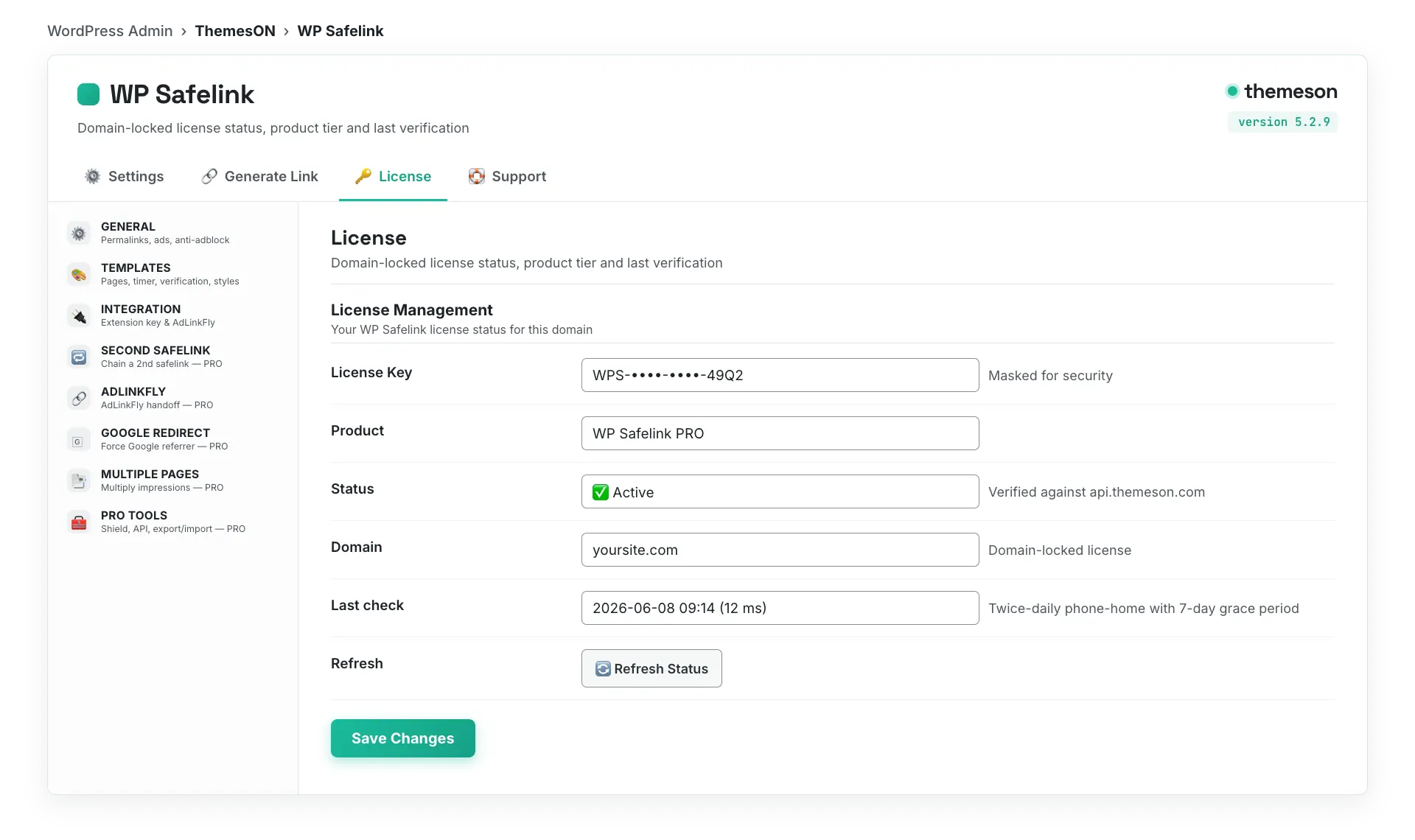
- Confirm the domain you’re activating on matches the domain on record. Licenses are domain-locked; use Change License on the License tab to move to a new domain.
- PRO features require a key ending in
-pro,-agency, or-lifetime. A Lite or Standard key activates the Full version but not PRO tabs. - Click Refresh Status on the License tab to force a fresh check against
api.themeson.com. - If your server blocks outbound HTTPS, ask your host to allow connections to
api.themeson.comandupdate.themeson.com.
💡 Note: If the license server is temporarily unreachable, don’t panic — WP Safelink keeps PRO features alive for a 7-day grace period while it retries automatically.
#Caching plugin or Cloudflare conflicts
Symptom: visitors see the same target link every time, the timer freezes at a stale value, or the page won’t advance past verification.
Fix: exclude all safelink routes from every cache layer.
| Layer | What to exclude | How |
|---|---|---|
| Page cache plugin | URLs with your safelink & redirect parameters | Add wpsafelink and safelink_redirect to the cache exclusion / never-cache list |
| Cloudflare | Safelink request URLs | Create a Cache Rule: Bypass cache when URI contains your safelink parameter, then Purge Everything |
| Object / browser cache | Cookie-dependent pages | Ensure the safelink cookie isn’t stripped; do not cache pages that set cookies |
#Blank or white page on the safelink
Symptom: the safelink URL loads to a completely blank (white) page.
- Enable
WP_DEBUGandWP_DEBUG_LOGinwp-config.php, reload the safelink, then checkwp-content/debug.logfor a PHP fatal error. - Confirm ionCube and PHP meet the requirements (a missing loader is the most common cause of a blank PRO page).
- Temporarily switch to a default template (template1) in the Templates tab to rule out a theme integration conflict.
- Raise your PHP
memory_limitif the log shows an out-of-memory error. - If it persists, deactivate other plugins one at a time to find a conflict, then re-activate.
#Where to check your license
💡 Note: Still stuck? Enable WP_DEBUG_LOG, reproduce the issue, and send the relevant lines from debug.log plus your PHP version through the Support tab. A debug log turns a vague “it doesn’t work” into a five-minute fix.