Link Statistics & Analytics
Quick answer: WP Safelink tracks views and clicks for every safelink you create, giving you a built-in analytics dashboard inside WordPress — no third-party tool required. See at a glance which links...
On this page
WP Safelink tracks views and clicks for every safelink you create, giving you a built-in analytics dashboard inside WordPress — no third-party tool required. See at a glance which links drive the most traffic and the most ad-revenue-generating downloads.
#What gets tracked
- View — counted each time the safelink interstitial (countdown page) loads.
- Click — counted when the visitor completes the flow and reaches the final download link.
- Date Added — when the safelink was first created.
- Target URL — the real destination behind the encrypted safelink.
Tracking only happens when Auto Save Safelink is enabled on the General tab, which stores each link (and its counters) in the database.
#Reading the dashboard
- Open WP Safelink → Generate Link.
- Below the generator form you’ll find the safelink table — a searchable, paginated DataTables grid.
- Use the columns to sort by View or Click and find your best performers.
- Delete any link directly from the table’s action button.
#The statistics table
| Column | Shows |
|---|---|
| Date Added | When the safelink was created. |
| Safelink (short) | The shareable short safelink URL. |
| Target URL | The real destination the safelink points to. |
| View | How many times the interstitial page has loaded. |
| Click | How many visitors reached the final download link. |
| Delete | Remove the link and its stats from the database. |
#The statistics dashboard
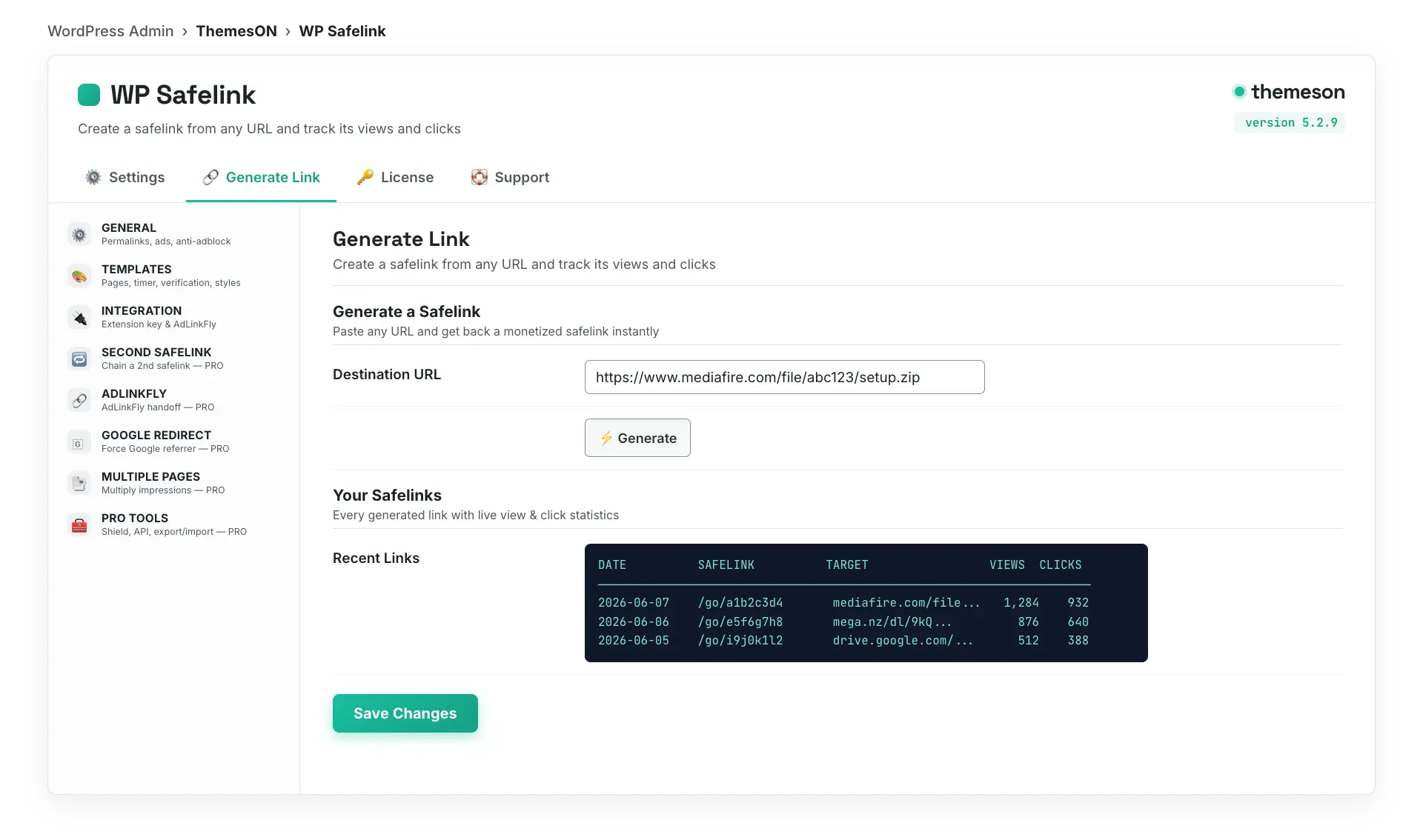
💡 Note: Statistics only accumulate while Auto Save Safelink is on. A high view count with a low click count usually means visitors are abandoning during the countdown — try shortening the delay. For programmatic link creation and PRO export/import of the whole link database, see the Pro Tools tab.