Installing Auto Convert Link
Quick answer: Auto Convert Link is installed as its own plugin on your content site — the movie, APK, or software blog where you publish download links. It then connects to your...
On this page
Auto Convert Link is installed as its own plugin on your content site — the movie, APK, or software blog where you publish download links. It then connects to your main WP Safelink Pro install using a single Integration Key. This guide walks you through installing the plugin and pairing the two sites.
#Before you start
- Your main site needs WP Safelink Pro installed, licensed, and configured (countdown page + AdSense). This is the site your links will point to.
- Your content blog is where you install Auto Convert Link. WP Safelink Pro is not required on this site.
- You will copy one Integration Key from the main site and paste it into the content blog.
#How to install and connect
- On your content blog, upload and activate the WP Safelink Extensions – Auto Convert Link plugin (Plugins → Add New → Upload Plugin).
- Open the new admin menu: WP Safelink Extension (Auto Convert Link). You will land on Step 1: WP Safelink Validation.
- On your main WP Safelink Pro site, go to WP Admin → WP Safelink → the Integration tab and copy the Integration Key. It looks like
XXX-XXXXXXXXXXXXXXXXXXXXXXXX. - Back on the content blog, paste the key into the Integration Key field and click Validate Integration Key.
- On success, the page reloads, the read-only Connected WP Safelink URL shows your main site, and Step 2: Configuration Options unlocks.
That is it — the two sites are now paired. The next step is choosing how links get converted, covered in Include vs Exclude Mode.
#Step 1 fields
| Setting | Default | What it does |
|---|---|---|
| Integration Key * | — (required) | Paste the key copied from your main site’s Integration tab. Format: XXX-XXXXXXXXXXXXXXXXXXXXXXXX. Becomes read-only once validated. |
| Connected WP Safelink URL | — | Read-only. Shown only after validation — it is detected automatically from the Integration Key and is the target your converted links point to. You do not type this. |
#What it looks like
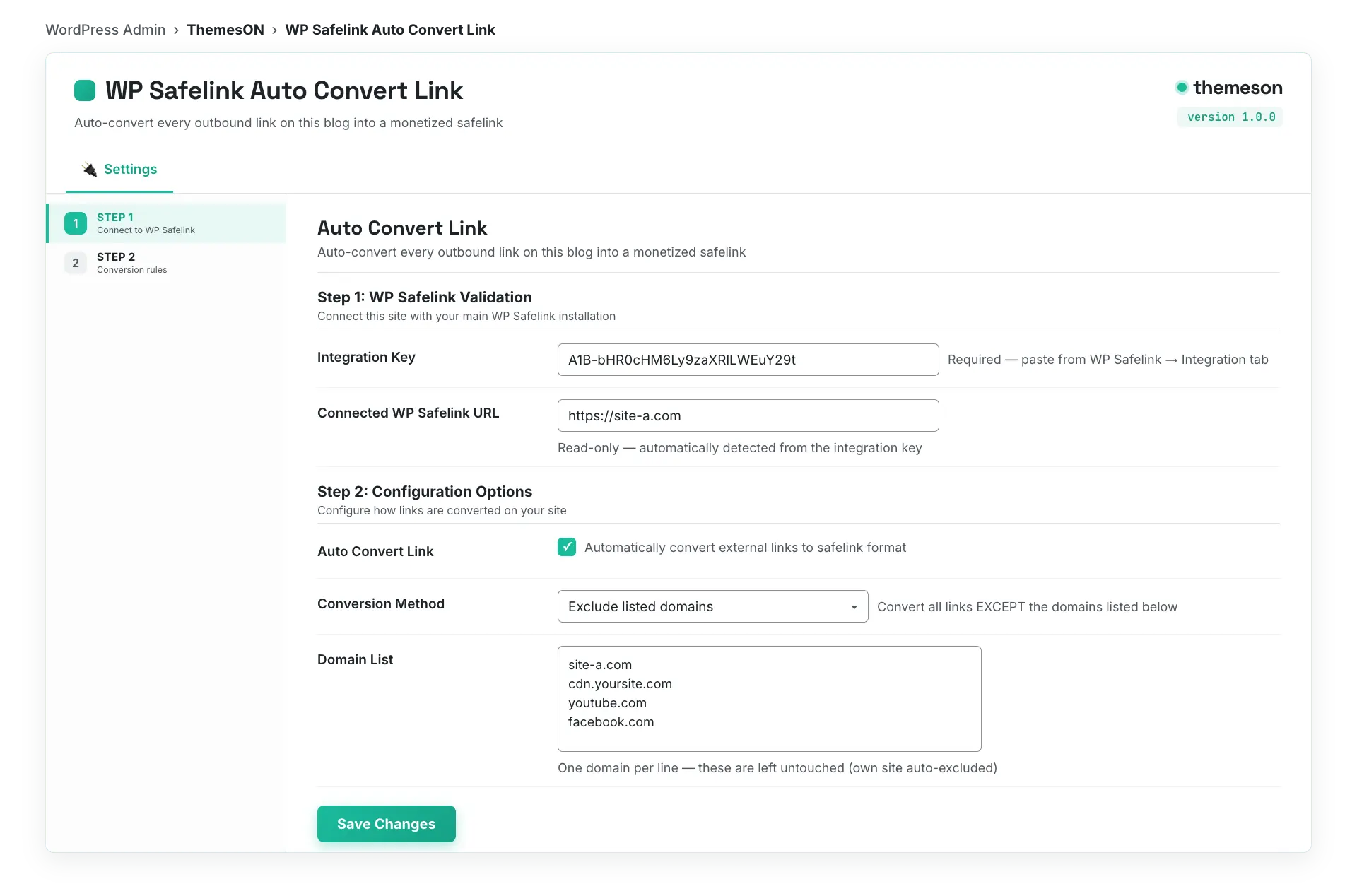
#Re-validating or changing the key
- Use Change Key to edit a key and re-pair to a different WP Safelink Pro site.
- If a validation is more than 30 days old, a “Last validated … ago” hint appears nudging you to re-validate. Nothing expires automatically — conversion keeps running — but re-validating confirms the connection is still healthy.
💡 Note: Validation does two things behind the scenes: it decrypts the Integration Key locally to find your WP Safelink Pro URL, then calls that site to confirm the pairing is authorized. If you see “Invalid integration key,” double-check that you copied the full key from the Integration tab and that your main site is online and licensed. Until validation succeeds, the conversion options stay locked and no links are rewritten.